Performing a Search
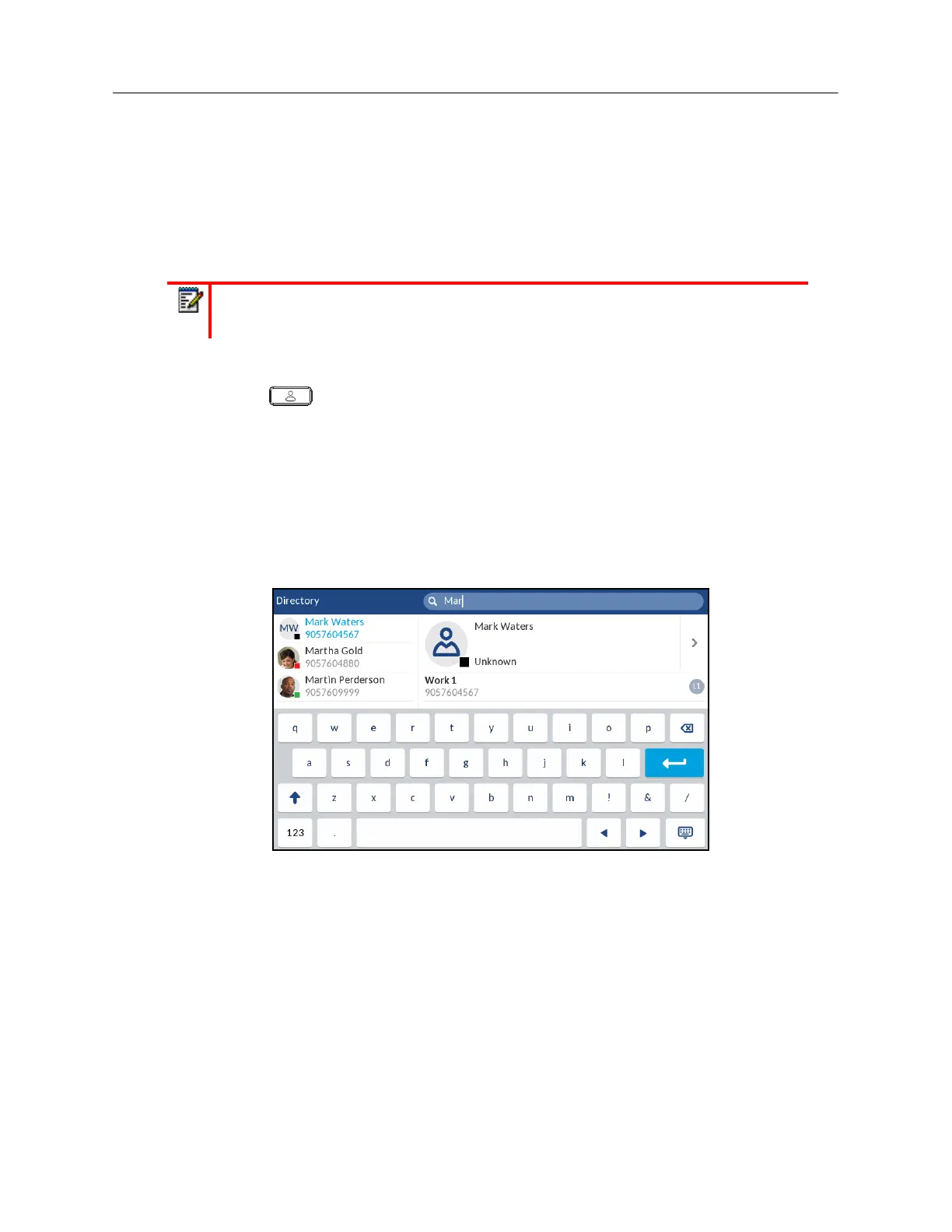
Search functionality is applied across all the available and enabled directories. Pressing on any
dialpad key or pressing the search bar initiates the search. After entering the first few letters of the
contacts first name, last name, or company name, you can then quickly select a contact and perform
the desired action. If external Directory sources are configured and enabled, you can select a contact
from the consolidated “All” folder to perform an action, or navigate to the contact in the specific
Directory folder to perform the desired action.
Use the following procedure on the phone’s UI to perform a search.
1.
Press the (
Directory
) key or a softkey configured with Directory functionality to enter
the Directory.
2.
Press the search bar or press a dialpad key to corresponding to the first letter of the desired
contacts’ first name, last name, or company name.
If no external Directory sources are configured or enabled, search matches will be displayed on
the left column with any additional numbers for the respective contact displayed on the right.
If external Directory sources are configured and enabled and the search finds multiple matches,
the entry will be displayed in the
All
folder.
Note:
Depending on how your Administrator has configured the search functionality, you
may need to press a
Search
softkey in order to execute the search function.



 To Next Page