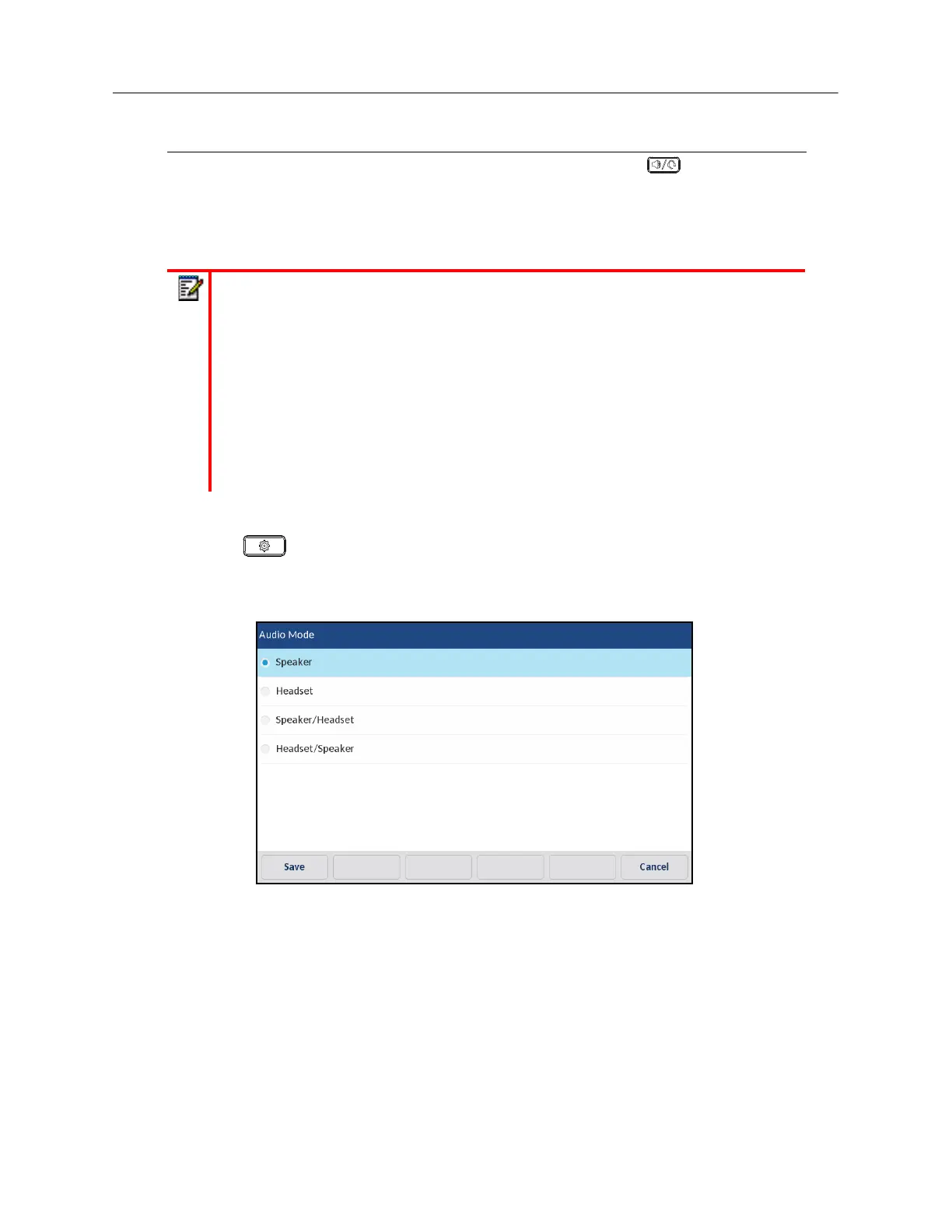
Configuring the Audio Mode Using the IP Phone UI
1.
Press on the phone to enter the Options List.
2.
Press the
Audio
icon.
3.
Press the
Audio Mode
icon.
4.
Choose the desired audio mode. Valid values are:
• Speaker (default)
• Headset
• Speaker/Headset
• Headset/Speaker
5.
Press the
Save
softkey to save your changes.
Headset/Speaker Incoming calls are sent to the headset first when the button is pressed.
By pressing the button again, you can switch back and forth between the
headset and the handsfree speakerphone. At anytime, lifting the handset
switches back to the handset from either the headset or the handsfree
speakerphone.
Notes:
1.
In Release 5.0.0, the 6940 phone model supports auto-audio mode when pairing
with a USB or Bluetooth headset. When the default (Speaker) audio mode is being
used, if a USB headset is connected, or when Bluetooth is enabled and a Bluetooth
headset is paired, the phone automatically switches the audio mode to
Headset/Speaker. You can manually change the audio mode to any of the other
audio modes, but if you change it to Speaker, upon reboot, the phone will detect the
headset and revert back to the last known Headset-related audio mode.
2.
If a headset is not connected, you can manually change the audio mode from
Speaker to any of the other audio modes, but upon reboot, the phone will detect
that there is no headset and revert back to Speaker audio mode.
Audio Mode Option Description



 To Next Page