SETUP
© 2014 Mold-Masters (2007) Limited. All Rights Reserved.
Revised 1 Oct, 2014
5-3
5.2 Create a rst tool
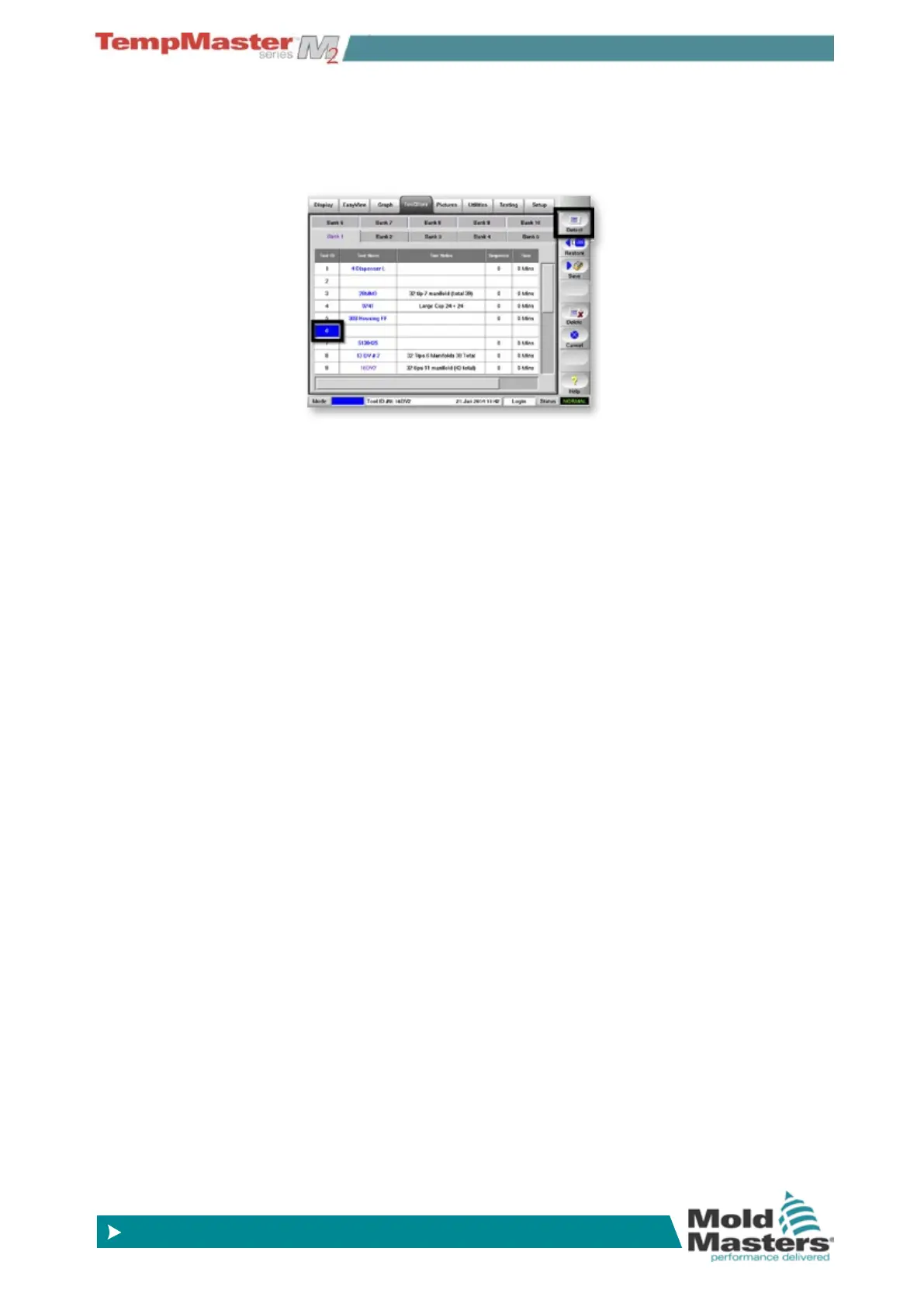
1. Select the ToolStore page.
2. Select a blank sub-tab and choose [
Detect].
3. Enter System password.
4. Type in a new name for the tool and choose [
Enter].
5. If the tool is connected via a Network to any other cabinet, the next
step presents an option to select the local controller (labelled “Se-
rial Port”) or a remote controller (labelled hrcnetx).
If no network connected controllers are detected, then it automati-
cally passes this option and goes straight on to step 6.
6. The console runs an automatic “Card Detect” routine to nd out
what type and how many cards are tted in the selected controller.
Once it has gathered this information then the console opens the
Setup page for you to start conguring the new tool.
7. If the system has any problem running the detect sequence it may
report an “Auto Detect Failed” and ask if you want to repeat the
Detect routine. If the reason for failure is obvious, such as a loose
network cable, or a mains glitch, during the Detect routine, then
you may choose [
OK] to re-try card detection.
8. If the detection routine continues to fail then contact your supplier
for advice.



 To Next Page