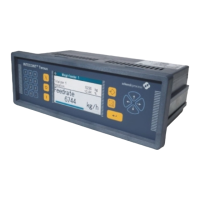
DISOMAT Overview General Control
•
place it on the input position desired with the [LEFT arrow] and [RIGHT
arrow] buttons or it changes its position when editing (current input position):
Input by editing (key-in input):
After being called up, the cursor is at the first point of the input space. You can
NO :
There are two types of inp
• rt input functions, only one input field appears.
er
• ne after the
ld appears (you come
ns to the first.
xit function with [OK] key (e.g. '1:Enter Setpoint').
put, both inputs types can be used one after the
quired.
3.5.2.2 Editing Input Field
Mov g Blo
TE For editing input field, see end of item.
ut functions:
With single-pa
Acknowledge inputs with [ENTER] or [OK] keys and exit function (e.g. 8:Ent
Manual Tare).
elds appear oWith multi-part input functions, multiple input fi
other.
Acknowledge inputs with [ENTER] key; next input fie
back to the previous input space with[SHIFT] + [UP arrow]).
After last input field, program retur
E
NOTE: With a multi-part in
s as reother as many time
a) in ck Cursor
Key Key Action Display
*)
lly After start of input function, cursor norma
stands on first input position, e.g.
[RIGHT arrow]:
Shift block cursor one digit to the right.
Cursor stops on last position.
[LEFT arrow]:
Shift block cursor one digit to the left.
Cursor stops on first position.
[SHIFT] + [RIGHT arrow]: **)
Shift block cursor to field end.
Shift block cursor to field start.
[SHIFT] + [LEFT arrow]: **)
*)
The menu functions and all corresponding dialog steps are displayed one
after another on scales with a 1-line display.
**) Use these key combinations to step 20 digits to the right or left from current cursor
position. With
end.
fields of up to 20 digits, this corresponds to a step to field start or field
BV-H2313 GB 0630 DISOMAT
®
Opus – Operating Manual
- 22 - © Schenck Process GmbH, Darmstadt



 To Next Page