A2537-002/01 February 2020 4-3 SEMCO Proprietary Information
4.1.2 RF Frequency Settings Using the SLTS Program Remote GUI
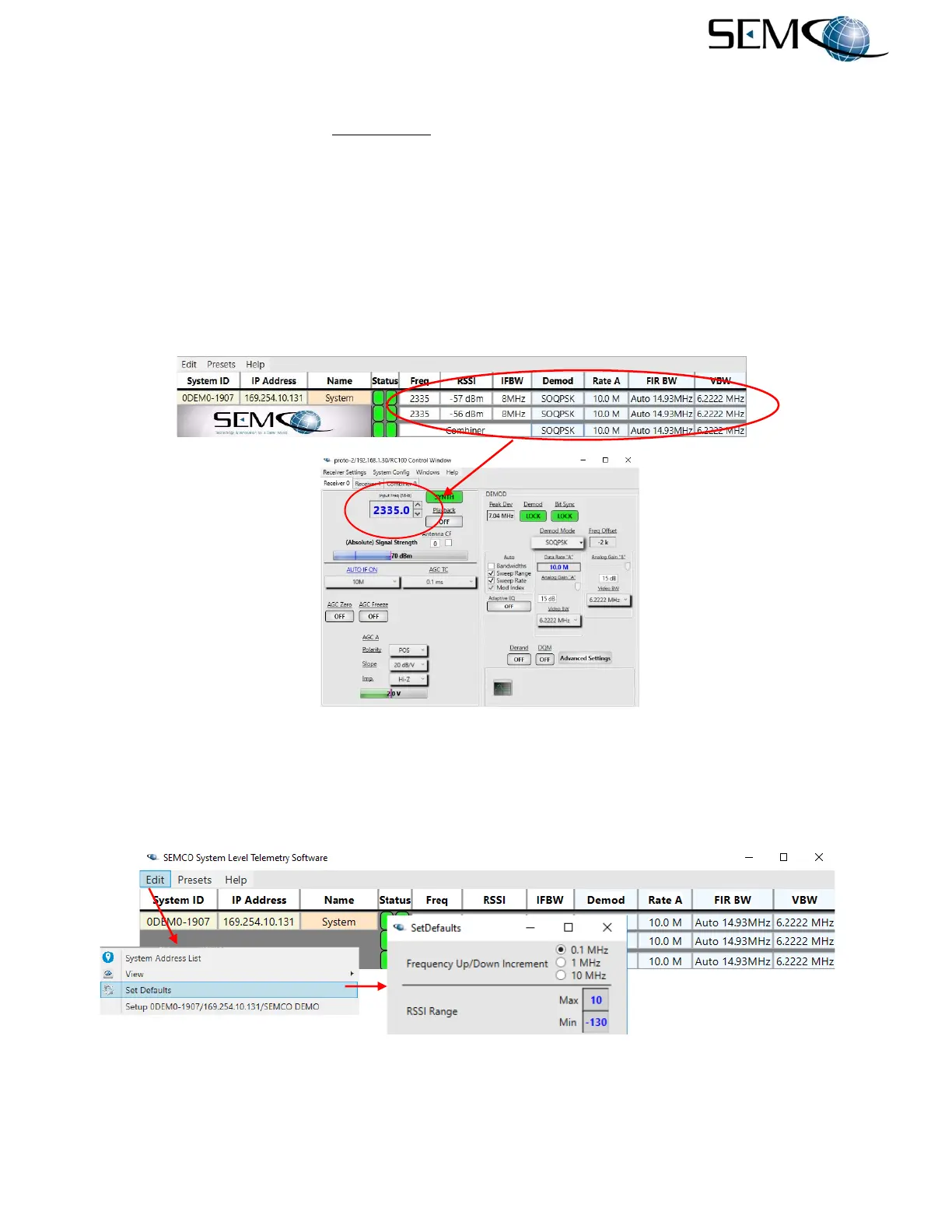
Referring to Figure 4-5, the user double-clicks on any information window in the SLTS Receiver Status
Window, which accesses the Receiver Control Window as shown. The user then clicks on either
Receiver 0 or Receiver 1 (if not named differently using the Naming Options feature) as shown, which
accesses the receiver set-up window for CH1 or CH2. Next, the user clicks on the Input Freq (MHz) box
circled in red, erases the frequency, types in the new frequency and hits Enter. The box will return to gray
when the new frequency is accepted.
The SYNTH window to the right of the Frequency box indicates a green LOCK when the receiver is capable
of tuning to different frequencies, and a red UNLOCK when either the 10 MHz reference is not functioning
properly or there is an RF Tuner malfunction. The user is not able to select a frequency when this situation
occurs.
Figure 4-5
Remote GUI Frequency Selection
The up-down arrows to the right of the frequency box are used to step the frequency in 0.1 MHz increments.
The user can change the frequency increments to 1.0 or 10.0 MHz by selecting Edit, Set Defaults and
clicking on the desired Frequency Up/Down Increment as shown in Figure 4-6.
Figure 4-6
Frequency Up/Down Increment Selection on Remote GUI


 To Next Page