A2537-002/01 February 2020 6-25 SEMCO Proprietary Information
Figure 6-35
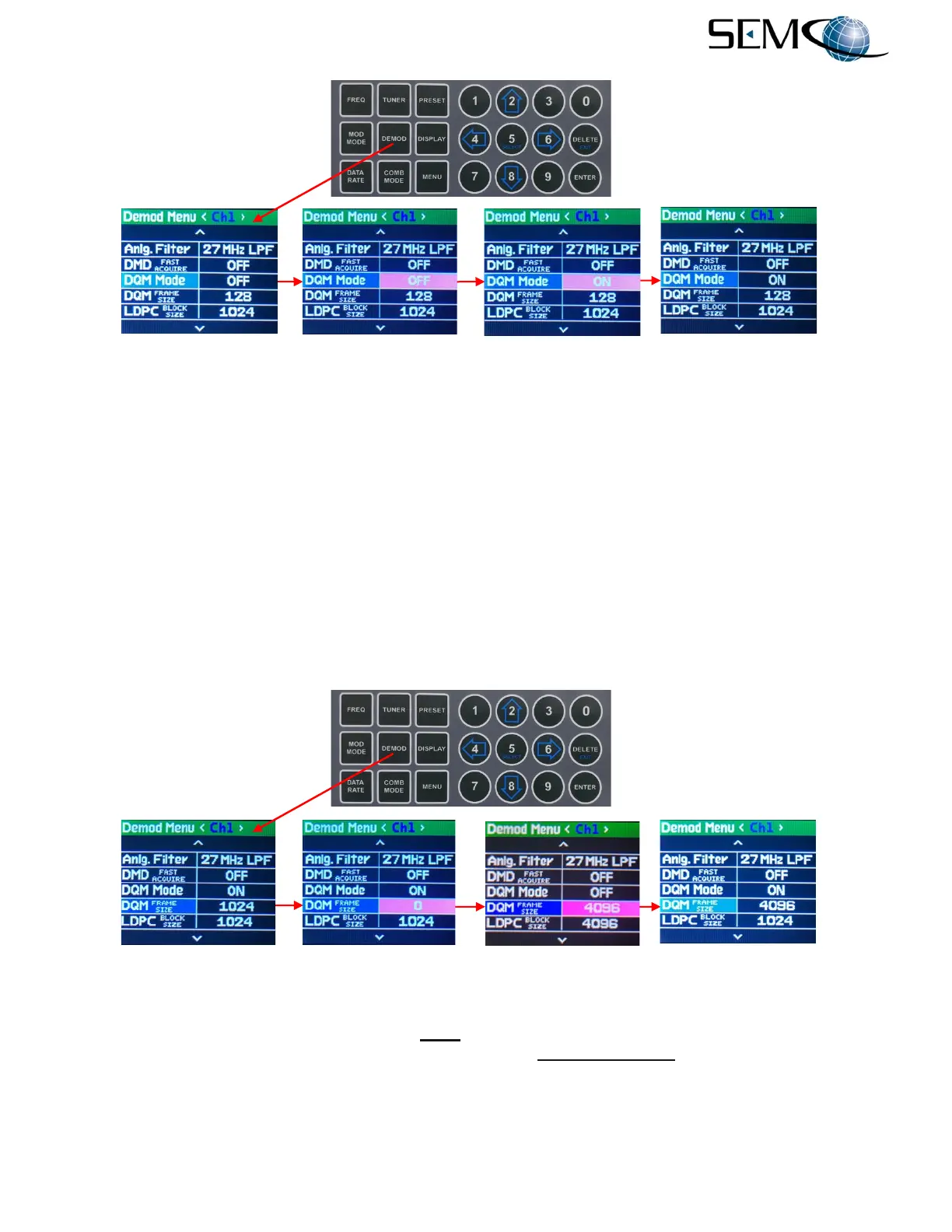
DQM ON/OFF using Front Panel LCDs and Keypad
Figure 6-36 shows how to enter the DQM Frame Size using the Front Panel LCDs and Keypad.
For entering DQM Frame Size, the operator uses the UP (2) and DOWN (8) arrows to scroll to DQM
FRAME SIZE and then pushes ENTER or SELECT (5) to highlight the selection window in bright
magenta. The operator then uses the numerical keypad to enter the FRAME SIZE value (between 1024
and 16384 bits) and pushes ENTER or Select (5).
Using the horizontal LEFT (4) and RIGHT (6) arrows, the operator selects <Ch2> and then pushes ENTER
or SELECT (5) to highlight the respective selection window in bright magenta. The operator then uses
the numerical keypad to enter the FRAME SIZE value and pushes ENTER or Select (5).
The operator repeats these steps for <Comb>.
Figure 6-36
DQM Frame Size Using Front Panel LCDs and Keypad
Using the remote GUI, the user clicks on the DQM window, which toggles ON/OFF as shown in Figure 6-
37. The user then clicks on Advanced Settings to access DQM Frame Size, types in the Frame Size
value and clicks on Keyboard return.


 To Next Page