Cirklon Sequencer User Manual
For example, if you select a view timebase of 8, then set last step to 11, you have in effect set a
time signature of 11/8 for your pattern.
If you change the view timebase to 16, the first part of each bar will be shown across 12 steps,
and the second over 10 steps, rather than as two halves of 11 steps each.
This ensures the two 16
th
note steps required to show each of the 8
th
note steps at the signature
timebase appear together.
GANGing Notes in CK Edit
CK edit offers the ability to select multiple notes for editing at the same time, in a similar way
to the GANG function provided in P3 edit.
Note that in P3 edit, the gang function selects which steps are to be edited in parallel.
When ganging notes in CK edit, it is the individual note events which are marked as ganged.
This allows some of the notes on a single step to be ganged and their values edited together,
without un-ganged notes on the same step being affected.
Let’s gang some of the notes in our example pattern.
Return to grid view, and select the row for note C 4.
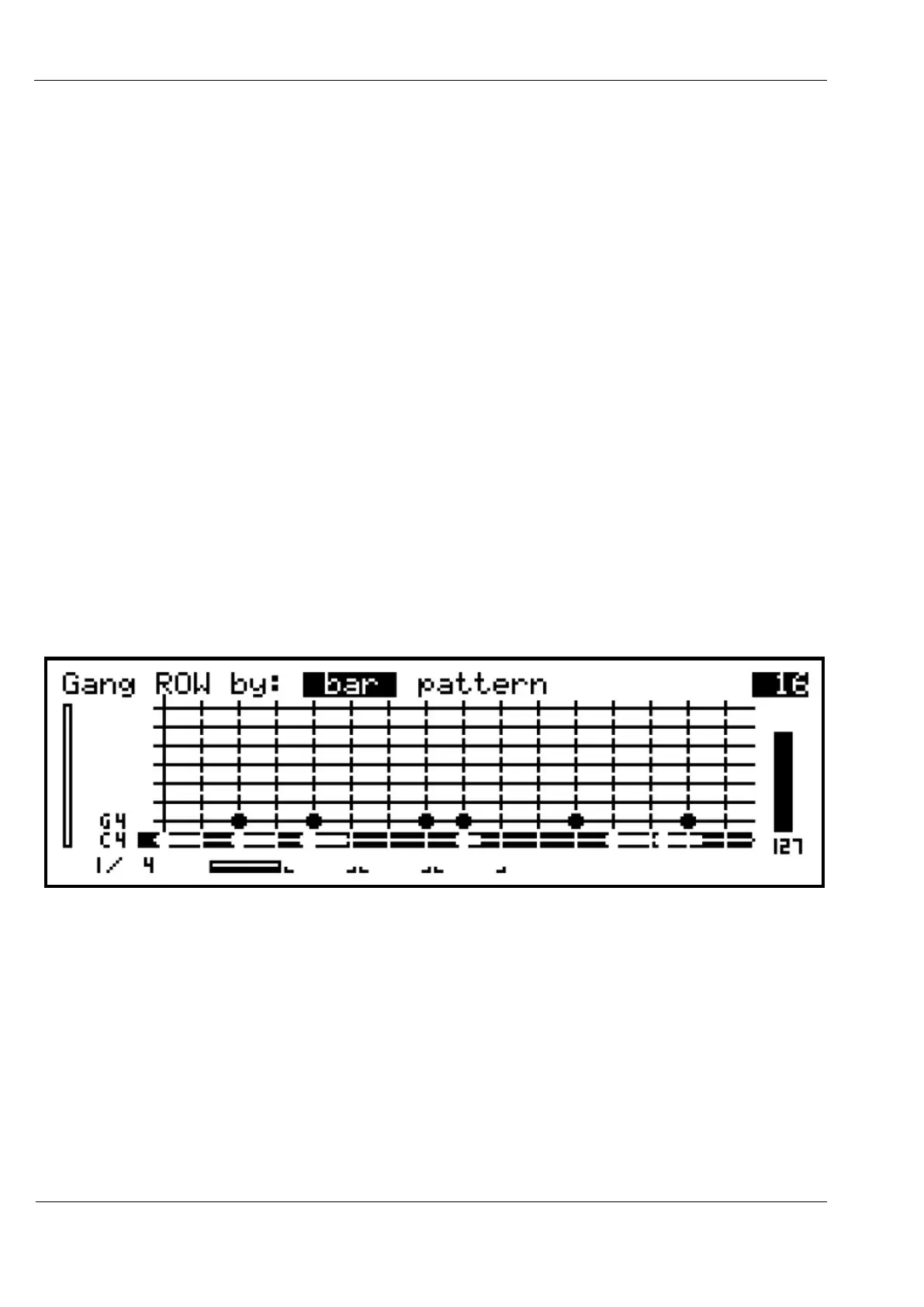
Then press and hold the GANG key. The display will change to look like this:
The top line of the display shows the text, “Gang ROW by”, which we’ll come back to.
With GANG held, press the step keys for steps 1, 3 and 9. Then release the GANG key.
The GANG key will remain lit, and the encoder LEDs above steps 1, 3 and 9 should also be lit
in green, or amber for a ganged step which was already the current edit step.


 To Next Page