Cirklon Sequencer User Manual
More On Step Editing
Let’s return to step edit, and look at some more advanced operations.
Copy / Insert
Any number of steps in a P3 pattern can be copied to a clipboard, and inserted (pasted) at
another location in the same pattern, or into another P3 pattern.
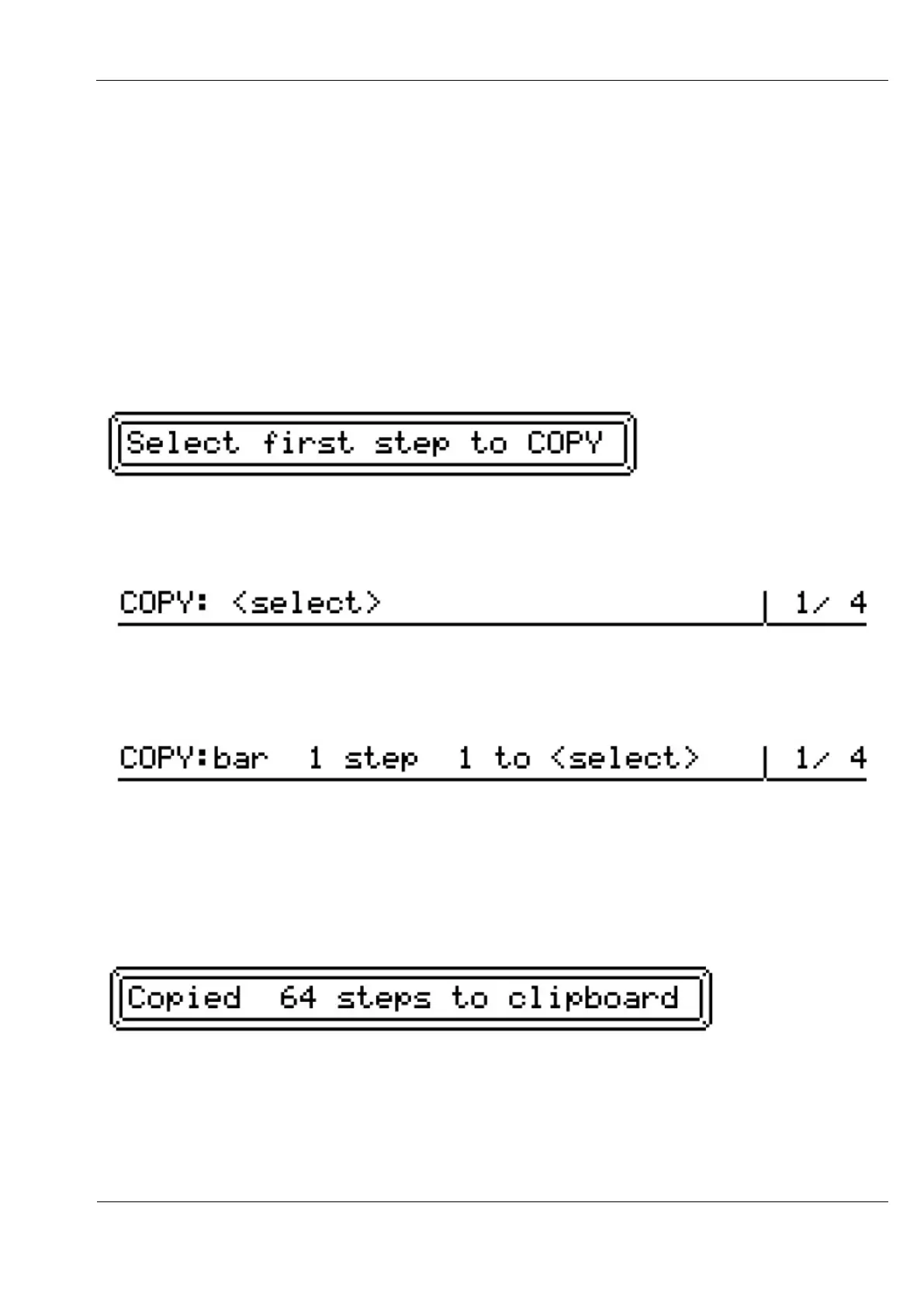
To copy steps, press the COPY key. This message will appear briefly:
The COPY key will flash to show that a copy operation is expected, and the top line of the
display will show:
Press the first step of the section to be copied.
For example, if you press step 1 of the first bar in the pattern, the top line will now show:
Then press the last step of the section to be copied.
Note that you can use the bar encoder to move to another bar of the pattern before pressing
the step key.
As soon as you press the second step key, a brief message will confirm the length in steps of
the copied section:
Now you are ready to insert the clipboard contents elsewhere in the pattern.
Or you can return to play mode to select another pattern for editing if you wish to copy steps
from one pattern to another.
To insert the clipboard contents into a pattern, press the INSERT key.


 To Next Page