Cirklon Sequencer User Manual
To create the first pattern, scroll to “+ create P3 pattern” and press ENTER.
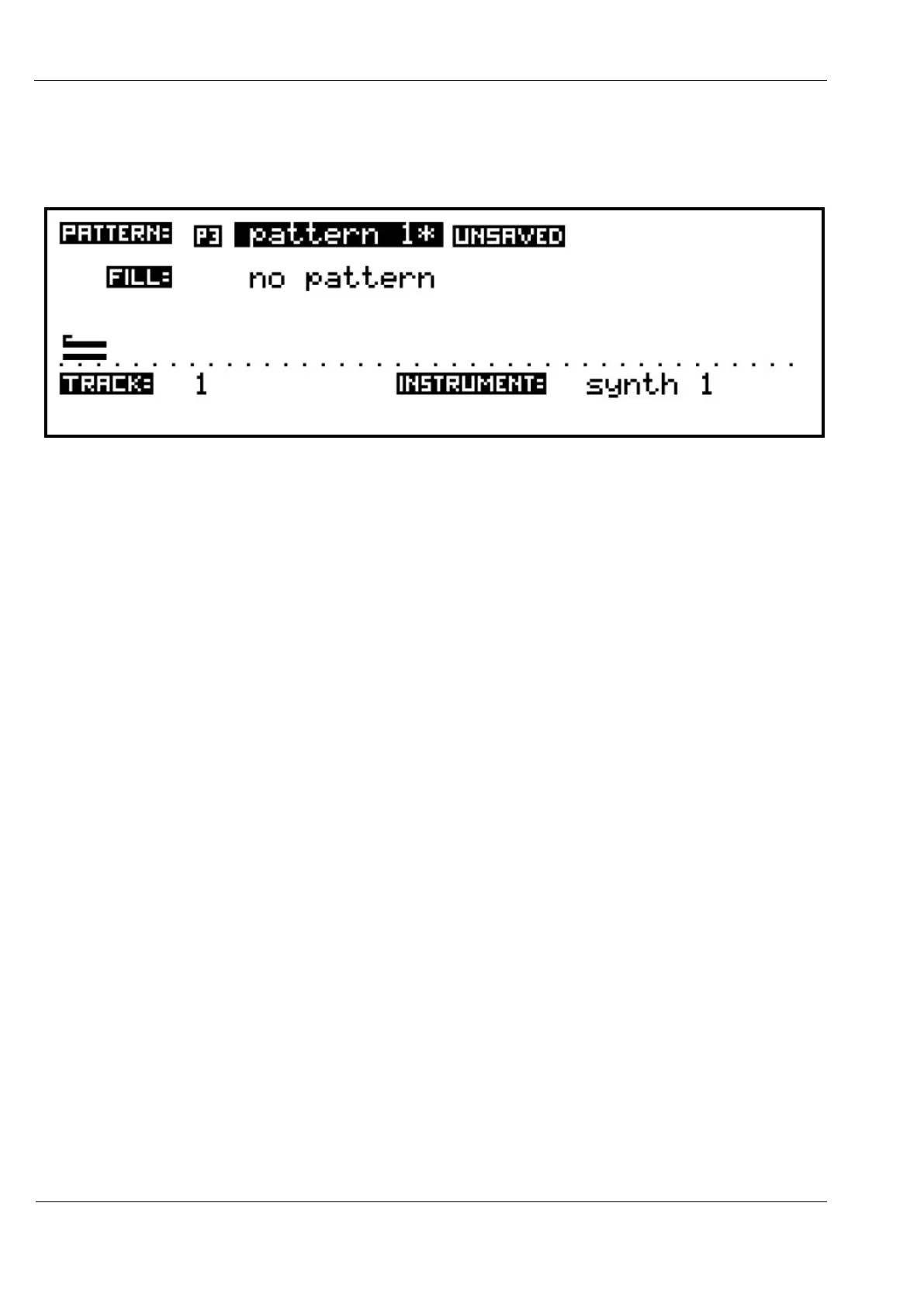
The display will return to the track page, with the newly created P3 pattern assigned to the
track:
The pattern field now shows a symbol for the pattern type (P3), and its default name -
“pattern 1”.
You will also see an asterisk following the pattern name, and a further symbol indicating the
pattern status is unsaved.
If a pattern is used in a number of different scenes in a song, making changes to the pattern
could cause unexpected changes elsewhere in your song.
To prevent this, a pattern may be marked as saved. This can be done manually in pattern
edit, or it will happen automatically when a scene is saved which uses the pattern.
When you edit a saved pattern, an edit copy of the pattern is made.
This means you can easily undo any changes since the point of saving by recalling the saved
version. Or you can save the edited pattern as a new version, leaving the original pattern as it
was before editing.
The asterisk after the pattern name shows that there are unsaved changes to the pattern,
either because it is newly created, or because edits have been made since it was last saved.
The saved status of each pattern can also be seen in the pattern selection list.
If you make changes to any saved patterns and then save the scene, you will be prompted to
choose whether you want to save the changes to the pattern, save-as a new version of the
pattern, skip saving to leave the edit copy in place, or lose the edits.
As well as protecting against unexpected changes to a song, this behaviour also simplifies the
creation of incrementally changing versions of a pattern over the course of a number of
scenes.


 To Next Page