SMARTRG INC. PROPRIETARY AND CONFIDENTIAL. ALL RIGHTS RESERVED. COPYRIGHT © 2018 141
3. To configure the log settings:
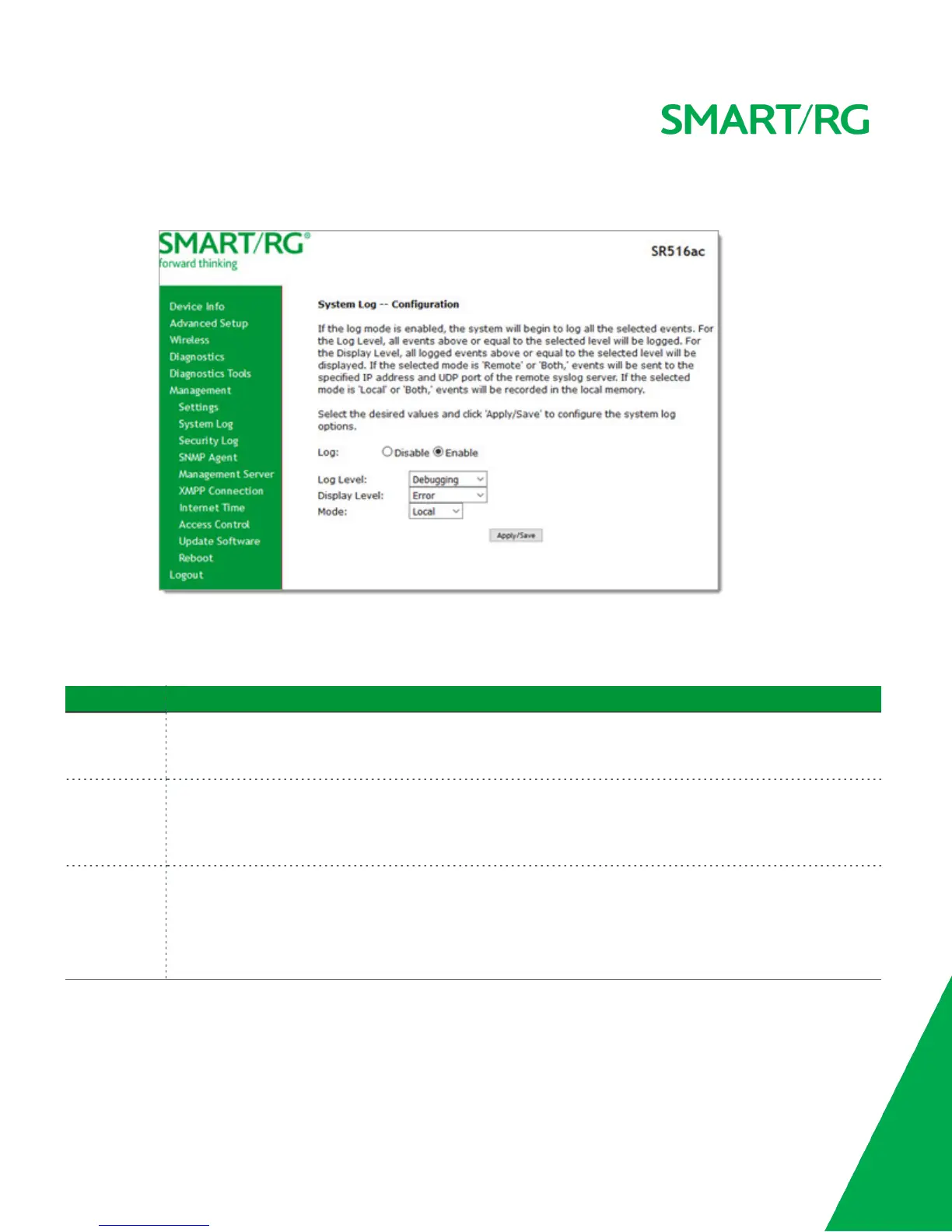
a. Click Configure System Log. The following page appears.
b. Modify the fields as needed, using the information in the table below.
c. Click Apply/Save to save and apply your changes. You are returned to the System Log page.
The fields on this page are defined below.
Action Description
Log Level Select the type of information that you want logged. Options are Emergency, Alert, Critical, Error, Warning,
Notice, Informational, and Debugging. The options are listed in order from least detailed to most detailed. The
default is Debugging.
Display Level Select the level of information that should be displayed. Options are Emergency, Alert, Critical, Error, Notice,
Warning, Informational, and Debugging. The options are listed in order from least detailed to most detailed.
The default is Error. This level is recommended (least verbose) unless you are actively troubleshooting a situ-
ation with a subscriber for which increased detail is required.
Mode Select where log events will be sent. Options are Local, Remote, and Both. Select Remote or Both to send to
the specified IP address and UDP port of a remote syslog server. Select Local or Both to record events in the
local memory of your gateway. The default is Local.
When you select Remote or Both, additional fields appear. Enter the IP address and port number for the
remote syslog server.
Security Log
The security log contains a history of events related to sensitive access to the gateway. Logged events include:



 To Next Page