SMARTRG INC. PROPRIETARY AND CONFIDENTIAL. ALL RIGHTS RESERVED. COPYRIGHT © 2018 6
Getting Familiar with your Gateway
This section contains a quick description of the gateway's lights, ports, and buttons to help you get familiar with the
SR516acmodel.
LED Status Indicators
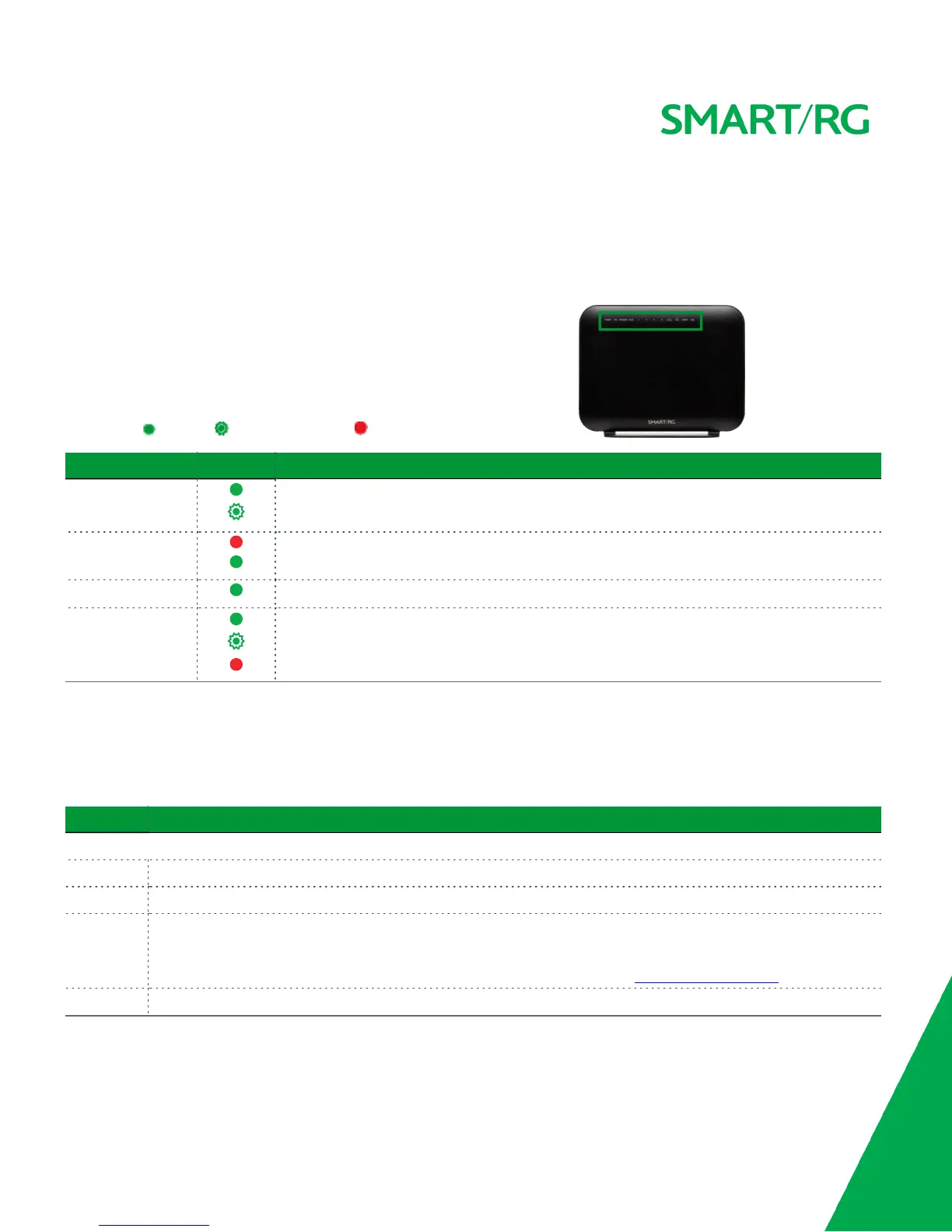
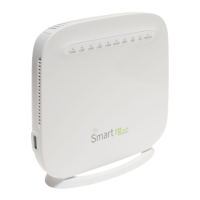
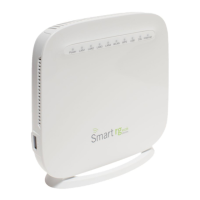
The indicator lights (LEDs) on the front of the SR516ac gateway
can help you understand the state of your gateway.
Legend:
Green
Green Blinking Red
LED Action Explanation
All LEDs except those
listed below
Feature enabled &/or working correctly
Data being transferred
POWER Unit is booting up & preparing for use. When the unit is ready, the light changes to green.
Device powered on and ready for use
DSL DSL connected
INTERNET DSL sync acquired and gateway on line
Data being transferred
Internet authentication / connection has failed
Connections
The ports located on the back of the gateway and the buttons and ports located on the left side of the gateway, are described
below.
Feature Description
Rear panel
DSL This grey RJ11 port is used to connect your gateway to an Internet provider via a DSL service.
LAN 1 - 4 The yellow RJ45 ports can be used to connect client devices such as computers and printers to your gateway.
WAN The blue RJ45 port is used to hard-wire your gateway to another network device.
For models with both WAN and DSL ports, when your Internet connection is via DSL, you can configure the WAN
port to function as an additional LAN port. For detailed instructions, see the Ethernet Mode section of this manual.
USB 1 Can transfer data, act as a printer interface, and handle a 3G accessory.



 To Next Page