SMARTRG INC. PROPRIETARY AND CONFIDENTIAL. ALL RIGHTS RESERVED. COPYRIGHT © 2018 77
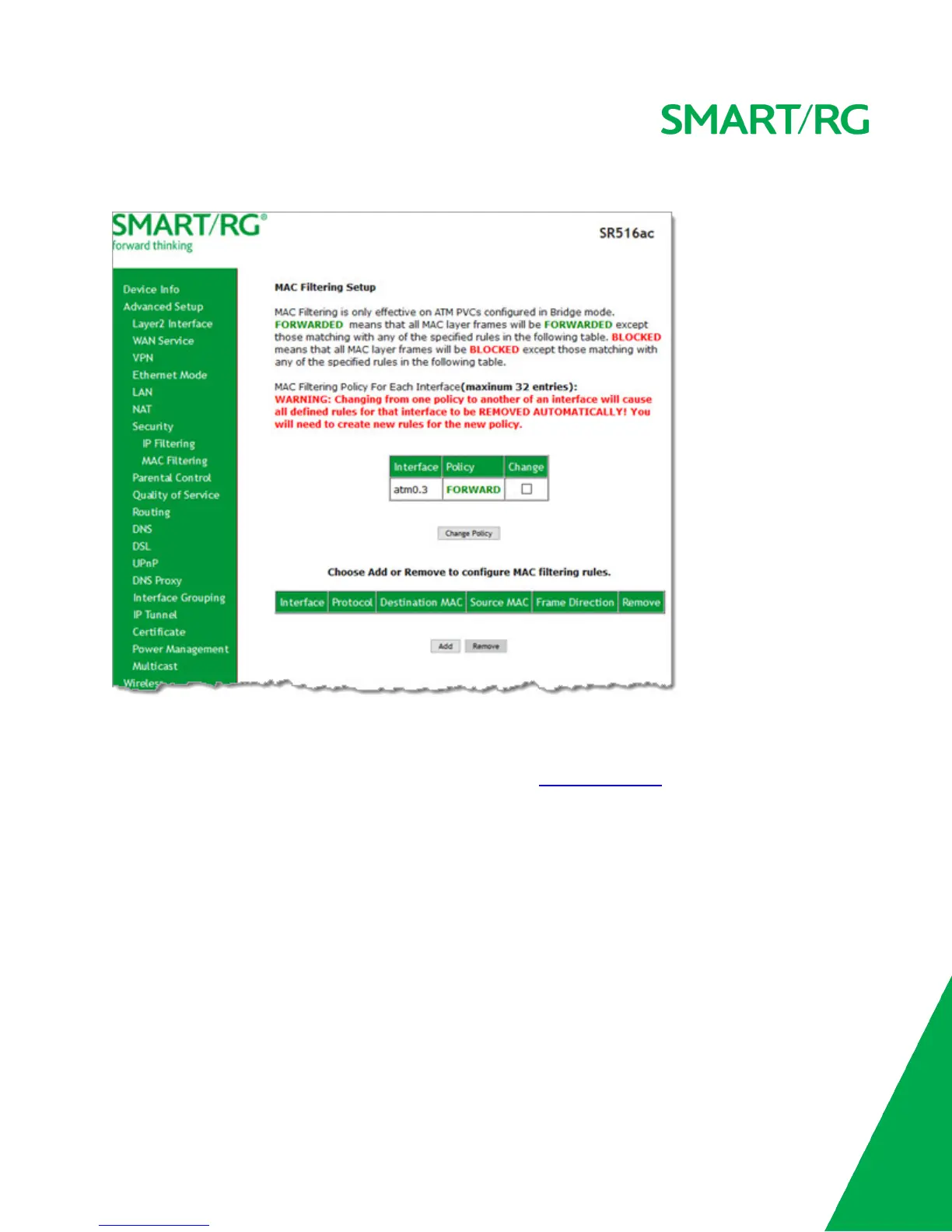
1. In the left navigation bar, click Advanced Setup > Security > MAC Filtering. The following page appears.
2. To modify settings for an existing policy, click the Change checkbox next to it, and then click Change Policy. Options are
BLOCKED and FORWARD. The page refreshes, showing that the action has changed. The Change Policy button acts like a
toggle switch, clicking it switches the policy from BLOCKED to FORWARD and back again.
3. To add a MAC filtering rule, click Add and follow the instructions in Adding a MAC Filter.
4. To remove a rule, click the Remove checkbox next to the rule and click Remove.
5. When your changes are completed, click Apply/Save to commit your changes.
Adding a MAC Filter
You cannot edit rules but you can add new ones and then remove the obsolete ones.



 To Next Page