SMARTRG INC. PROPRIETARY AND CONFIDENTIAL. ALL RIGHTS RESERVED. COPYRIGHT © 2018 119
5. To remove a MAC address from the list, click the Remove check box next to it and then click the Remove button. The list
refreshes.
Wireless Bridge
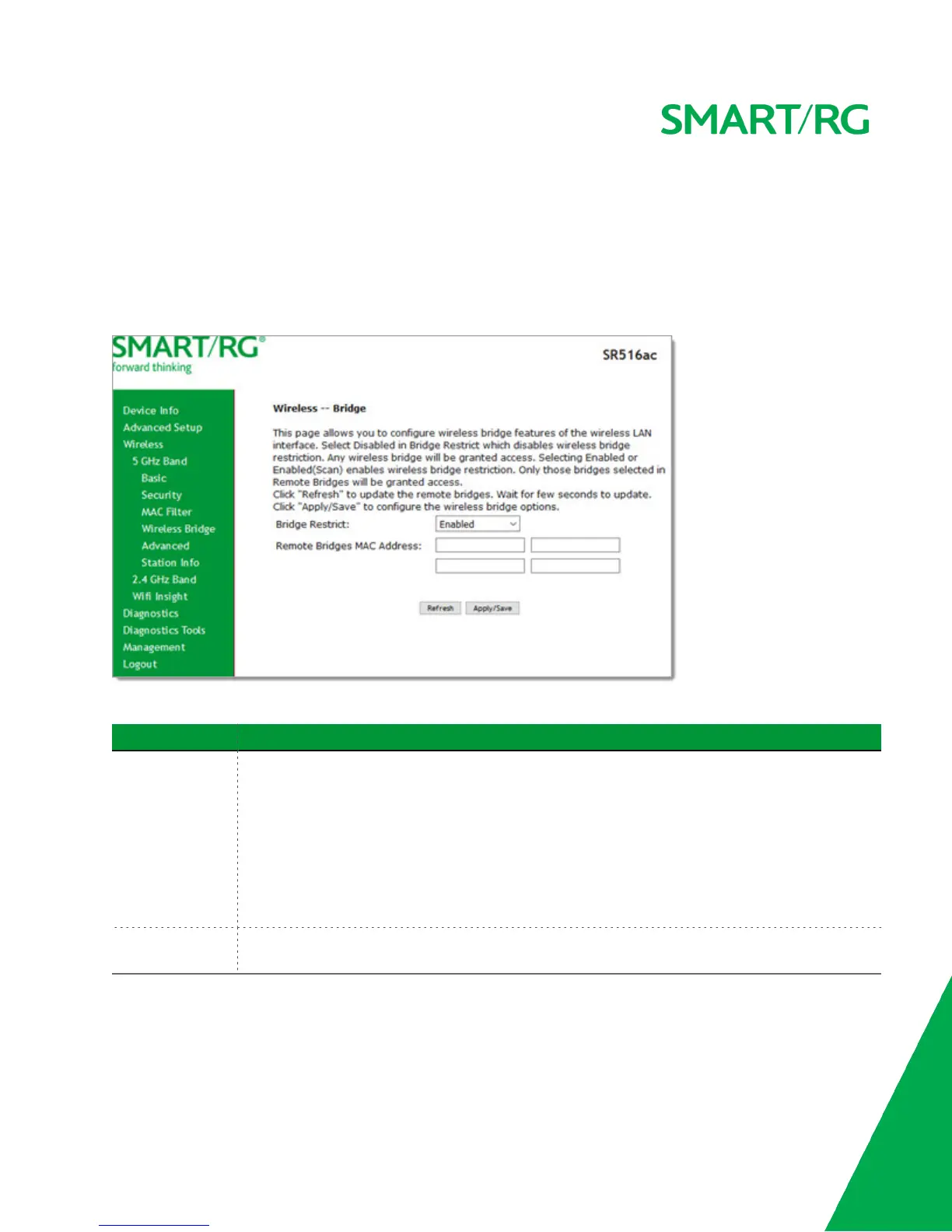
On this page, you can configure the wireless bridge features of the wireless LAN interface.
1. In the left navigation menu, click Wireless > Wireless Bridge. The following page appears.
2. Modify the fields as needed, using the information provided in the table below.
Field Name Description
Bridge Restrict Enable or disable the bridge restrict function for MAC addresses in the Remote Bridges MAC
Address field. Options are:
l Enabled: Allow only those bridges selected in the Remote Bridges MAC Address table to
access the wireless LAN. This is the default.
l Enabled (Scan): Allow only those bridges selected in the Remote Bridges MAC Address
table to access the wireless LAN but the scanning feature is active.
l Disabled: Disable the wireless MAC address filtering function. Any wireless bridge can access
the wireless LAN.
Remote Bridges
MAC Address
Enter up to four MAC addresses for the remote bridges that are allowed to access the wireless LAN.
3. Click Apply/Save to save your settings.
Advanced



 To Next Page