41
OPUS Projektor Manual
User Interface
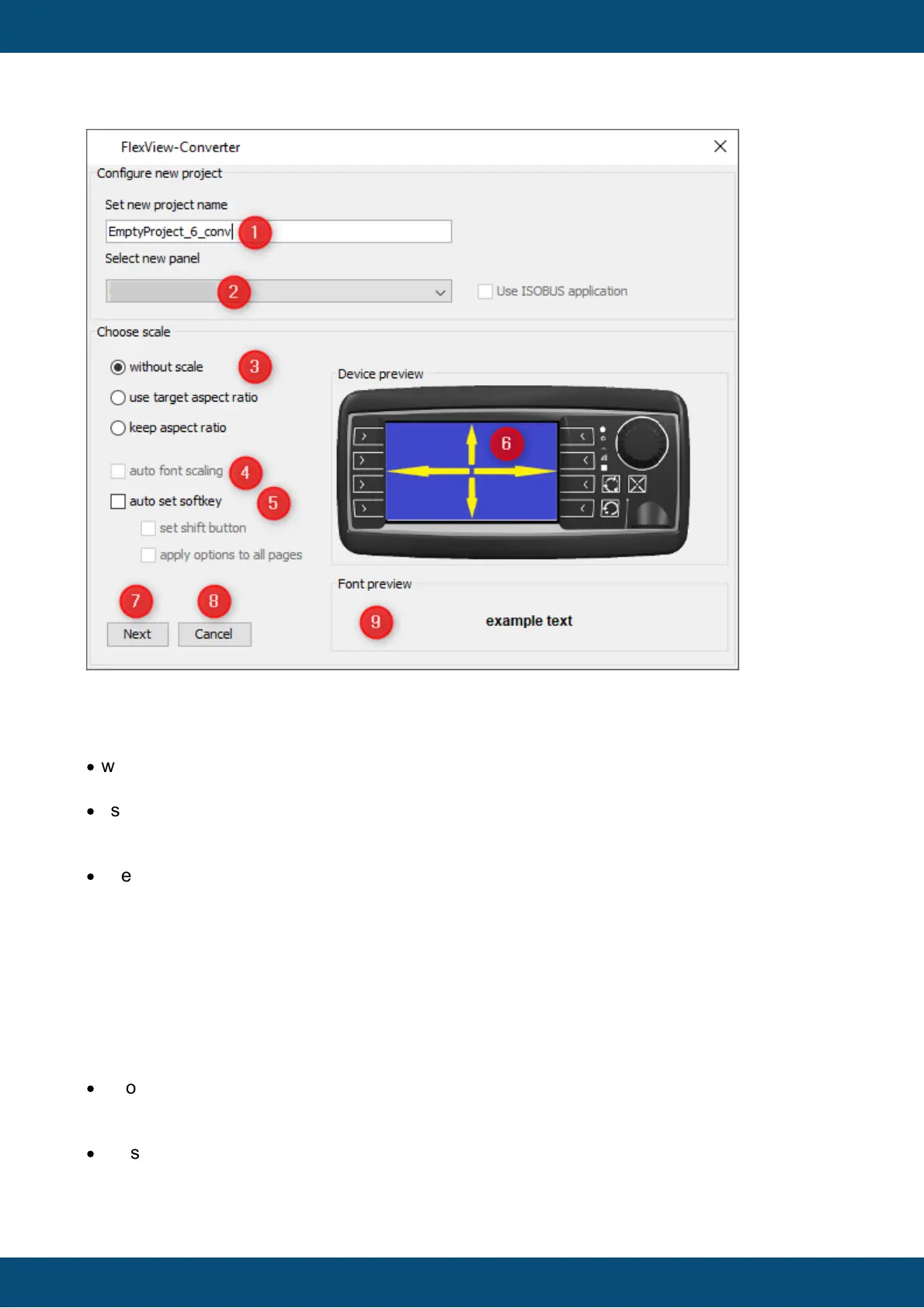
First, you can set the name of the converted project (1).
Next, you can choose the new device type that you want to convert to (2).
Below that, you have three options to scale the page contents (3):
·
without scale (keep the object sizes as they are) -> only available for some device types,
since content for a larger device can't be displayed on a smaller device without scaling them
·
use target aspect ratio (scale objects to the full screen, independent of the existing aspect
ratio -> This will make content full screen, but it might look less good because the aspect
ratio changes
·
keep aspect ratio (scale objects to the full screen, but keeping the existing aspect ratio ->
This will make content full screen, but with a bar on the bottom or side. The aspect ratio will
be kept.
You can see an example preview of how the page content will be scaled in the Device
preview (6).
Next, there is the option for the auto scaling of texts. This is not available if "without scale" has
been selected above. A preview of how test will be scaled can be seen in the lower right (9).
Below that are options for the handling of the soft keys (5):
·
auto set soft key (soft keys will be spread to the new layout automatically) -> Please note
that when converting from a device with more soft keys to a device with less soft keys,
several soft key levels will be created
·
set shift button (if several soft key levels are created, shift up and shift down buttons will be
added to be able to shift between the soft key levels)



 To Next Page