571
OPUS Projektor Manual
Functionalities
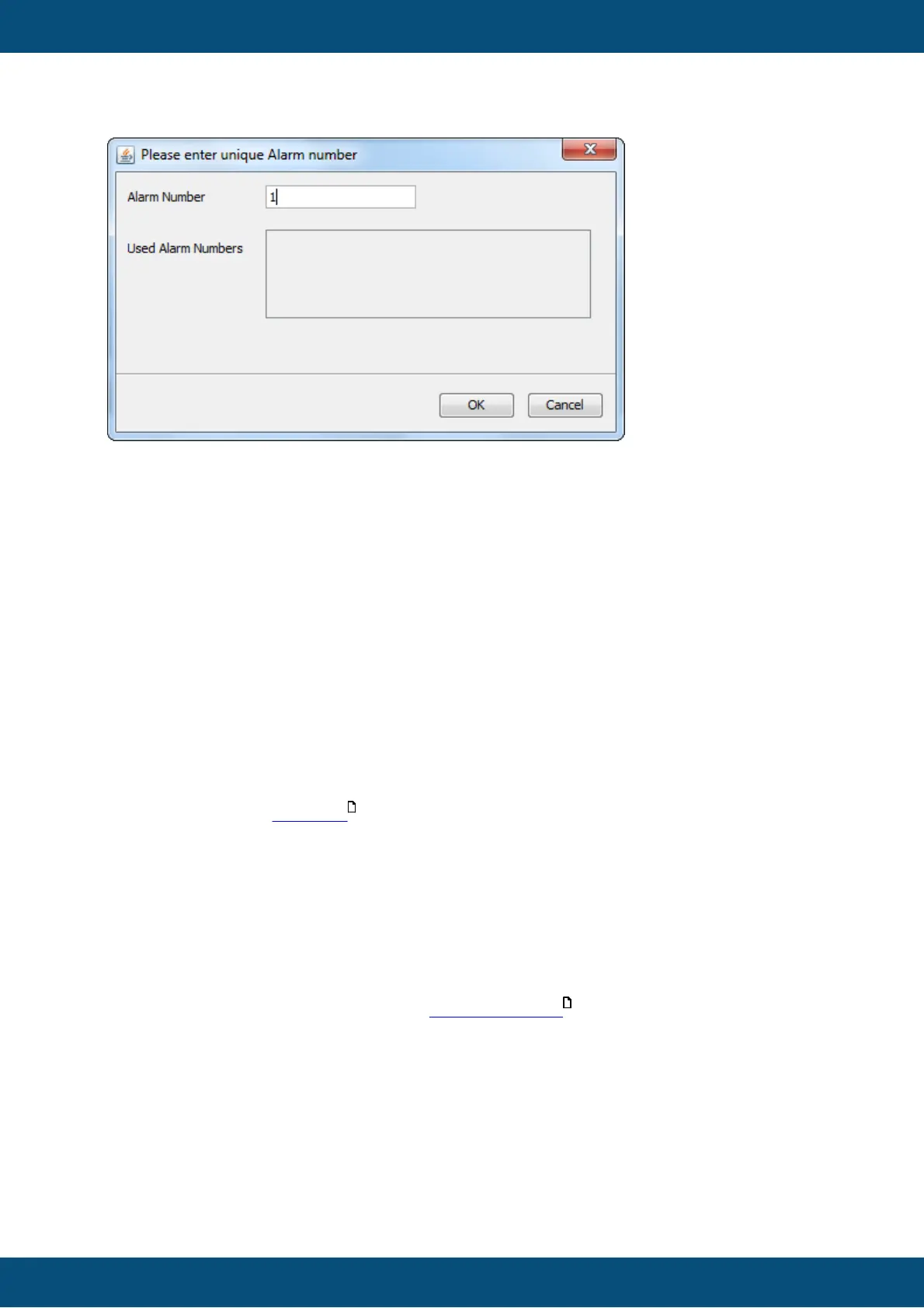
Press OK to create the alarm. The alarm will be listed in the project tree under "Alarms()".
To edit it, double click on the alarm in the project tree. A tab will be opened where you can
create a layout for the alarm similar to a page layout.
Activating and Clearing Alarms
Alarms can be activated by setting the variable @AlarmShow. To activate an alarm, the
variable value has to be set with 0x8000 OR alarm number. In other words, you have to use
an inclusive logical disjunction. The alarm number has to be used in hexadecimal form
here.
Example: To set an alarm with the number 15, you have to set the variable @AlarmShow
to 0x8000 OR 0x000F = 0x800F
To clear an alarm, simply set the variable @AlarmShow to the number of the alarm.
Example: To clear an alarm with the number 45, you have to set the variable
@AlarmShow to 0x002D
Activating and clearing alarms can be done over the CAN bus by including the variable
@AlarmShow in a receive mapping, by calculations in a Javascript or by pressing a
button and using the SetValue action.
Additionally, Warning and Informational alarms can also be cleared by pressing the ESC
key.
Informational alarms can also be configured to close automatically after a certain time.
Active alarms will stay hidden behind other applications such as PDF reader on i.MX 6
based devices.
8.2
Day/Night Mode
With this feature it is possible to switch the theme of objects at run time. The behavior is
similar to modern navigation apps that switch their UI for day or night mode. This has the
advantage that the display shows e.g. only dark colored objects at night to protect the eyes of
the user.
Day/Night Mode can be activated for all visual objects in the palette. It is disabled by default
and has to be enabled for each object or for all objects through the project property settings. If
Day/Night Mode is disabled, the object uses the Day theme only.
440
580



 To Next Page