142
OPUS Projektor Manual
User Interface
Favourites
Symbol images can be set to favourites to be found easier.
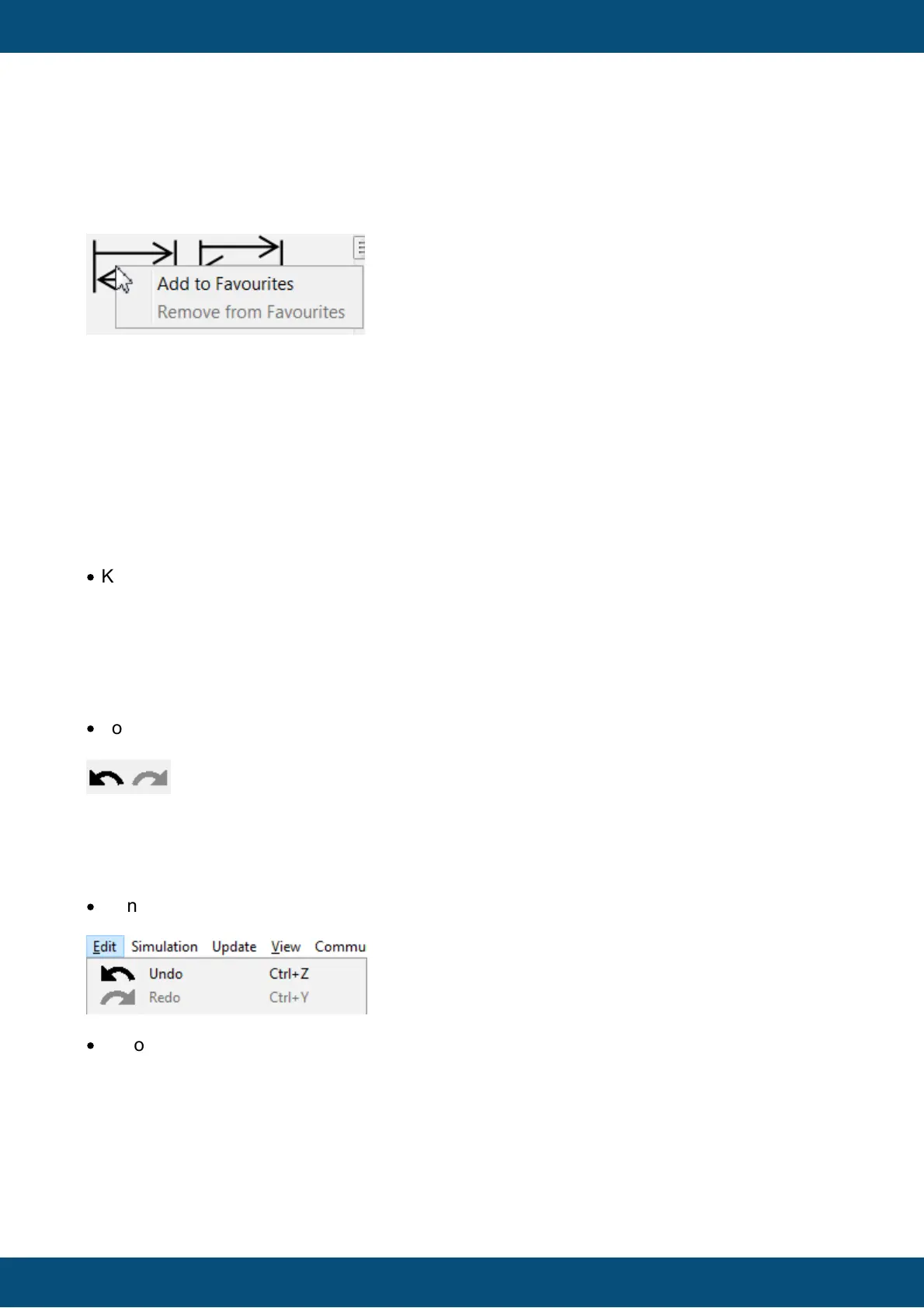
This can be done by right-clicking on a symbol image and choosing Add To Favourites in the
context menu:
This will create a new tab Favourites where this and all other images set to favourites are
displayed.
Images can also be removed from this tab by right-clicking and choosing Remove from
Favourites.
Please note that the favourites are project-independent and will be saved and kept even after
the program was closed.
3.17
Undo/Redo
Undo/Redo can be triggered in several ways:
·
Keyboard shortcuts
oCTRL-Z (undo)
oCTRL-Y (redo)
The program needs to have focus for this to work. It doesn't matter which component in the
program has focus. The step is performed in the currently active project.
·
Toolbar
Press the arrow to the left to undo, press the arrow to the right to redo. Undo is only enabled
when at least one action has been performed. Redo is only enabled when an undo step is
selected.
·
Menu Edit -> Undo/Redo
·
Undo/Redo list in Undo/Redo window



 To Next Page