100
OPUS Projektor Manual
User Interface
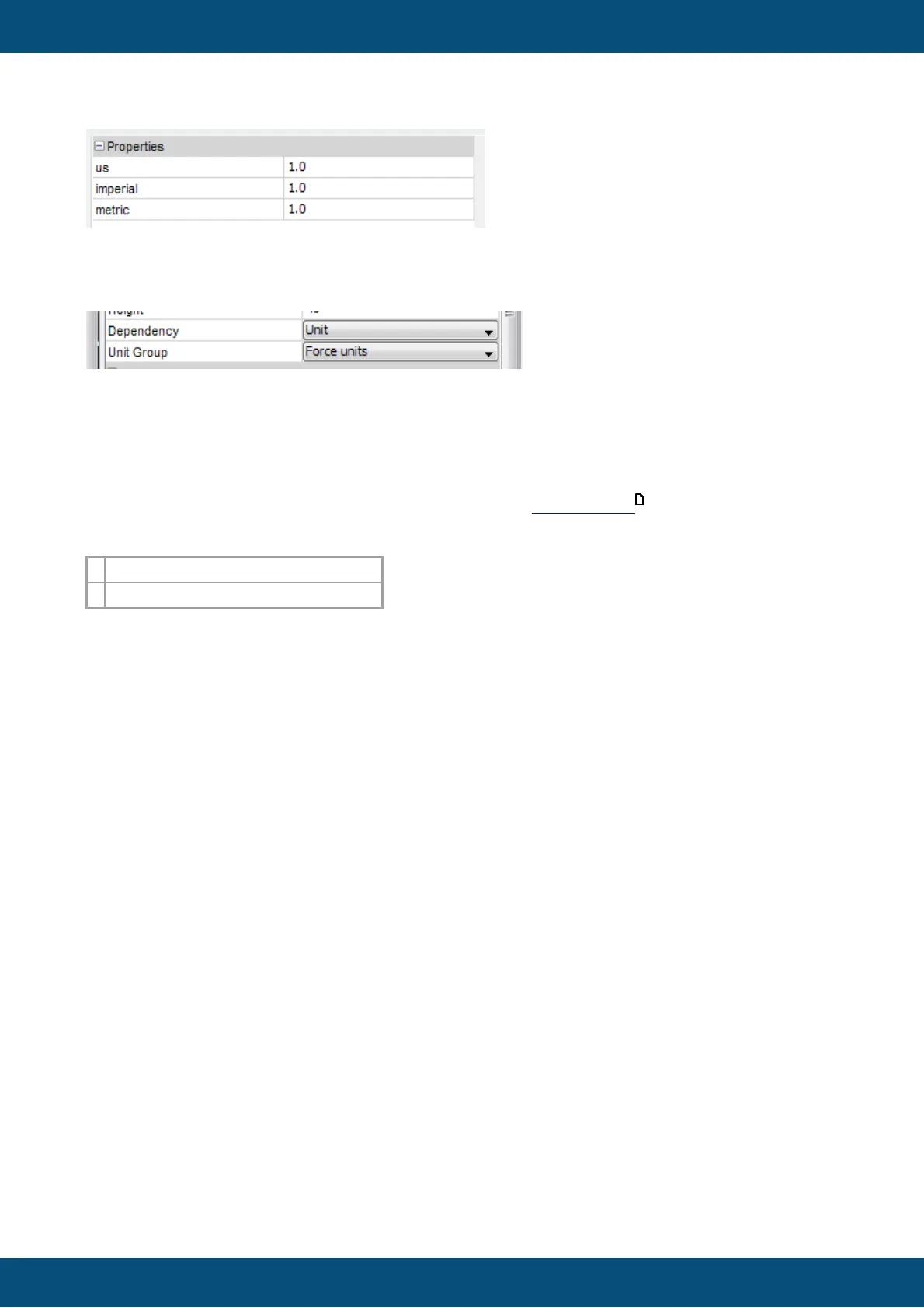
This is the example for the "Scale". Here can now enter the values which shall be used for the
scale depending on the unit which is currently chosen for the unit group.
For example: You choose the unit group "Force Units". Per default this group is selected as
metric, so the scale value entered in the metric field is used. To change this you can make
use of two mechanisms. First you can set the "Current Unit System" within the project
properties (this will only have an effect in the designer, not at run time). The second is that you
can change it during run time with the @SettingsForceUnits variable. Please note that you can
not choose all unit systems for all variables. Please see the variables for details. For the
force unit group you can choose, for example, only: similar to ISO 11783-7, A.23.5.8
So what this feature does, in the end, is switch between different offset and scaling value sets
for objects displaying numerics directly or graphically, and texts for String Fields.
3.11.4
Variable logging
Important note: If you have selected variables inside the variable logging dialog and
delete them outside (e.g. variable list), the variables are not automatically updated. If
you have deleted variables for example with the variable list, please go one time
inside the variable logging dialog and save the project afterwards. Now the lists are
up to date. Do not worry if any variable which is not available at runtime is still in the
list, this is anyway handled at runtime of the device.
Please note: To start the logging on the device, the variable @LogLevel has to be set
to a value >0.
Variable Logging provides the possibility to capture valuable process and sensor data, giving
the insight into past process upsets and events. To configure the Variable Logging use the
main menu tab File | Project Properties and select the Variable Logging category.
174



 To Next Page