·
Check Transparent
·
Check Set As Input
·
Uncheck Draw Target Line
·
Uncheck Draw Ticks
To use the Linear Bargraph to change the display backlight intensity, we need to create a
reference from the Linear Bargraph to the pre-defined variable
@DispBacklightIntensity:
·
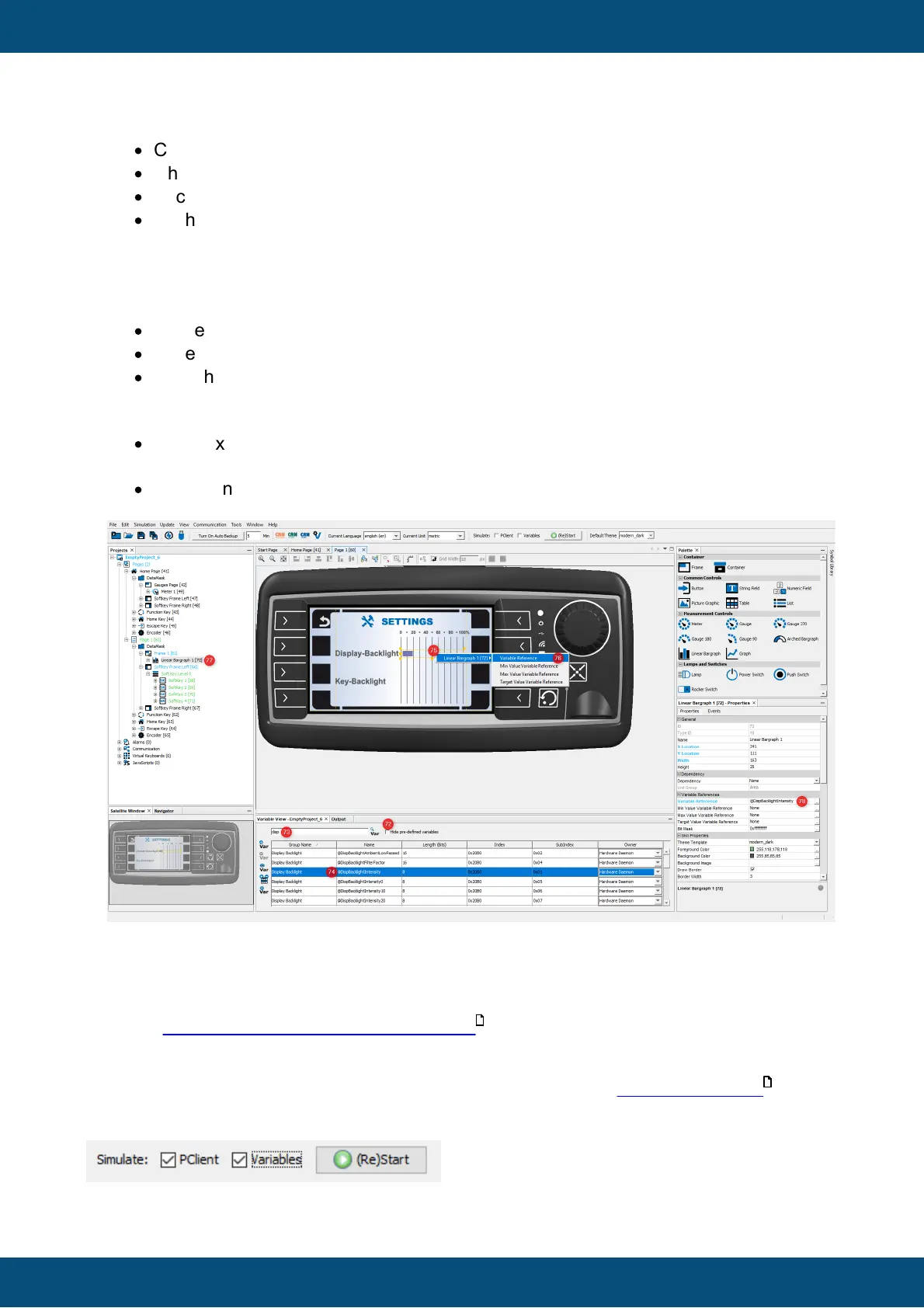
Uncheck Hide pre-defined variables in the Variable View (72).
·
In the Variable View search filed enter: disp (73).
·
Drag the variable @DispBacklightIntensity from Variable View (74) and drop it on
the Linear Bargraph (75). Alternatively, you could drop it on the Linear Bargraph
entry in the project tree (77)
·
A context menu appears. In the first level, select the Linear Bargraph 1 object. In the
second level, choose Variable Reference (76).
·
You can now check in the Properties of the object that the variable is set as the
Variable Reference (78).
When running the project on a real display device, the user can use the encoder to change
the display backlight intensity. The intensity is changed immediately when the user changes
the value of the Linear Bargraph.



 To Next Page