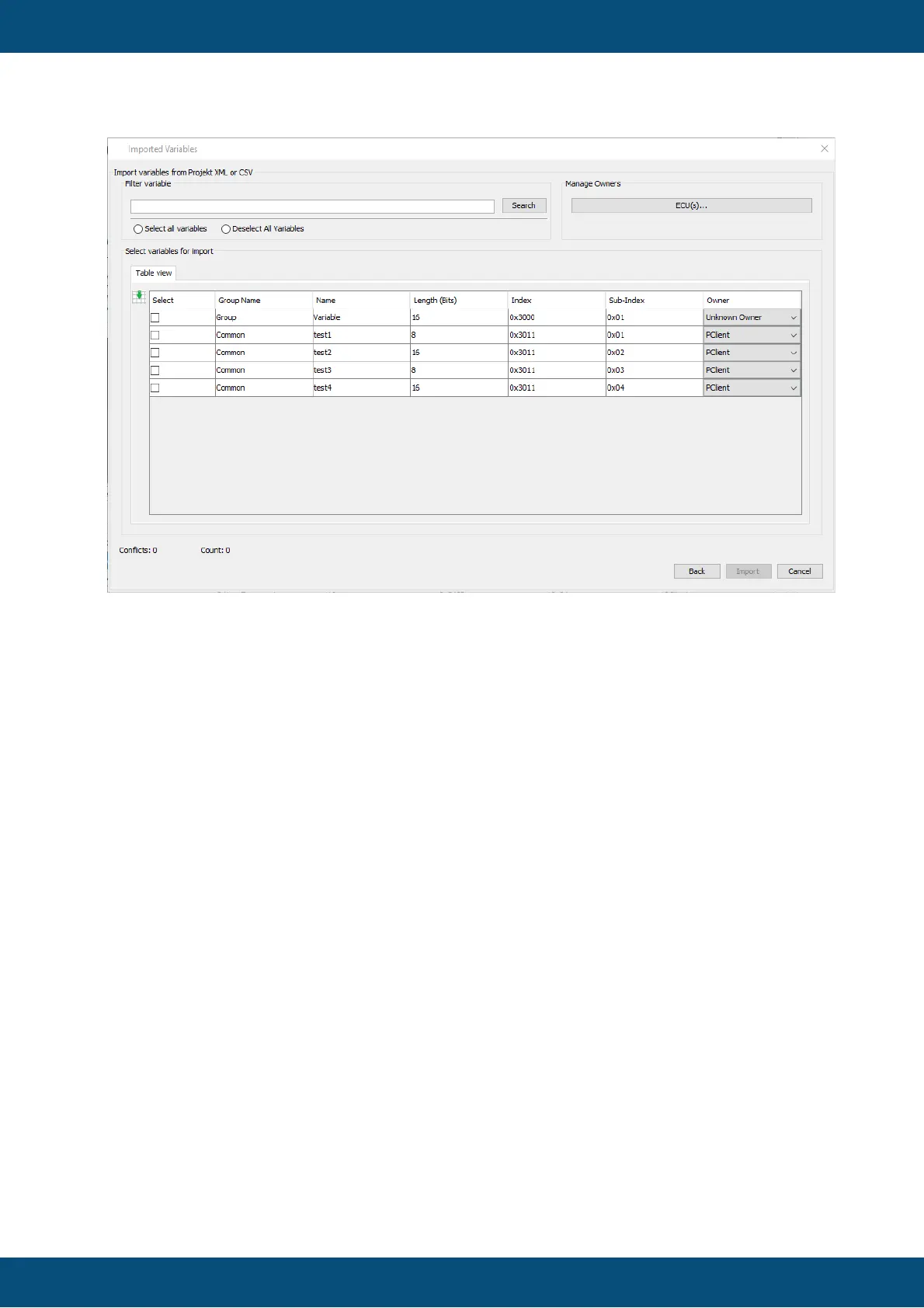
In the Table view tab you can see an overview of the variables with the most important
properties.
In the Filter variable section you can search for variable names live.
With the "ECU(s)..." button you can open the dialog to add ECUs / owners to the project.
Additionally you can modify the owner that the variables are assigned to.
You can select variables by checking the according checkboxes.
Click the "Select all variables" radio button to select all available variables for import.
Click the "Deselect all variables" radio button to deselect all variables for import.
By clicking the "Import" button the variable(s) will be imported.
If there are conflicts with existing variables in the project, those conflicts will be shown in a
dialog and the import process will be stopped. Solve the conflicts and restart the import
process.



 To Next Page