524
OPUS Projektor Manual
JavaScript
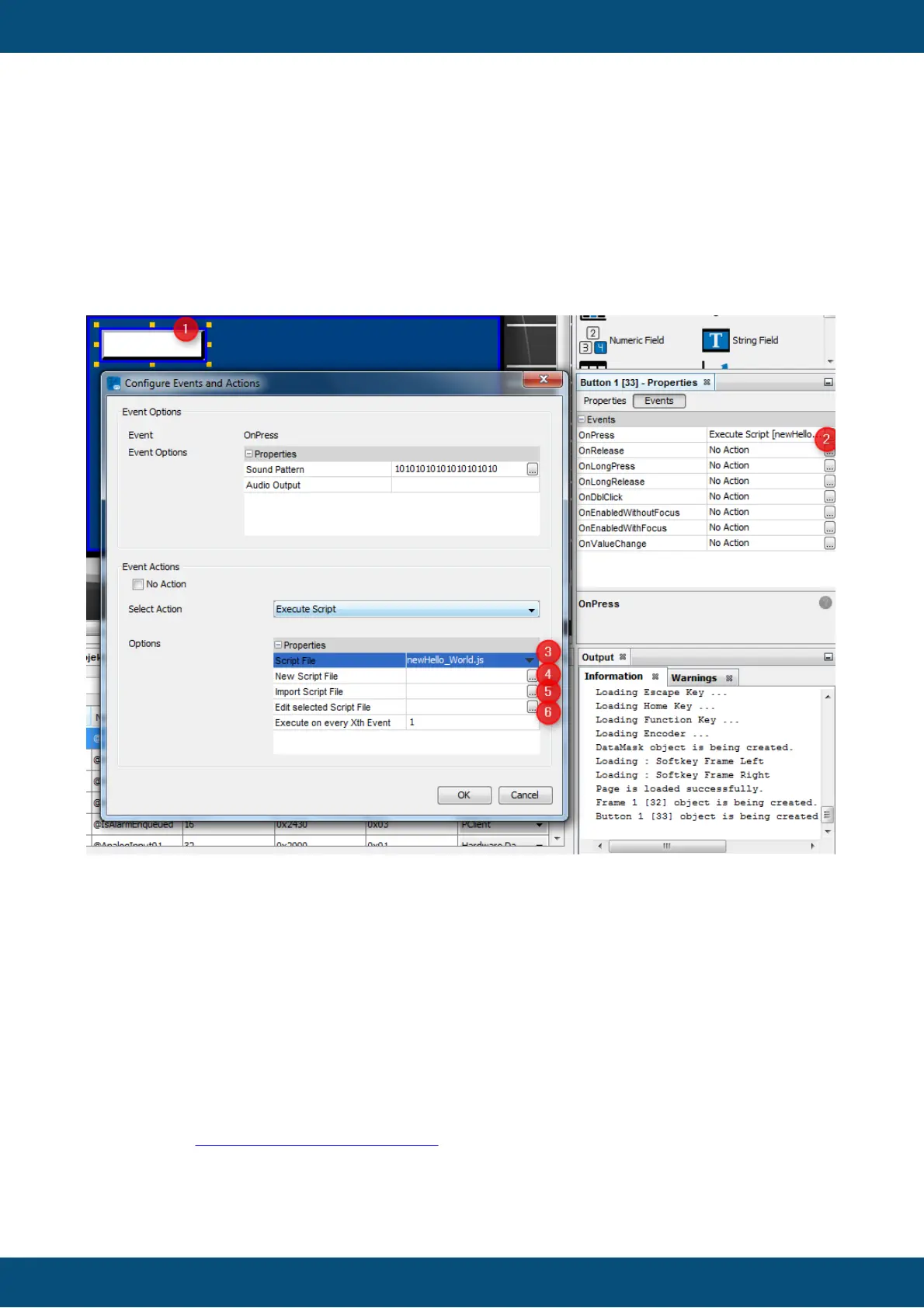
The assigned event will be displayed at the events tab of the Object (1). You can configure
such an Execute Script Action by clicking on the button (2). Here you can choose an
existing Script File (3) for execution or create a New Script File (4). Already existing
JavaScripts can also be used in the project by using the function Import Script File (4). Files
can be modified by clicking Edit selected Script File (5). After selecting the script file it is
possible to configure how often the script shall be executed using the Execute on every Xth
Event field.
If the script shall be executed for the OnPageRepeat or OnProjectRepeat events, the
Period (100 ms) property also needs to be set in the event options. This property defines
how often the script will be called.
Please note that the execution time for repeat actions is a multiple of 100ms. We can not
guarantee that we will always be exact in executing the repeat events. The scripts should not
depend on an exact execution time.
7.3
JavaScript Basics
The devices can execute any standard JavaScript code that is not related to HTML or
browser functions (like document object, location object, etc.). It is possible to use loops
(do/while, while, for), conditions (if, switch) and standard JS objects (Array, Date, Math,
Number, String). The syntax is very easy to learn and use. A good starting point for learning
JavaScript is https://www.w3schools.com/js/
Comments
Like many other programming languages, comments start with a double slash "//"



 To Next Page