588
OPUS Projektor Manual
Functionalities
To remove a custom theme, click the Remove button.
Themes are not project-dependent, they can be used in all projects. They are saved in the
user data folder.
8.5
Visibility
Tutorial video about visibility
https://www.youtube.com/watch?v=77RNxko1HvQ
Example projects: Download this example to see how Visibility is used.
There are several reasons for using Visibility.
The Visibility can be used...
·
to hide symbols or information on the device, until for example an error occurs.
·
in case you would like to use the same project for different systems (for example, for
machines with different equipment).
·
to define different work flows depending on the access rights. For example a normal
user view and an admin user view. So you can hide/show buttons or pages for specific
user groups.
New simplification of the Visibility system
The Visibility system has been extended to make things easier. Now every variable can be
used as a visibility variable for objects.
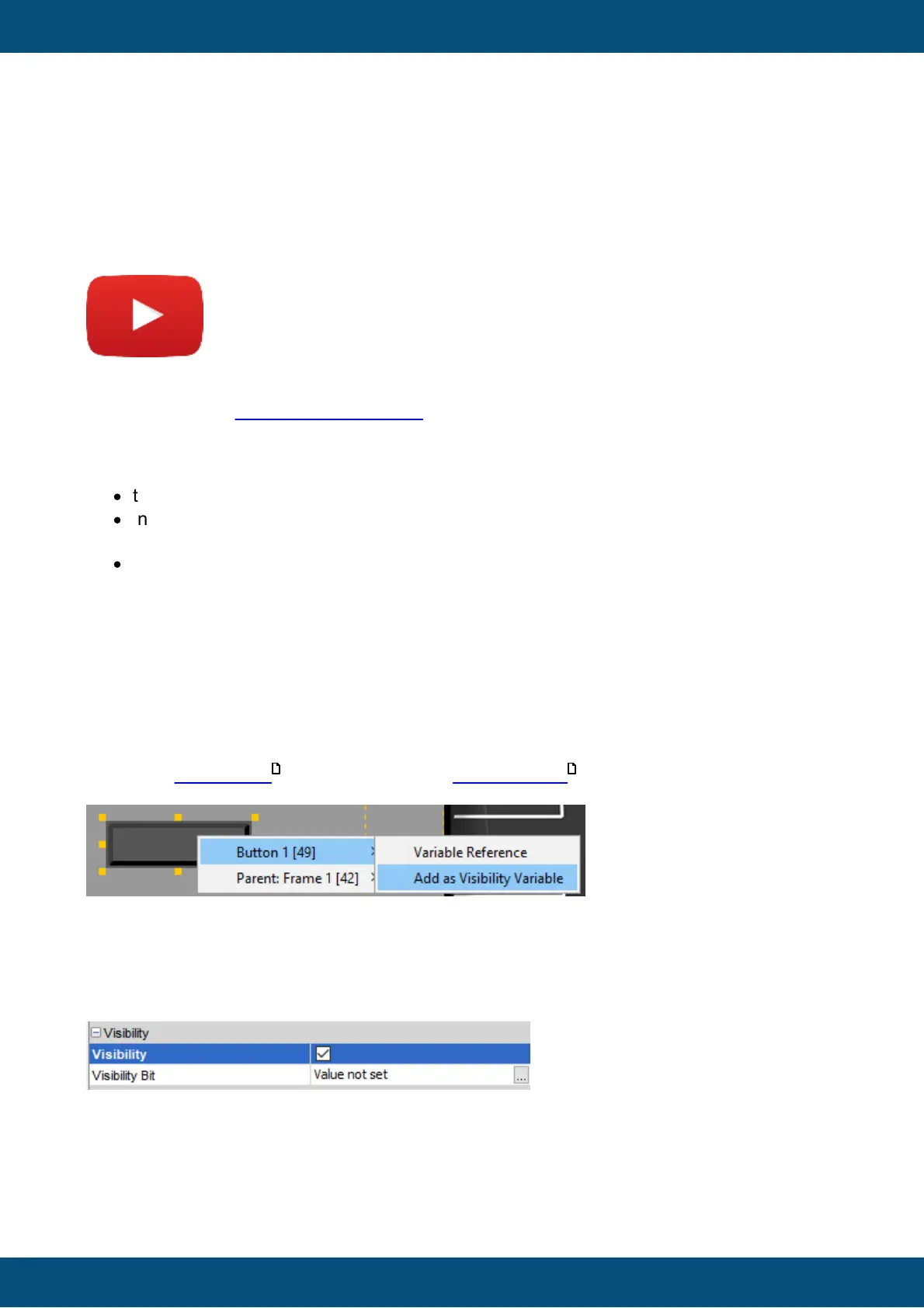
To do this, drag & drop a variable from the Variable View onto the object. In the context
menu, select the object first, and in the second level, select "Use as Visibility variable".
This activates the property Visibility for the object and sets the variable as the Visibility
variable for the object.
Alternatively, the Visibility variable can be set through the properties.
Select the object and activate Visibility in the properties.
Then open the Visibility dialog by pressing the three-dot button in the Visibility Bit property.
43
146



 To Next Page