146
OPUS Projektor Manual
User Interface
If one or more objects are moved or resized on the scene, only one undo edit will be created
=> The undo edit will be created when mouse release event occured.
=> The edit is directly created when the first update occurs, but all following updates/undo
edits will be merged into the first undo edit.
Communication-Object Undo-Edits
If Undo/Redo for Communication-Objects is performed, the appropriate change will be
undone/redone but the engaged objects won't be selected in project tree or variable view.
Automatic Merge
The UndoRedoHandler has an automatic merge mechanism of undo entries. If several undo
entries are triggered within 500ms, these entries will be merged to one entry.
This mechanism is used e.g. if the the property Dependency of a String Field is updated from
None to Language. All Language dependent properties(Preview Value, Font, ...) are changed
now (from Single Value to a Value-Map) and these changes will be merged. If that wasn't
done, the user would be able undo each single Property-Change-Edit, which would lead to an
inconsistency.
The same mechanism is used if e.g. the data type of a Variable is changed. Consequently, all
data dype dependent properties are updated (Min-,Max- and Default-Value) and will be
merged to one undo entry.
Another example for the automatic merge is creating a VKB. During the creation a lot of
objects will be created. With the automatic merge the whole creation process will be merged
to one undo entry.
3.18
Variable View
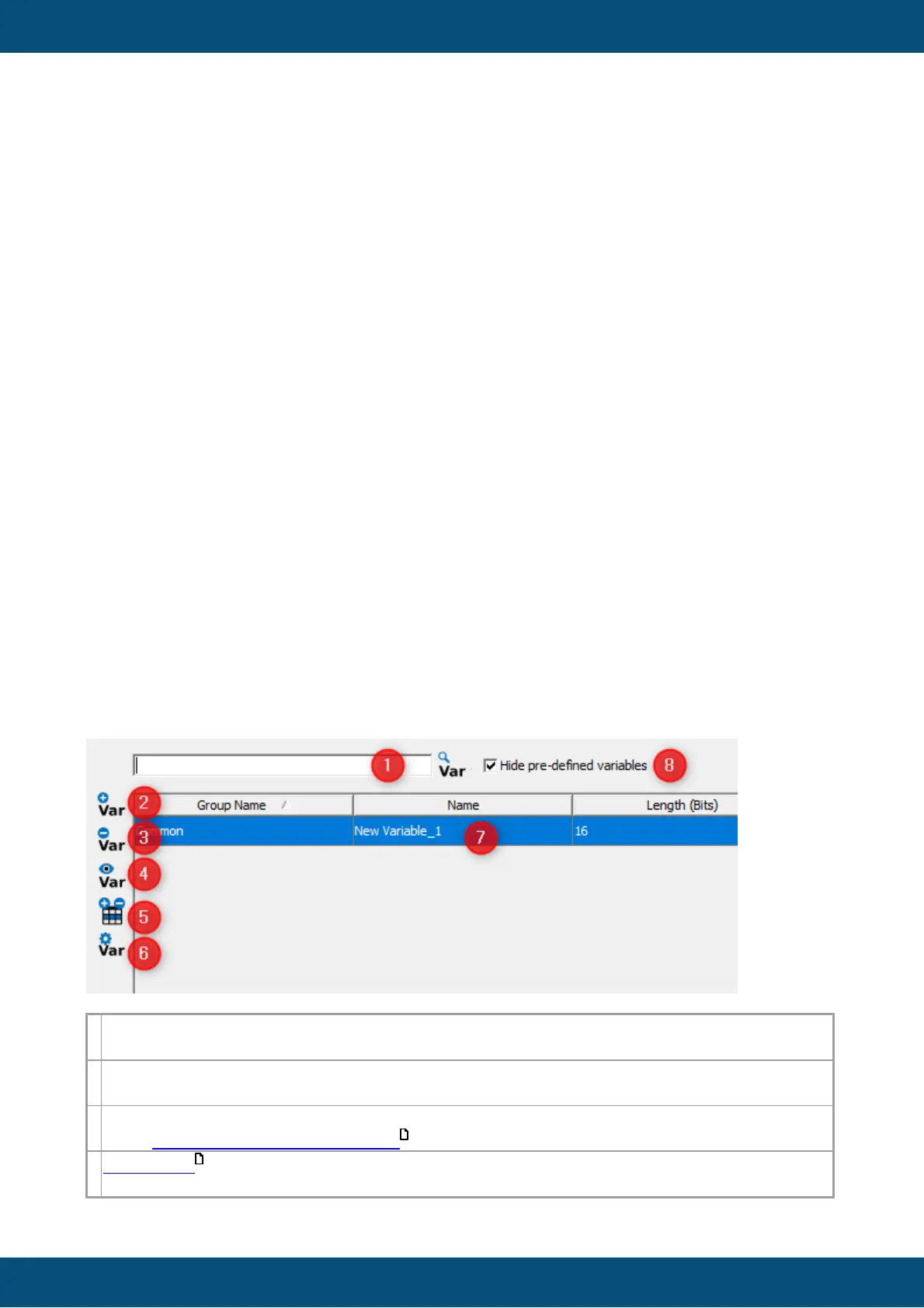
The variable view is meant for an overview of all variables in a project, quickly adding a
variable to the variable list and assigning a variable via drag and drop to a user interface
object.
Full live search field. You can search for "Group Name", "Name", "Index" and "SubIndex".
Results will be filtered live as you type
Add a variable quickly. If you press this button a variable is added with a default name with
increasing name index and the default owner is "PClient"
Delete a variable. First you have to choose a variable or more variables and than delete
them. Pre-defined (system) variables can not be deleted.
Find usage . Select a variable and press this button. The find usage window opens and
shows the connected GUI elements and CAN message mappings.
174
148



 To Next Page