772
OPUS Projektor Manual
OPUS devices update manual
Alternatively, you can also press left keys 1 + 2 for A6 G2 Standard, keys 1 and stop for
OPUS A8 Standard, during power on.
After some seconds a screen with “Maintenance” will be displayed. At this point please
disconnect the clamp “Serv_EN”, otherwise the update will be done again after restart.
14.3.3
OPUS B3
The first step to update the device is to copy the update files on a USB stick. The USB
stick has to be FAT32 formatted with only one partition.
Copy the OS files and/or the files for the application that should run on the device into the root
folder of the USB stick. The USB stick may contain other data, which is okay, they will be
ignored. You can find the update files in the extracted zip file that you downloaded / got on
your USB stick.
In Windows, the user.tar files are often shown as zip files.
Never unzip these files or the update won't work!
For OPUS Projektor: Go to the menu Update -> PClient / OS Update. In the dialog you can
choose for which device you want to copy the OS and PClient files on the USB stick.
For Codesys: \CustomerFiles\Device\EGSCORE
Power off the device and connect the USB stick with the update files with the USB port
of the device (both the front USB slot and the USB cable from the main connector can be
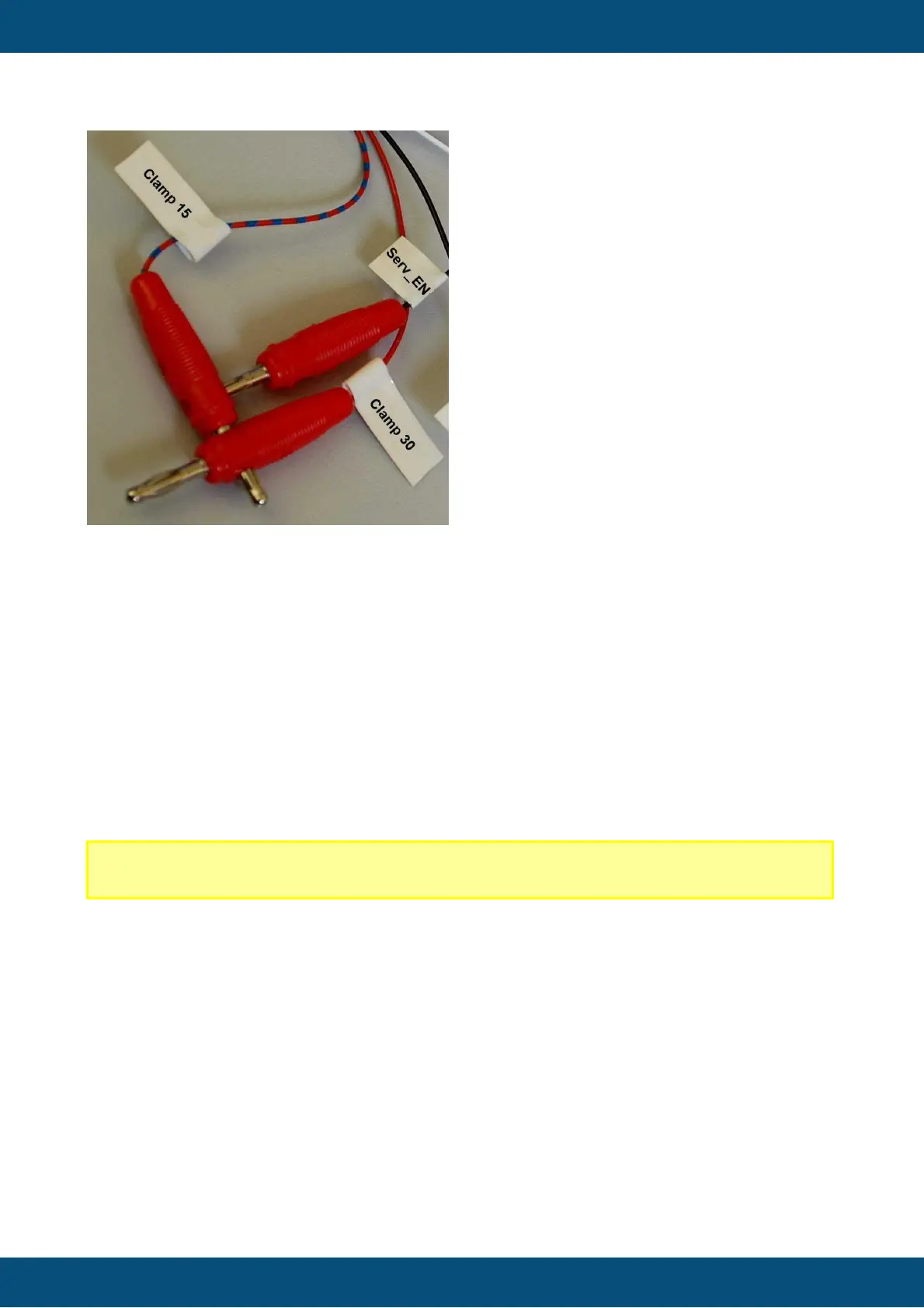
used). Connect the clamp “Serv_EN” (service enable) with clamp 15 and 30 and then
power on the device.



 To Next Page