589
OPUS Projektor Manual
Functionalities
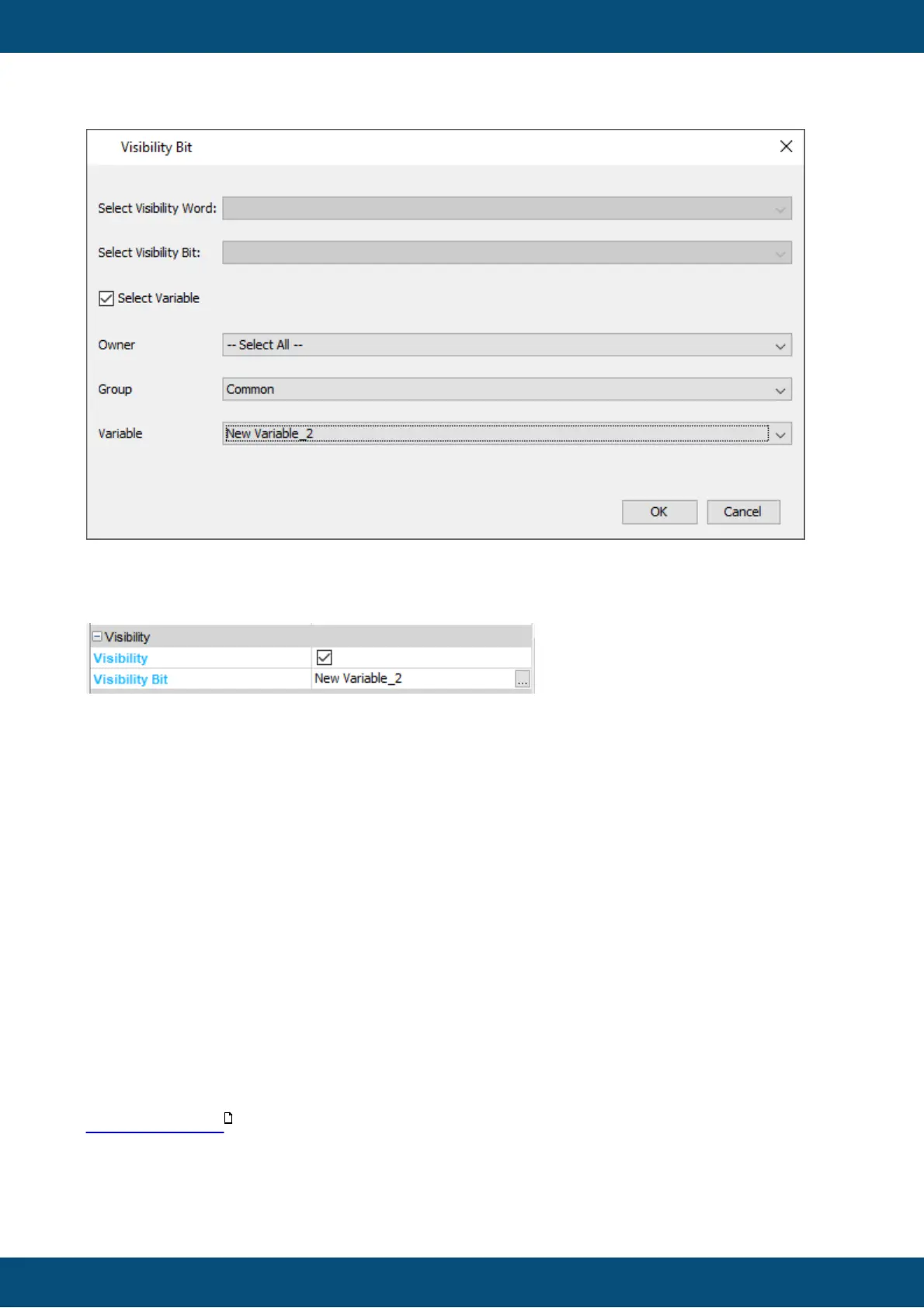
First, check the check box next to "Select Variable". Then choose a variable below by filtering
by owner and/or group. After choosing the variable you want to use, click OK to save the
setting. The variable will be displayed in the Visibility Bit property.
Setting the object visible / invisible is very easy:
If the variable is 0, the object is invisible
If the variable has ANY other value than that, the object is visible.
If variables are initialized as invalid, their default value will be used to determine the visibility
status, i.e. if a variable is configured to be initialized as invalid and with default value 5, the
according object will still be visible, even when the variable has not been set to a valid value.
Note that a variable can be used for several objects, i.e. one variable can make any number
of objects visible / invisible at the same time.
Note that String variables cannot be used as visibility variables. Any other data type that is
offered can be used.
Also note that the pre-defined Visibility variables (see below) can't be used for the new
visibility system.
Alternatively to the new system described above, Visibility variables are provided by the
program. Every project contains a set of 64 Visibility variables. All of them have 16 Visibility
bits, which can be assigned to any graphical object(s). Each bit is a flag to hide or show
graphical objects by switching between the value 0 or 1.
The value range of the Visibility variables is from 0x0000 to 0xFFFF. The default value is set
to 0xFFFF, which means that all corresponding object will be visible.
412



 To Next Page