·
Enable Alarm Log: Enable or diasable logging of alarms.
·
Use Ring Buffer: Enable this to log alarms into a binary ring buffer and select how
much entries the ring buffer shall use. If the ring buffer is full, the oldest entries are
overwritten. The ring buffer can be read and cleared with the JavaScript functions
getAlarmLogRingBufferContent and deleteAlarmLogRingBufferContent .
If this is disabled, the alarms will be logged into a text file located in the path stored in
@LogPath
·
Log Alarm Variable Values: If this is enabled, the values of the variables
@AlarmShow, @AlarmCurrent and @AlarmCurrentPriority are written into the log
with each entry.
·
Log Alarm Enqueuement: If this is enabled a log entry is done when the alarm is
put into the alarm queue.
·
Log Showing of Alarm: If this is enabled a log entry is done when the alarm is
shown on the screen.
·
Log Alarm Confirmation: If this is enabled a log entry is done when the alarm is
confirmed (e.g. user pressed escape key).
·
Log Hiding of Alarm: If this is enabled a log entry is done when the alarm is closed
and not shown anymore.
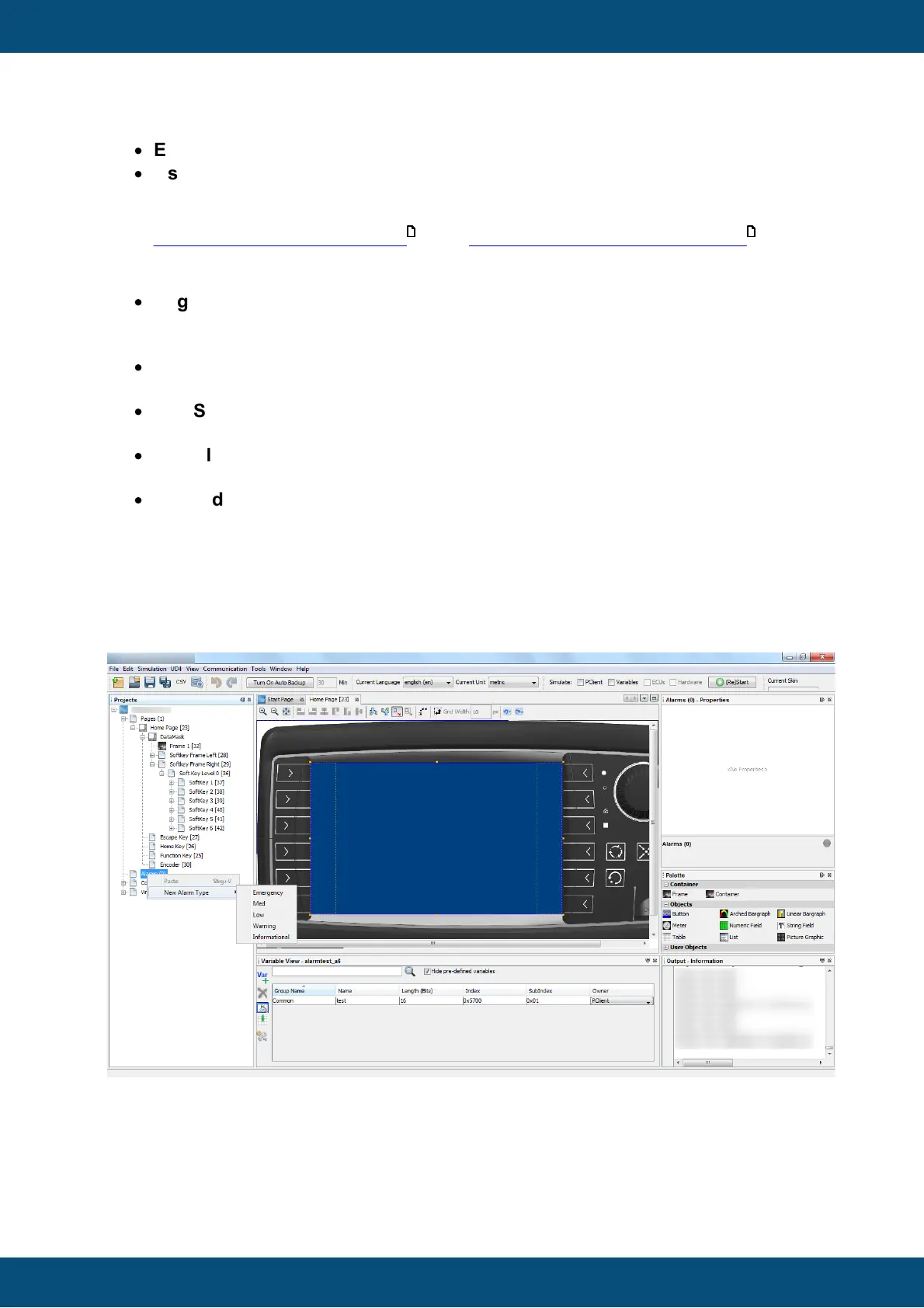
After you have created or configured alarm templates, you can add an alarm to your
project. To do this, right-click on "Alarms()" in the project tree, go to "New Alarm Type" and
choose the desired alarm template.
Then a dialog window appears where you have to enter a unique number (in decimal form)
for that alarm. Numbers that were already used are displayed in the lower part of that
dialog.



 To Next Page