597
OPUS Projektor Manual
Simulations
CAN Hardware Type
Currently two options for the CAN hardware are available:
Peak CAN USB
Peak CAN USB dongle with one CAN port per dongle.
Don't use CAN
No CAN bus will be used for the simulations. Navigation, scripts, etc. can still be
simulated.
If you are not 100% sure that your CAN settings are correct and your PC is connected to a
CAN bus with other devices on the bus or even in a vehicle, you should use this setting.
The CAN baudrate that the simulation will use is taken from the current project's settings.
JavaScript Debugging
It is possible to use the QtScript Debugger to debug JavaScript execution in the Windows
simulation. For a short description see here .
In the dialog three basic debugger settings can be configured:
·
Off
Do not use the debugger.
·
On (show debugger on error or trigger)
Open the debugger window as soon as an exception is thrown or a debugger;
statement is evaluated in a script.
·
On (show debugger on startup)
The debugger window will be opened as soon as the simulation starts.
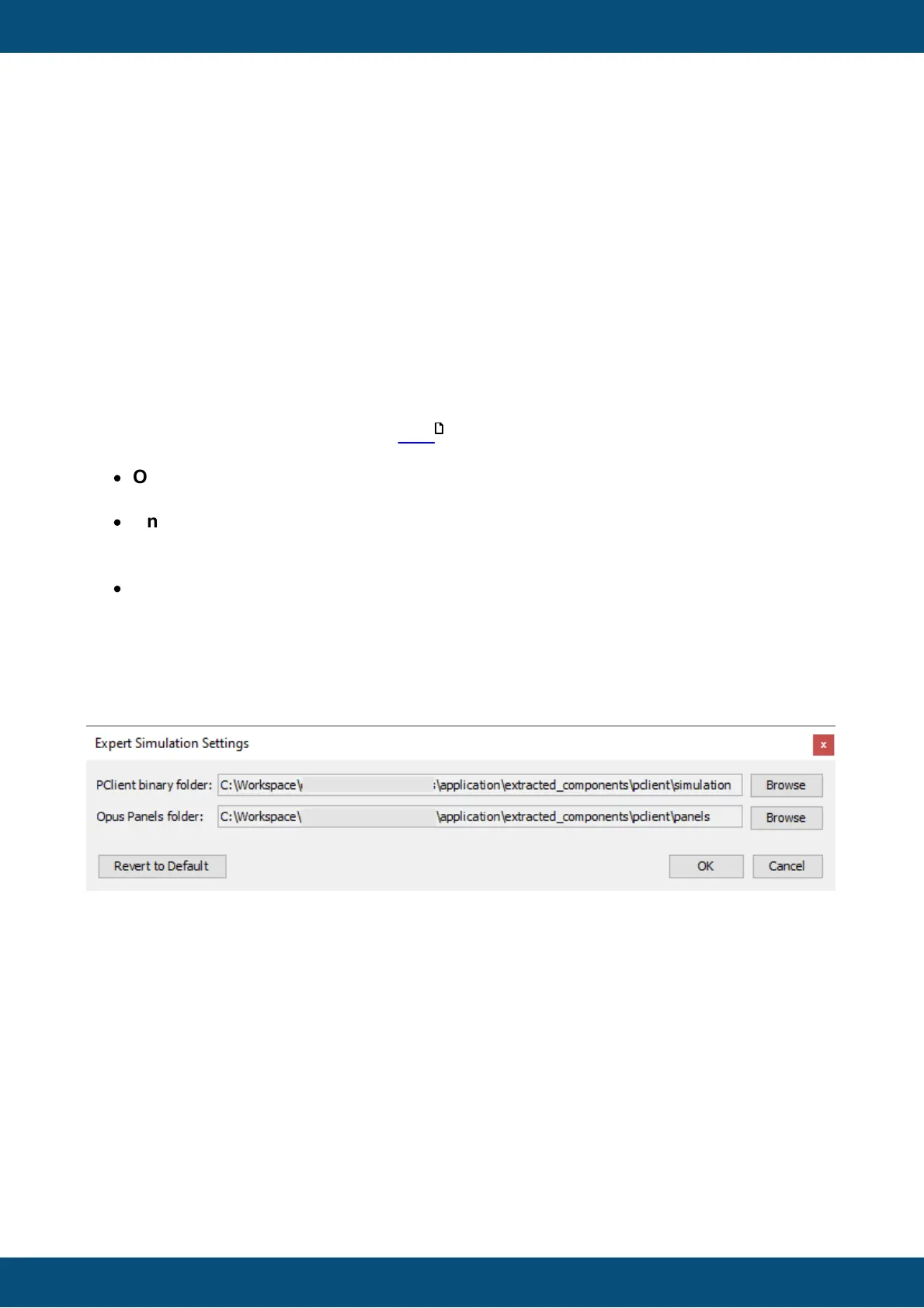
Expert Settings
The Expert Simulation Settings dialog can be opened by clicking on the Expert Settings
button on the bottom of the Simulation Settings dialog.
This dialog can be opened via Simulation Menu => Simulation Settings and then clicking the
Expert Settings button
The following settings can be made:
PClient binary folder
This is the path to the directory where PClient is installed.
Under normal conditions it is not necessary to change this path. It is set by the tool installer.
If another PClient version shall be run with the current tool, the path of the PClient can be
chosen via the Browse button.
Panel Folder
This is the path to the directory where the hardware panel templates are installed
514



 To Next Page