615
OPUS Projektor Manual
Simulations
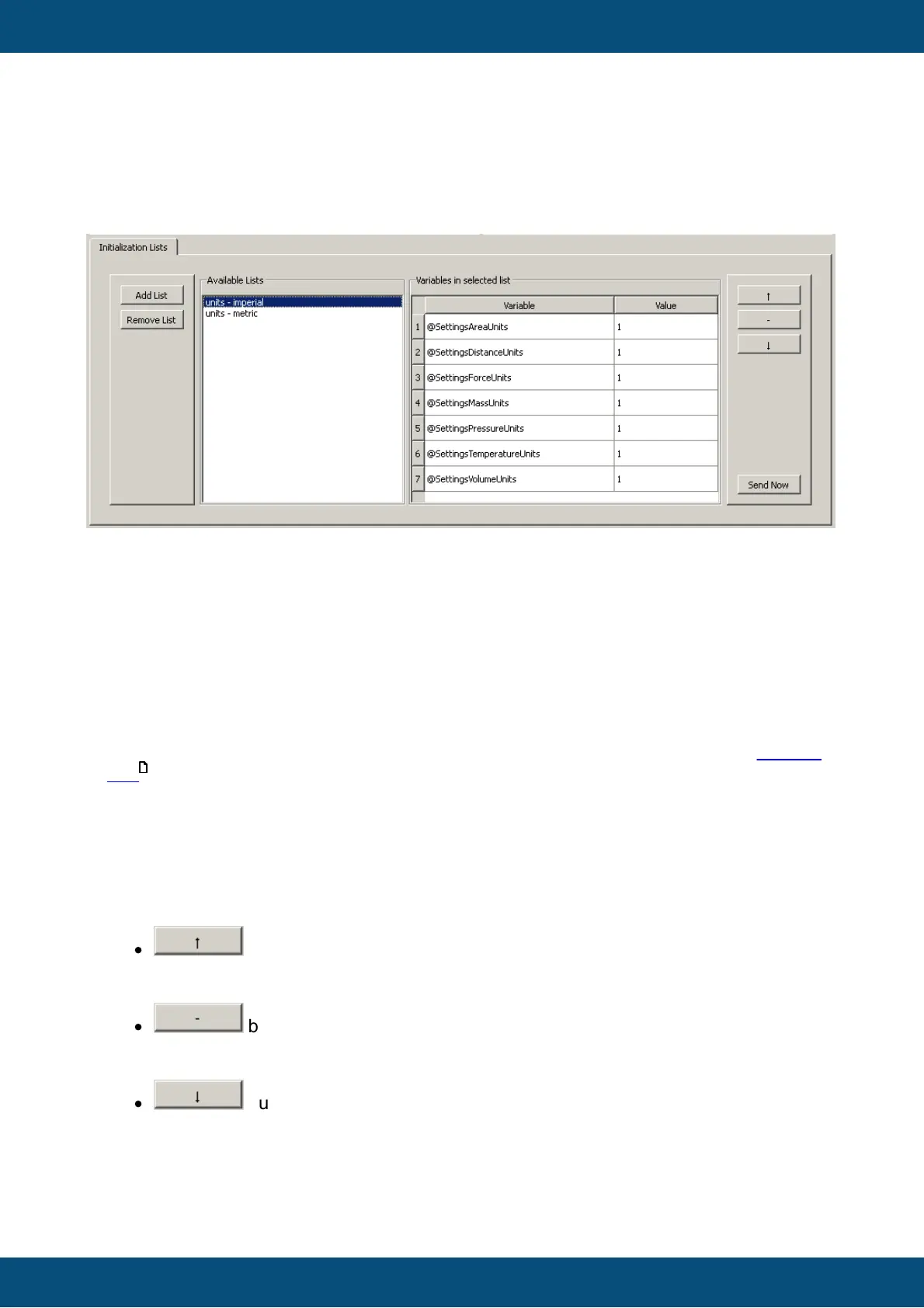
Initialization lists are meant to provide an easy way to set values of several variables at once.
This can be helpful for initialization purposes, end of line programming or just to test certain
scenarios with different value sets.
Note: All initialization lists and their settings will be saved when the Variable Simulation
settings are saved.
Create and remove initialization lists
To create a list click the Add List button on the left of the view. A new list will be generated,
the name of the list can be entered directly.
To remove a initialization list select a list and click the Remove List button.
Working with variables in the initialization lists
Add variables to a initialization list
Make sure that a initialization list is selected. A variable can be dragged from the variable
tree into the initialization list table (labeled Variables in selected list).
After dropping the variable in the table a new row will be created with the variable's name
and the current value of that variable.
This also works when multiple variables were selected and dragged & dropped to a list
(select multiple variables by holding the CTRL key when clicking variables).
Sorting and removing variables
Three buttons are available with which the list can be sorted or variables can be removed:
·
butoon:
Select a variable in the initialization list table and press the button to move the
selected variable one row up
·
button
Select a variable in the initialization list table and press the button to remove the
variable from the selected initialization list
·
button
Select a variable in the initialization list table and press the button to move the
selected variable one row down
Changing the value of a variable in the initialization list
607



 To Next Page