NOTE:
1. For original image files with extension JPG/JPEG and BMP the scaled images will be
converted to PNG.
Example:
Original Image Name: test.jpg
Scaled Image Name: test_100_80.png (without transparency color)
Scaled Image Name: test_100_80_0xffffffff.png (with transparency color(argb)
"white")
2. For original images files with extension GIF or SVG the SAME image will be used for
original and scaled images. For these image formats the "Transparency Color" is NOT
available.
Example:
Original Image Name: test.svg
Scaled Image Name: test.svg
ATTENTION:
The name of the images will be modified only when project is saved. That means if an
image (test.png) is assigned to an Picture Graphic Object with Width = 100 and Height =
80 the Scaled Image Name is "test_100_80.png".
The name is immediately updated. BUT if now the size of the Picture Graphic is
updated. e.g. to Width = 60 and Height = 40 the image name will not be updated to
"test_60_40.png" until project is saved.
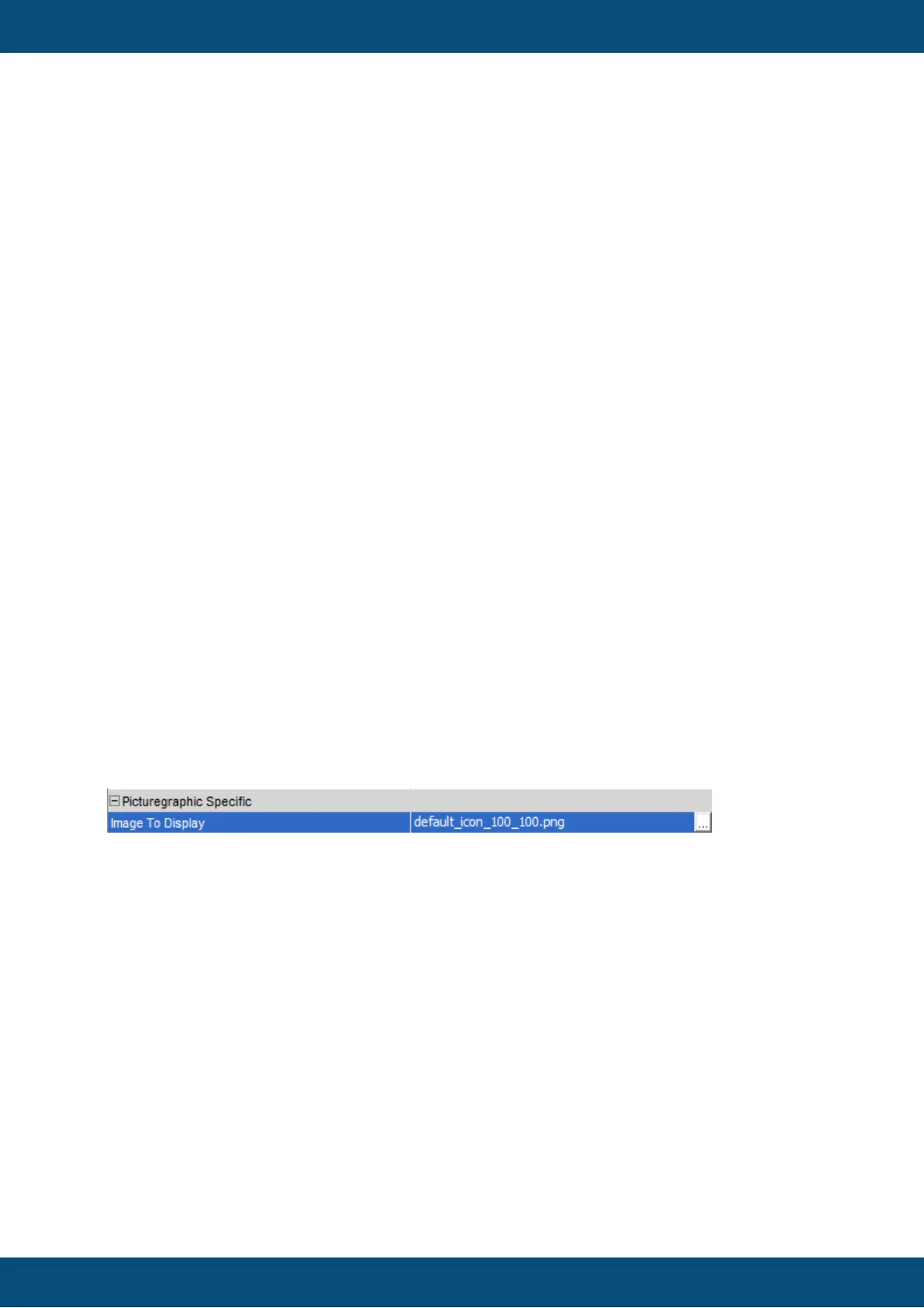
(1) After Dragging and dropping the object on the canvas,
click on Image Chooser Button to configure a new image.
(2) The Image Chooser dialog is open with the currently configured image.



 To Next Page