IP Setting (PGM 108) 1-19
Chapter 1: SBX IP Online PC Admin
SBX IP - PC Admin Guide
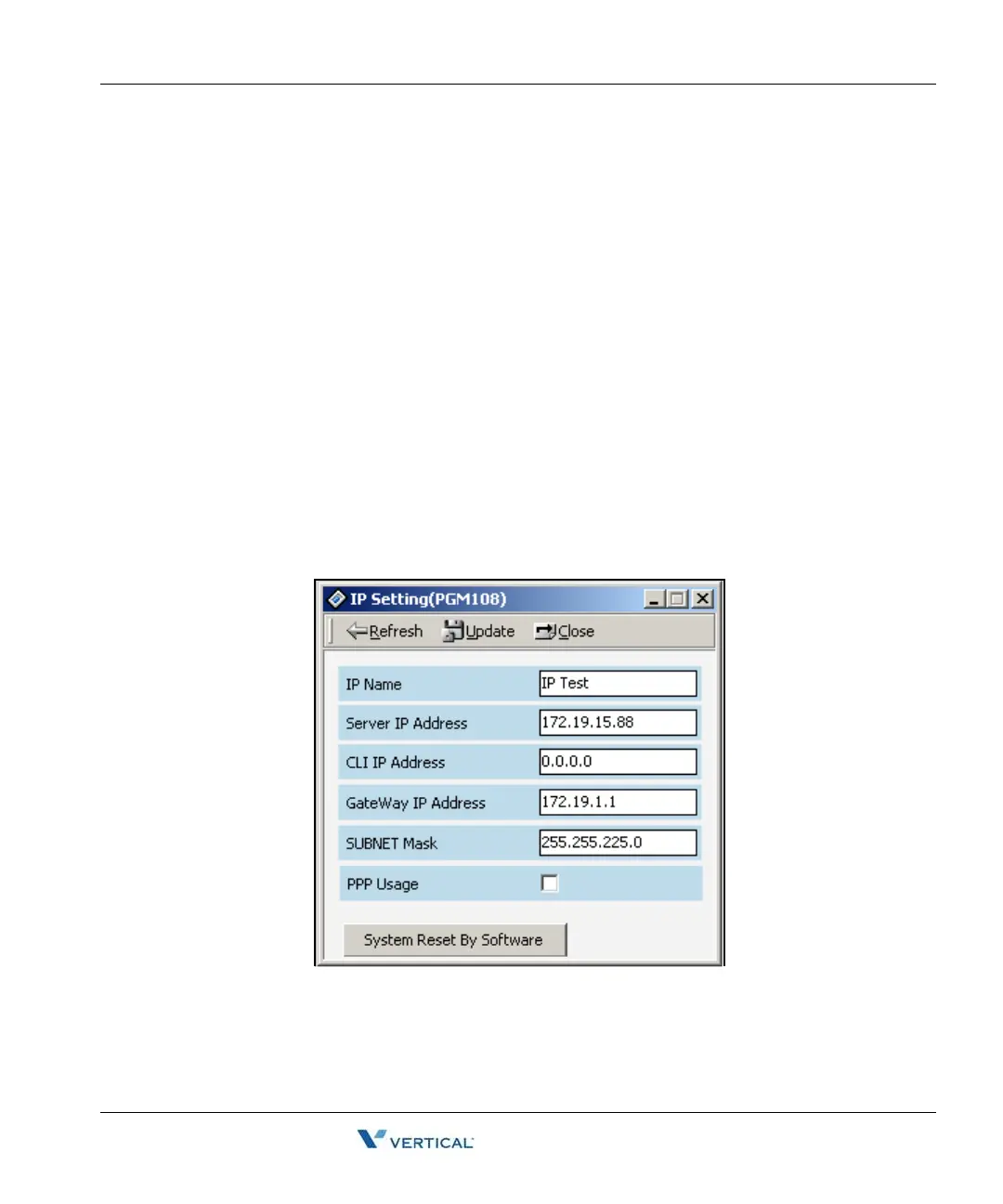
I P Setting (PGM 108)
You must set the IP Address to transport data remotely through the network.
Operation
1. Select [IP Setting]. Default values are displayed.
2. IP Name has no meaning at all. Enter a name of up to 15 characters. You can put the
hostname if you want. But in that case, it is not a real hostname (optional).
3. Enter the Server IP Address of the SBX IP system. The IP address is assigned by the
network administrator. If you don't want to use the network connection, you might skip
this feature. But if you want to use a network connection, you must configure this
feature.
4. Enter the Client CLI IP Address (optional).
5. Enter the Gateway Address (the IP Address of the gateway that the system uses). If
you do not enter the Gateway's IP Address, you can not access the SBX IP system
from another LAN segment that is separated by a router or 3-layer switch.
Note:
Subnet Mask is 255.255.255.0 by default.
Note: If your network uses a firewall, NAT (Network Address Translation) or PAT (Port Address
Translation), you should contact your network administrator. In that case, you can't connect the
SBX IP system using PC Admin software from a remote site (not your network) without your
network administrator's help.


 To Next Page