Flex Buttons Assignment (PGM 115) 1-31
Chapter 1: SBX IP Online PC Admin
SBX IP - PC Admin Guide
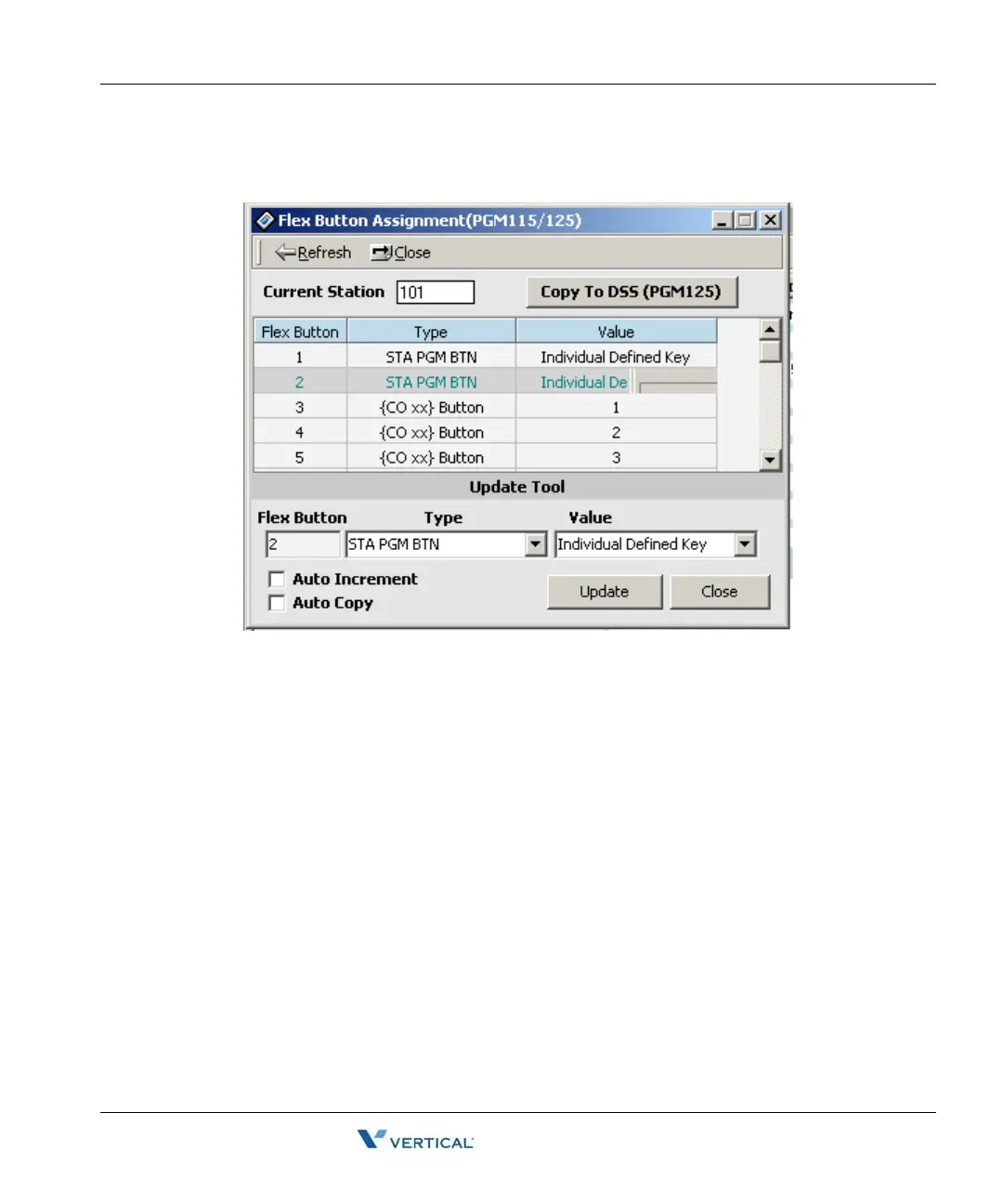
3. To assign another function to a flex button, double-click on the row of the flex button.
The following dialog window displays.
4. Refer to the following table, and select the type and value in the update tool. Pressing
[Update], displays the changed values. If the data is not in the range specified in the
table, you will receive an error message.
Before you enter the new value, check the data with the Station Attributes I (PGM111)
window to avoid entering duplicated values.
[Auto Increment] means that you don't need to select the next index. If this field is enabled
and you press the [Update] button, PC Admin will increase the Flex button index
automatically. So, you can continue programming buttons without moving the cursor to
next index (from V3 only).
[Auto Copy]: If this field is enabled, you can copy a button to another button without
deleting and reprogramming the same data. For example, Flex Button 10 has station 1000
and you want to move this PGM to BTN 11. Select Flex Button 10 and press the [Update]
button with enabled [Auto Copy]. Then PC Admin and the MPB will delete the function
under Flex Button 10 and save the same data under Flex Button 11. Duplication is
available with some PGMs (Ex: Loop button) and some PGMs will not be allowed,
dependant on MPB validation.


 To Next Page