Introduction | Console
Popup menus
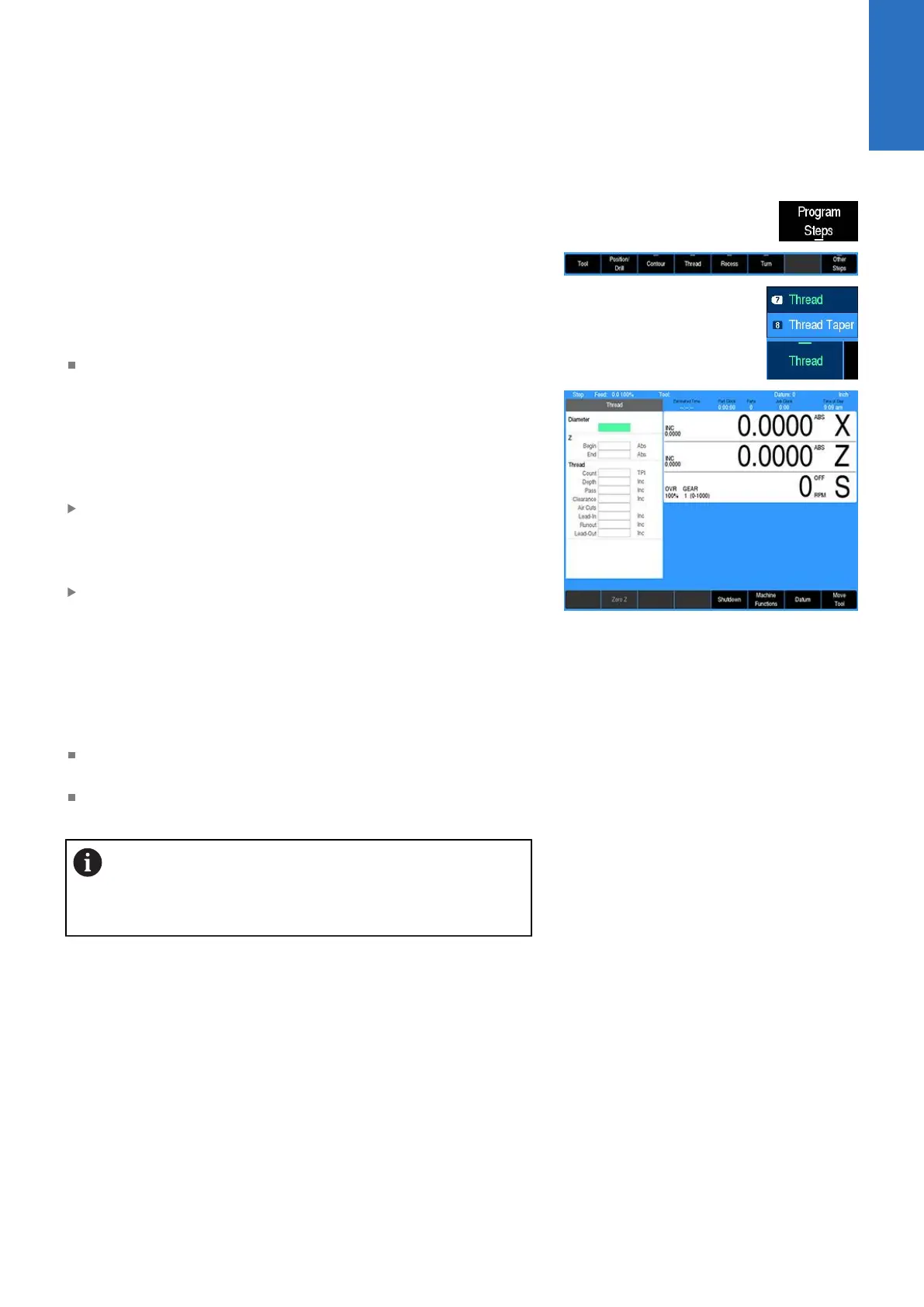
Within the soft keys, additional features may be available in
program mode. A soft key that has a small line at the bottom center
indicates that additional soft keys are available for that feature.
As an example, pressing the Program Steps soft key (in PGM
mode) opens another set of soft keys available for this function.
Then you will notice a small line at the top center on most of the
soft keys. This indicates a popup menu will open when that key is
pressed.
Soft keys for PGM provide access to edit existing programs,
or create a new program. Sub menus provide dialogue for
machining operations such as shoulder turning, recess turning,
thread cutting, etc.
Pressing the required operation step soft key will open a popup
menu to further define the machining operation required.
A selection for a popup can occur in one of two ways:
Use the shortcut number to the left of the feature; for example,
pressing 7 on the numeric keypad will select the option at the
top of the list
or
Use the Up Arrow and Down Arrow keys to highlight the
feature to be used, then press ENTER.
When the type of machining operation has been selected, the
corresponding dialogue opens so that the required data can be
entered.
A dialogue in DRO mode will retain the previous data entered
making it possible to re-run the previous operation without having
to re-enter all the data.
At anytime when entering data into a dialogue the calculator can
be accessed by pressing the CALC key.
Soft keys for CALC provide access to additional math functions
such as trig functions.
When a dialogue is activated, it is not possible to change
to another dialogue. The current dialogue must be exited
by pressing USE to save the data in the dialogue or
pressing CANCEL to discard the data.
2
ACU-RITE | TURNPWR | User's Manual | 08/2020
29


 To Next Page