Spectrum Analyzer Measurements 3-19 Coverage Mapping (Option 431)
Spectrum Analyzer MG PN: 10580-00447 Rev. H 3-101
Downloading and Importing/Uploading Map Tiles
1. Touch and drag the map to the desired area, then use the zoom tools in the upper left to show an area
that is centered and is a little larger than the area that you wish to conduct your signal mapping
measurements.
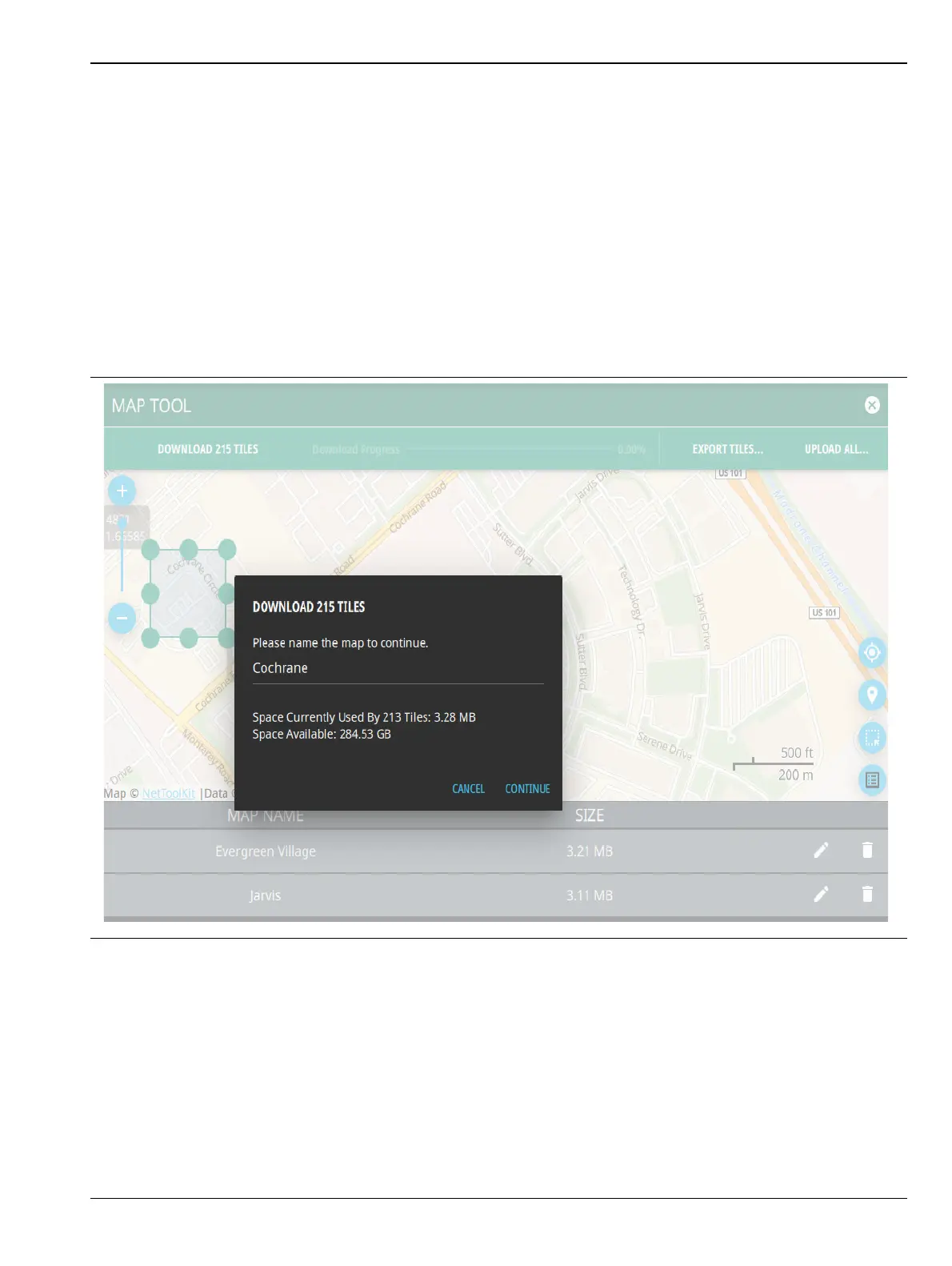
2. Touch the selection tool in the lower right, then drag the green box over an area from the upper left to
lower right. The selected boundary edges are indicated with latitude and longitude, and the numbers of
map tiles that will be downloaded is shown at the top. The green dots can be used as handles to drag an
edge or a corner to cover the desired area.
3. Once the desired area is selected, touch DOWNLOAD ### TILES to download the tile set.
4. Enter a name for the map, and press CONTINUE. Select the location pin icon to view the saved map (s).
Note that all the saved maps can be viewed in a tabular form in Coverage Mapping measurement mode.
Figure 3-82. Download ### Tiles Dialog













 To Next Page