Alphabets and Monograms
109
8.2 Creating Lettering
When sewing Sideways Motion patterns, for example monograms, it is recommended to use the
Sideways-motion Foot #40C. Sewing a test sample with the thread, the actual fabric and stabilizer you
intend to use is recommended. Make sure that the fabric is fed evenly and lightly, ensuring that it cannot
push against or catch on anything. The fabric shouldn't be pulled, pushed or held back.
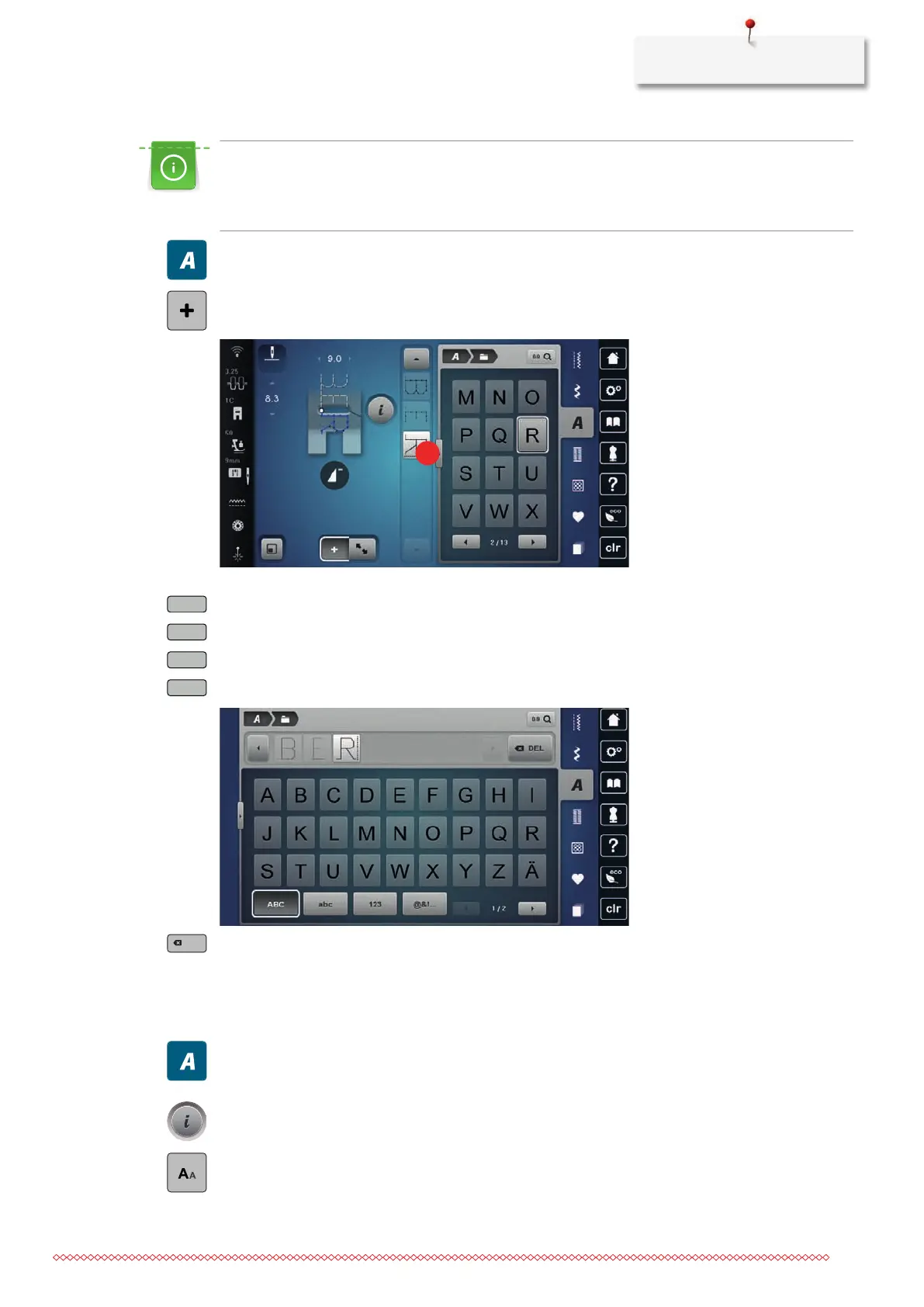
> Tap «Alphabets».
> Select the font.
> To create a combination, tap «Combination Mode/Single Mode».
> To open the extended Enter Mode, tap «Increasing/Decreasing the Display Size»(1).
> Select the letters.
> To use upper-case letters, tap «Upper Case Characters» (standard setting).
> To use lower-case letters, tap «Lower Case Characters».
> To use figures and mathematical symbols, tap «Numbers and Mathematical Characters».
> To use special characters, tap «Special Characters».
> To delete individual syllables of the entered text, tap «Deleting».
> To close the extended Enter Mode, tap «Increasing/Decreasing the Display Size» again.
8.3 Altering Font Size
Block, outline, script, comic, and Cyrillic fonts can be scaled down in Single Mode.
> Tap «Alphabets».
> Select the font.
> Select the letters.
> Tap «i-Dialog».
> To reduce the font size, tap «Alter Font Size».
> To scale up the font size to 9mm, tap «Alter Font Size» again.


 To Next Page