Creative Embroidering
157
> To confirm the position, tap «Set».
– The marking of the points is reset.
– In order to further adjust the placement of the embroidery design, the points can be set again.
– The embroidery design is placed and can be embroidered.
Positioning the Embroidery Design by means of 2 freely positioned Points
This function allows embroidery designs to be positioned exactly on the fabric with the help of 2 freely
positioned points.
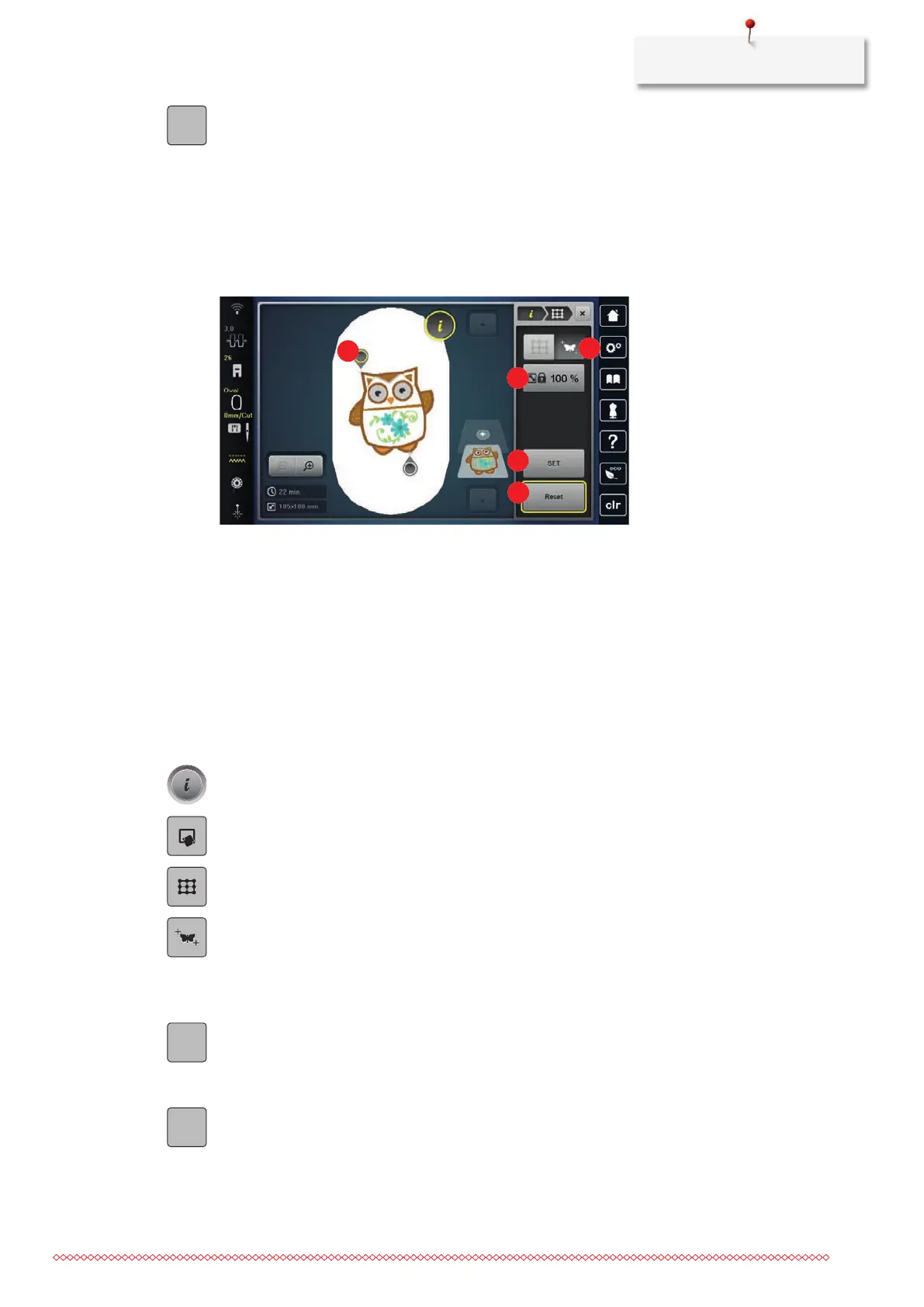
1 Positioning Point 4 «Set»
2 «Free Point Positioning» 5 «Resetting»
3 «Maintain the Embroidery Design Size»
• Any two points of the embroidery design are marked with chalk or a water-soluble pen on the fabric. The
place or the location where the embroidery design is to be positioned is clearly visible.
• The mounted embroidery hoop is selected.
> Select the embroidery design.
> Adjust the size of the embroidery design to fit into the hoop, as well as the position and the alignment.
> Tap «i-Dialog».
> Tap «Pinpoint Placement».
> Tap «2-point Placement».
> Tap «Free Point Positioning».
> Set the first point (point of rotation) within the embroidery design.
– The positioning point is displayed.
> Via the multi-function knobs, position the needle over the corresponding marking on the fabric. For the
precise positioning of the needle, the laser can be switched on.
> To confirm the position, tap «Set».
– The point changes color and is set.
> Select the second positioning point of the embroidery design and position the needle over the
corresponding marking on the fabric.
> To confirm the position, tap «Set».
– The points will be hidden.
– In order to further adjust the placement of the embroidery design, the points can be set again.
– The embroidery design is placed and can be embroidered.


 To Next Page