Creative Embroidering
166
> Select the embroidery design.
> Tap «i-Dialog».
> Tap «Word Art».
> Edit the lettering. The character spacing and the line spacing can be set with the multi-function knobs.
15.9 Changing the Colors of the Embroidery Design
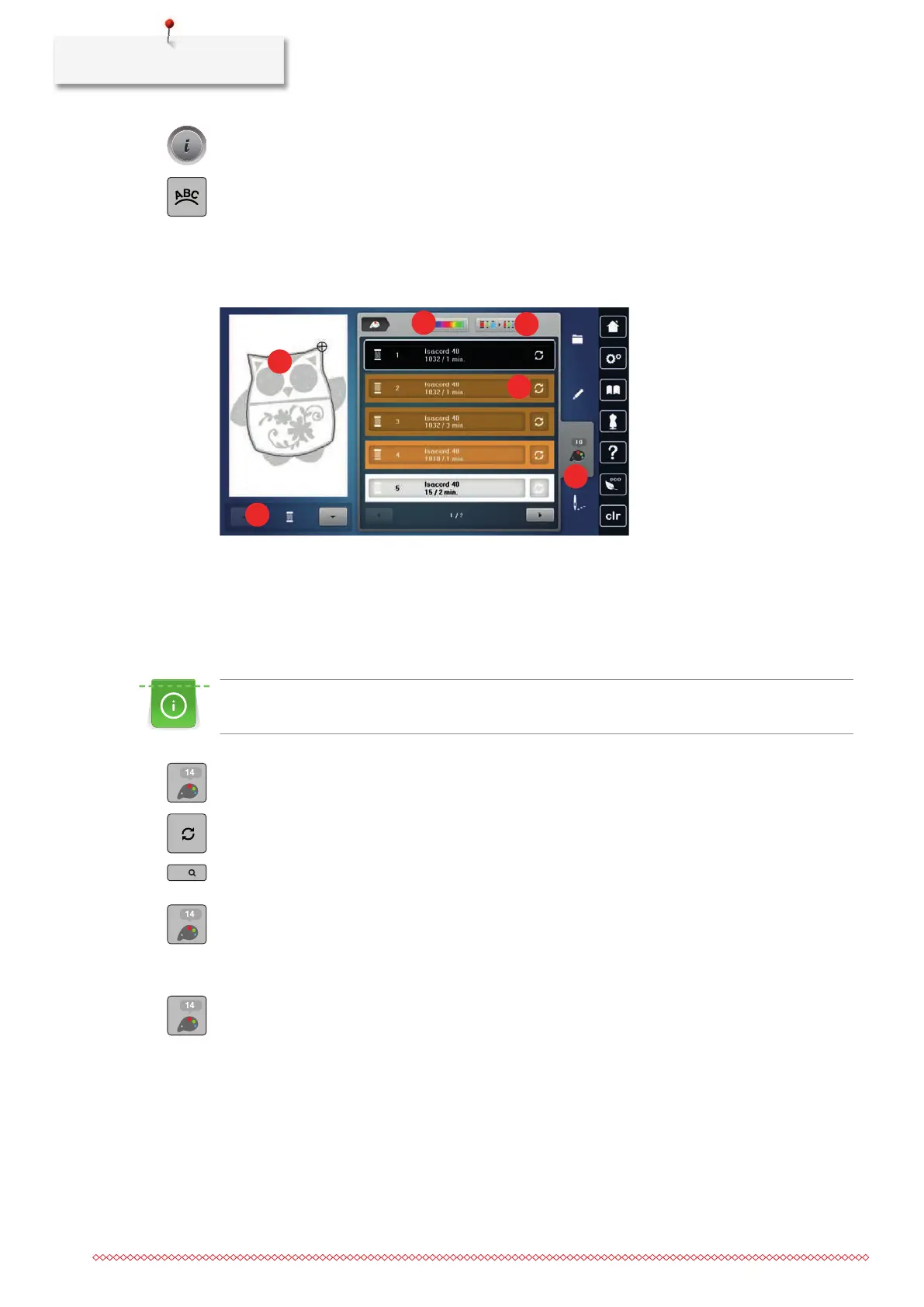
Overview Changing the Color
1 «Color Indication» 4 «Assign Thread Brand»
2 Preview for Selected Color 5 «Altering Color/Brand»
3 «Color Wheel» 6 «Color Information»
Changing the Colors
A lettering is always embroidered in one color. To embroider individual letters or individual words in a
different color, the grouping must be canceled.
> Select the embroidery design.
> Tap «Color Information».
> Tap «Altering Color/Brand» next to the color that needs to be changed.
> To select the color by entering the color number, tap «Color Selection via Number».
> Select the desired color.
> To apply the color choice, tap «Color Information».
Altering the Colors via the Color Wheel
> Tap «Color Information».


 To Next Page