Creative Embroidering
150
Rotating the Embroidery Design
> Select the embroidery design.
> Tap «i-Dialog».
> Tap «Rotate the Embroidery Design».
> Turn the «Upper Multi-function Knob» or the «Lower Multi-function Knob» to the right to rotate the
embroidery design clockwise.
> Turn the «Upper Multi-function Knob» or the «Lower Multi-function Knob» to the left to rotate the
embroidery design counter-clockwise.
> To rotate the embroidery design in 90°-steps, tap «Rotate the Embroidery Design +90°».
Altering the Embroidery Design Size Proportionally
Enlargements or reductions of the motif size up to maximum 20% achieve the best results.
If the motif size is to be altered by more than 20%, the motif should be adapted in a separate
embroidery software and then reloaded onto the machine.
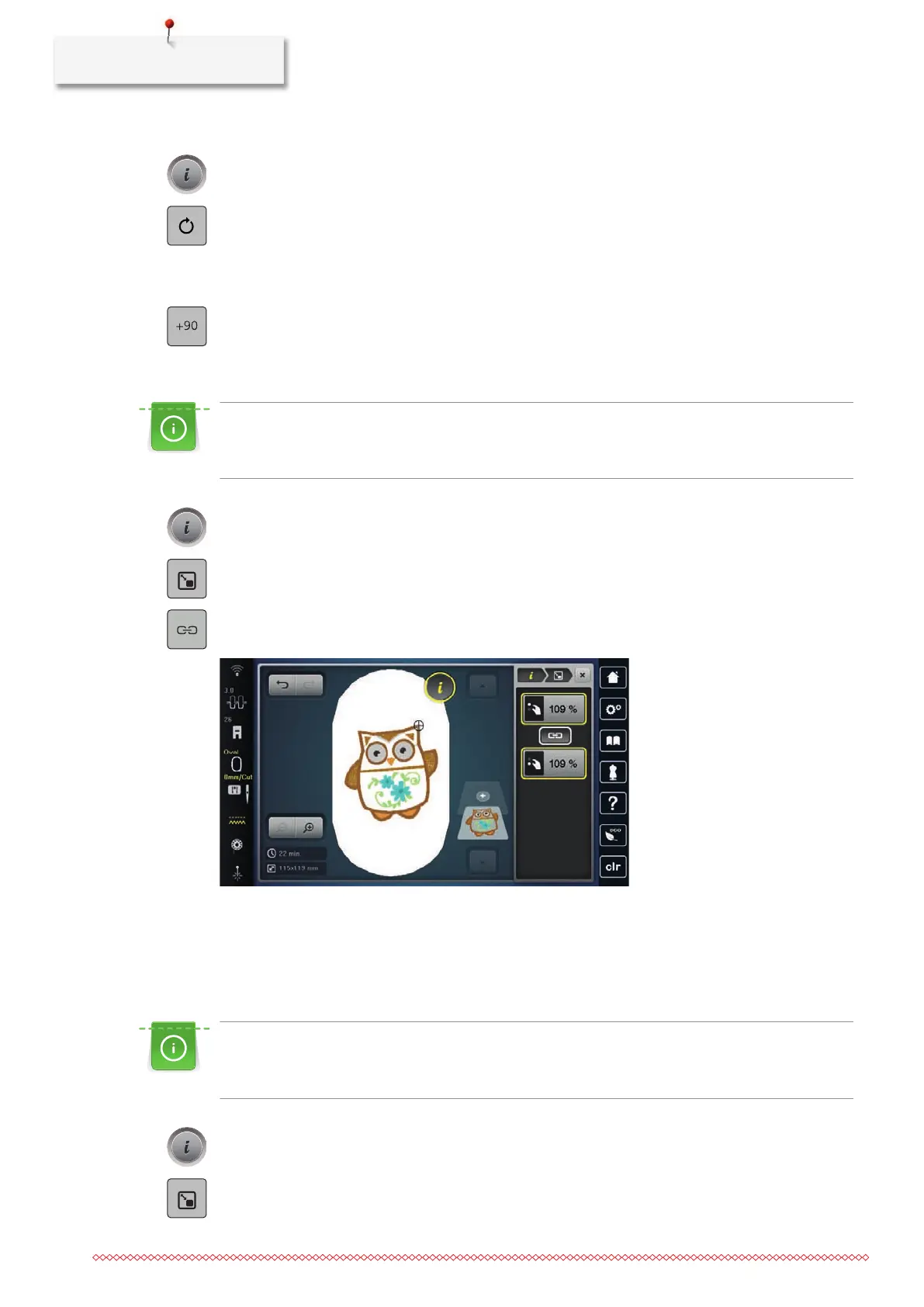
> Select the embroidery design.
> Tap «i-Dialog».
> Tap «Change Design Size».
> If «Retain Proportions» is not outlined in white, tap «Retain Proportions».
– «Retain Proportions» is outlined in white.
> Turn the «Upper/Lower Multi-function Knob» to the right to scale up the embroidery design
proportionally.
> Turn the «Upper/Lower Multi-function Knob» to the left to downsize the embroidery design
proportionally.
Altering the Embroidery Design Size Disproportionally
Enlargements or reductions of the motif size up to maximum 20% achieve the best results.
If the motif size is to be altered by more than 20%, the motif should be adapted in a separate
embroidery software and then reloaded onto the machine.
> Select the embroidery design.
> Tap «i-Dialog».
> Tap «Change Design Size».


 To Next Page