Creative Embroidering
172
Saving Embroidery Designs in the Personal Memory
In the file «Save Embroidery Designs» any embroidery designs including individually edited embroidery
designs can be saved.
> Select the embroidery design.
> Edit the embroidery design.
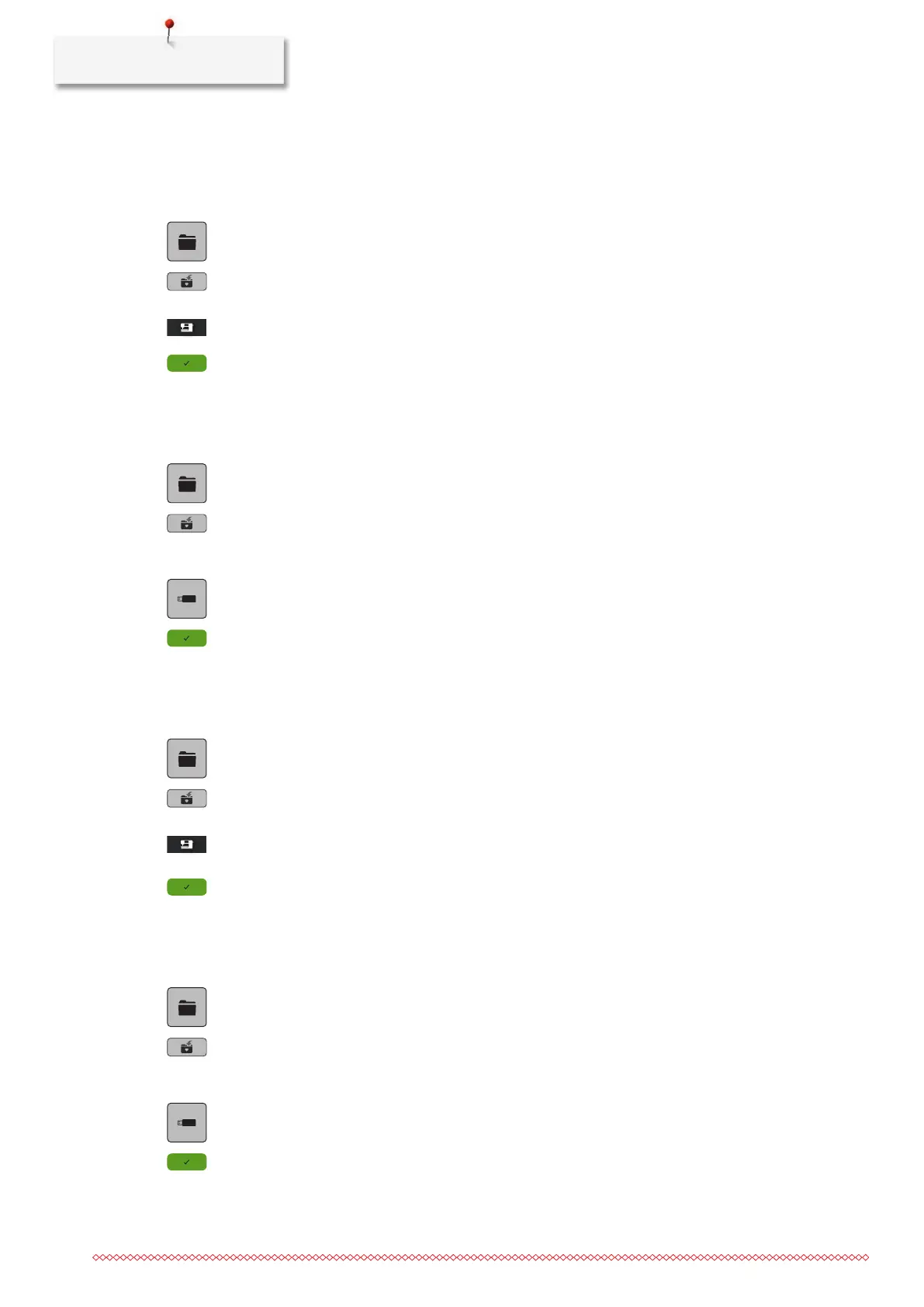
> Tap «Selection».
> Tap «Save Embroidery Design».
– The embroidery design to be saved is outlined in yellow.
– The «Embroidery Machine» is activated.
> Tap «Confirm».
Saving the Embroidery Design on the BERNINA USB Stick
> Select the embroidery design.
> Edit the embroidery design.
> Tap «Selection».
> Tap «Save Embroidery Design».
– The embroidery design to be saved is outlined in yellow.
> Insert the BERNINA USB stick into the USB port of the machine.
> Tap «USB Stick».
> Tap «Confirm».
Overwriting the Embroidery Design in the Personal Memory
> Select the embroidery design.
> Edit the embroidery design.
> Tap «Selection».
> Tap «Save Embroidery Design».
– The embroidery design to be saved is outlined in yellow.
– The «Embroidery Machine» is activated.
> Select the embroidery design which is to be overwritten.
> Tap «Confirm».
Overwriting the Embroidery Design on the BERNINA USB Stick
> Select the embroidery design.
> Edit the embroidery design.
> Tap «Selection».
> Tap «Save Embroidery Design».
– The embroidery design to be saved is outlined in yellow.
> Insert the BERNINA USB stick into the USB port of the machine.
> Tap «USB Stick».
> Select the embroidery design which is to be overwritten.
> Tap «Confirm».


 To Next Page