Creative Embroidering
165
Lettering can be positioned within the hoop as you like. If the embroidery design is positioned outside the
embroidery area, the embroidery hoop is outlined in red on the display. Use the hoop selection to check
whether the embroidery design can be embroidered with another hoop. If a lettering does not fit into an
embroidery hoop, for example, individual lines of the text can be combined and positioned one below the
other. With the line break, lettering of up to 10 lines is possible.
> Select «Alphabets».
> Select an alphabet.
> Enter and confirm the text.
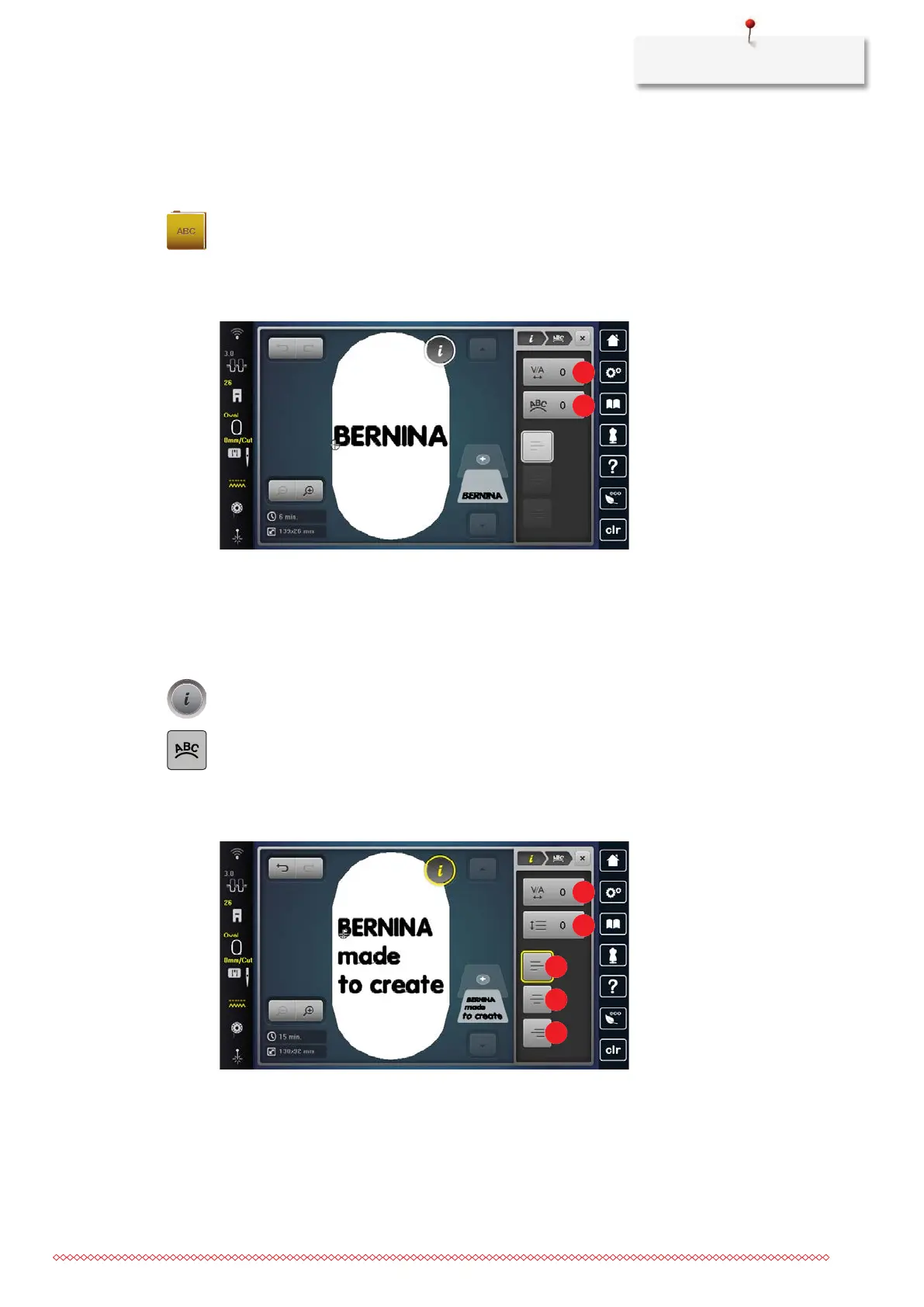
Editing a Single-Line Lettering
1 «Character Spacing» 2 «Text Bending»
• A single-line lettering has been created.
> Select the embroidery design.
> Tap «i-Dialog».
> Tap «Word Art».
> Edit the lettering. The character spacing as well as text bending can be adjusted with the multi-function
knobs.
Editing Multi-Line Lettering
1 «Character Spacing» 4 «Align the Text to the Center»
2 «Line Spacing» 5 «Alig the Text to the Right»
3 «Align the Text to the Left»
• A multi-line lettering has been created.


 To Next Page