Creative Embroidering
148
15.5 Editing the Embroidery Design
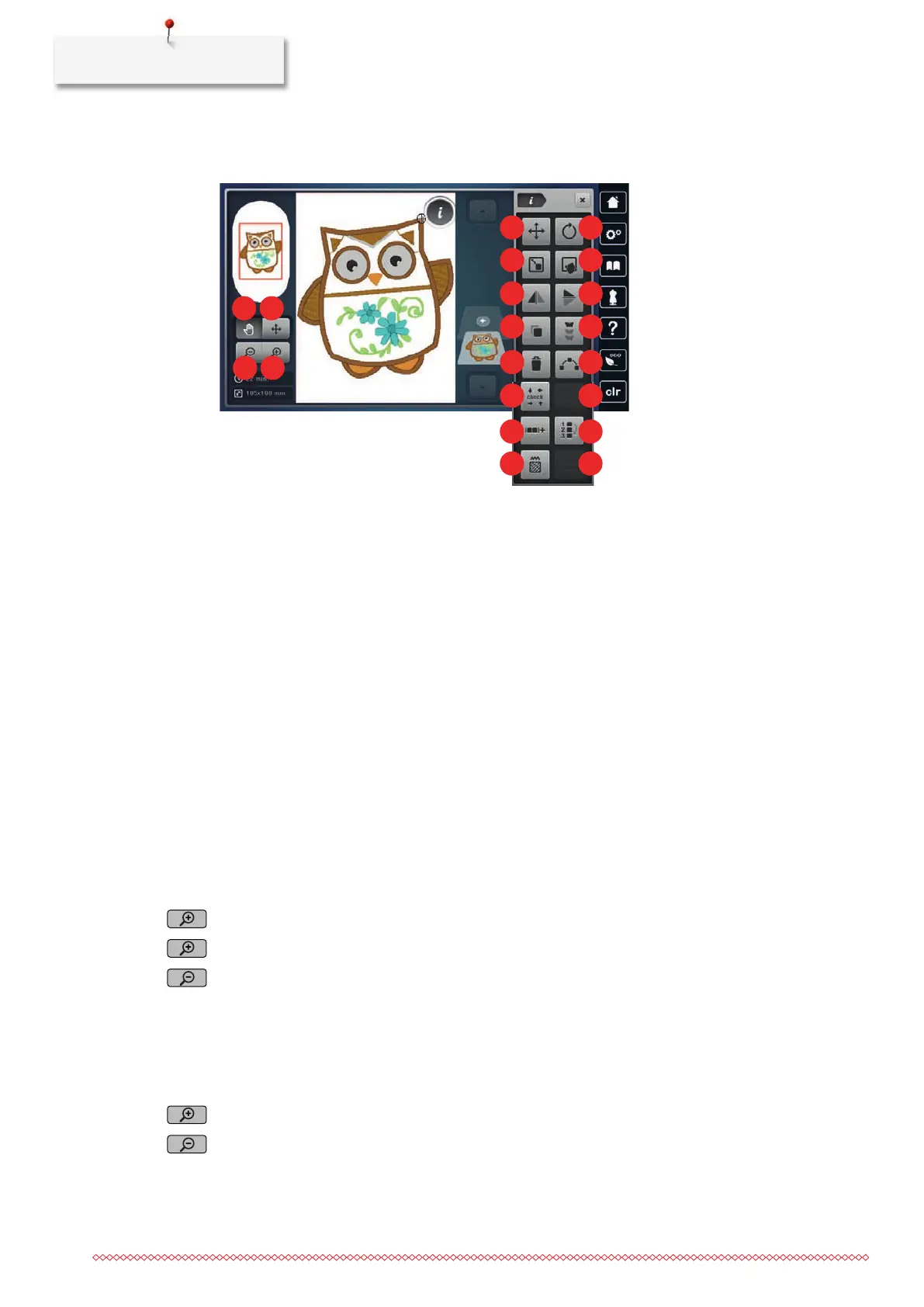
Overview Editing embroidery motif
1
2
4
3
5 6
7
9
8
10
11 12
13 14
15 16
17 18
19 20
1 «Move View» 11 «Duplicate»
2 «Move the Embroidery Design» 12 «Endless Embroidery»
3 «Zoom Out» 13 «Delete an Embroidery Design»
4 «Zoom In» 14 «Shape Designer»
5 «Move the Embroidery Design» 15 «Check Embroidery Design Size»
6 «Rotate the Embroidery Design» 16 «Word Art»
(active when a lettering is selected)
7 «Change Design Size» 17 «Group Embroidery Designs»
8 «Pinpoint Placement» 18 «Change Embroidery Design Sequence»
9 «Mirror Image Left/Right» 19 «Alter Stitch Type/Stitch Density»
10 «Mirror Image Up/Down» 20 «Align the Embroidery Design»
(active when a combination is selected)
Scaling Up the Embroidery Design View
The view of the embroidery design can be scaled up. In addition to that, the view can be adjusted with or
without changing the embroidery position.
> Select the embroidery design.
> To edit the view of the embroidery design, tap «Zoom In».
> To scale up the view of the embroidery design, tap «Zoom In» 1up to4 times.
> To get back to the Edit Mode, tap «Zoom Out» 1up to4 times.
Downsizing the Embroidery Design
The view of the embroidery design can be downsized. In addition to that, the view can be adjusted with or
without changing the embroidery position.
> Select the embroidery design.
> To edit the view of the embroidery design, tap «Zoom In».
> To downsize the view of the enlarged embroidery design gradually, tap «Zoom Out» 1–4 times.


 To Next Page