42 Chapter 4 Patching channels
Also, the Profiles display contains the following information:
• The profile’s number and name (if labeled - see Labeling Profiles
below).
• For each fade point, the percent of the fade complete at that point.
Each fade point contributes 5% to the total fade.
• For each fade point, the intensity at that point.
Note
: Use [At] to set the level with the keyboard or use [At] [+] or [At] [–]
to bump the level by one.
Creating or editing a profile
If you need a profile that is different from any of the ten provided, you can
either edit one of those that already exists (but not default profile 0) or
create a new one. As you edit, the profile changes to display the results.
Edit intensities in the Profiles display as follows:
Copying to another profile
One convenient way to create a new profile is to copy one of the existing
ones to a new profile number and edit the new one. Use softkey [S6],
Copy to Profile, in the Profile display to copy a profile.
Keystrokes:
Action:
1. Press [S1], Profile, [1][2]
[Enter].
Selects profile 12
Prompt reads:
Select percentage, then press [At]
to select level (Or, use right/left
arrows for percentage, up/down
arrows for level)
2. Press [S2], Percent, and
enter a fade point number.
Selects a fade point
3. Enter a new intensity on
the keypad.
Selects an intensity for the face point
4. Press [Enter] if finished or
go back to step 2.
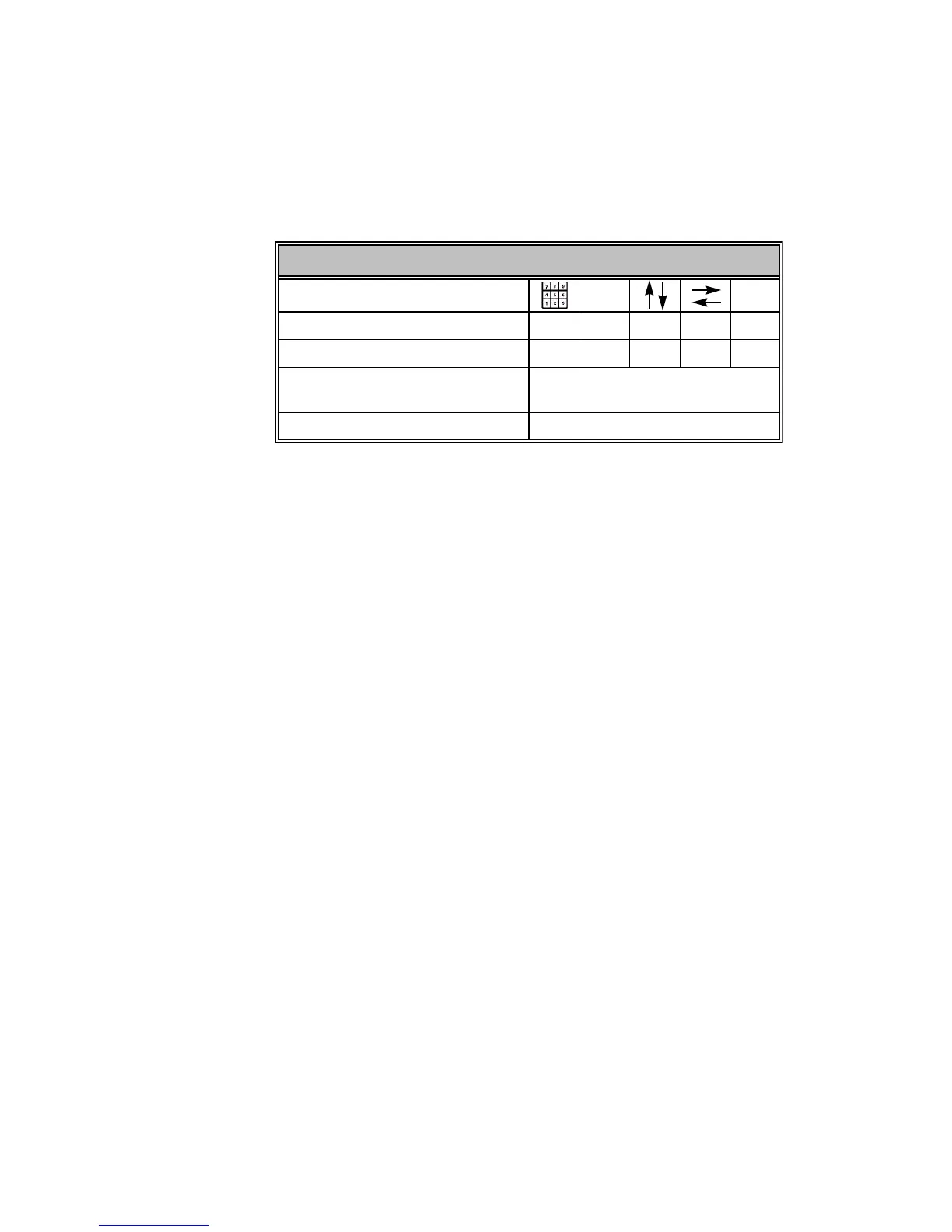
Navigation and Feedback - Profiles display
[S]
±
Select a fade point XX X
Change the intensity XXX
Yellow numbers Fade point percentage
and intensity values
Yellow bar Fade percent point selected










 To Next Page