Operating Procedures: Stage Control
C O N F I D E N T I A L – FEI Limited Rights Data5-34
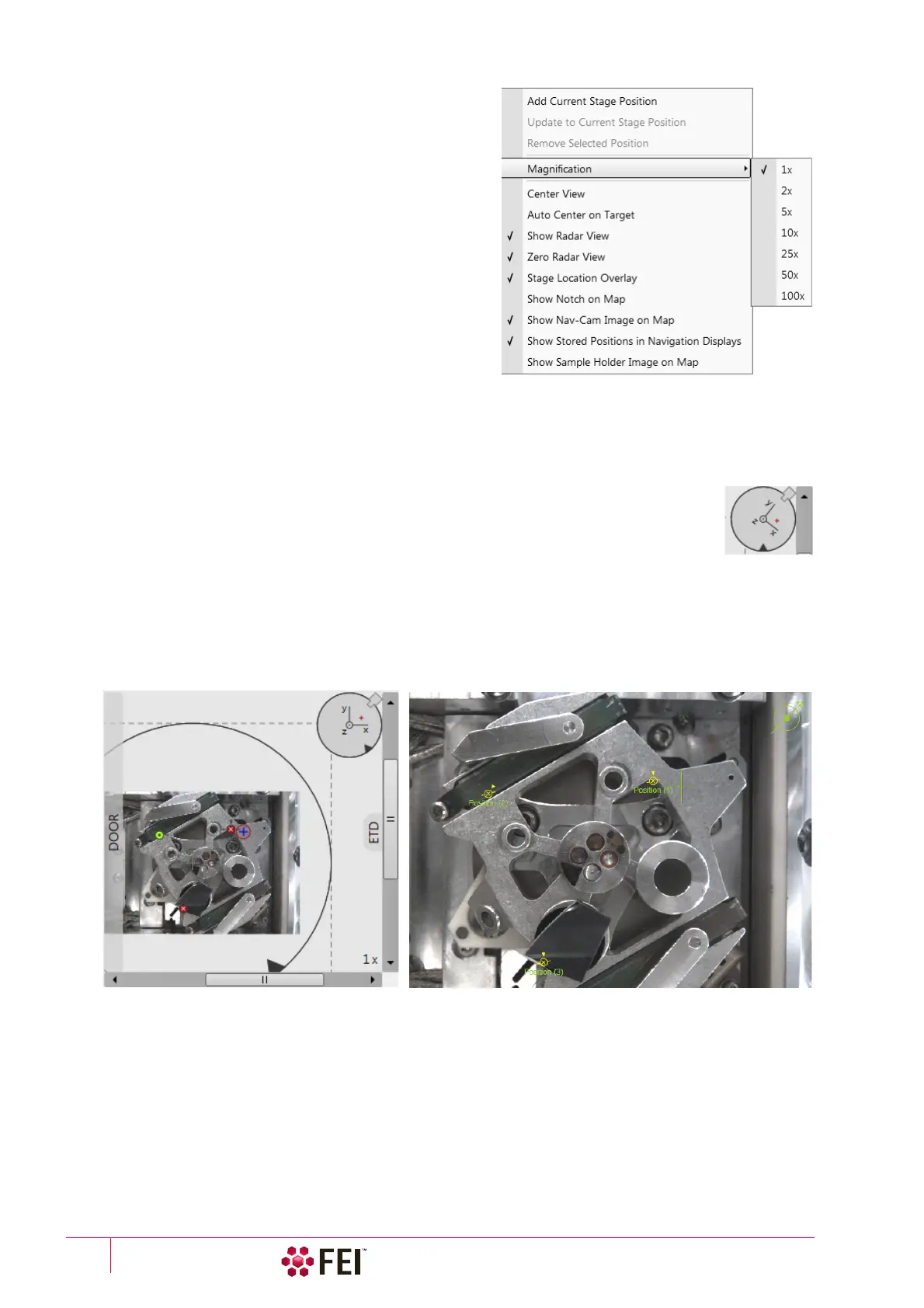
Right-clicking on the Map area provides the context menu.
• Add Current Stage Position – adds a new Location list entry,
using the actual position. The new entry is named Position
(X) (X
= 1, 2, 3…). When renaming and the name already
exists, a number increment is added after the name.
The Add button has the same functionality.
• Update to Current Stage Position – stores the (edited)
coordinate values under the selected name (an overwriting
confirmation dialog appears).
The Update button has the same functionality.
• Remove Selected Position
–
deletes the selected location(s)
from the map and from the Location list.
The Remove button has the same functionality.
• Magnification – provides a menu allowing the Map area
magnification factor (4 – from 1× to 100×) to be selected.
Scroll bars (3) appear if necessary to move over the whole
Map area.
• Center view – brings the actual stage position (10) to the map area center (9).
• When the Auto Center on Target item is ticked, the actual stage position (10) remains in the map area center (9).
• Show Radar View (7)
–
switches the radar view show in the map area On / Off.
• Zero Radar View
–
resets the Radar view X / Y axes rotation representation to 0°.
The radar view conveys the stage rotation at any time either by the stage axes or by the notch.
To rotate the stage, click on the notch (black triangle), drag it around the radar view perimeter,
and release the mouse button at the desired position – the stage rotates accordingly.
• Stage Location Overlay (5)
–
toggles the representation of the detector(s), chamber door, and
CCD camera in a mutual relationship.
• Show Notch on Map
(6) –
switches representation of the black triangle in the map area On / Off; it gives quick
information about the stage rotation.
• Show Nav-Cam Image on Map
–
switches representation of the Nav-Cam image in the map area On / Off
• Show Sample Holder Image on Map
–
switches the sample holder schema representation in the map area
• Show Stored Positions in Navigation Displays
–
switches representation of stored positions in navigation displays
On / Off.



 To Next Page