Operating Procedures: Stage Control
C O N F I D E N T I A L – FEI Limited Rights Data5-38
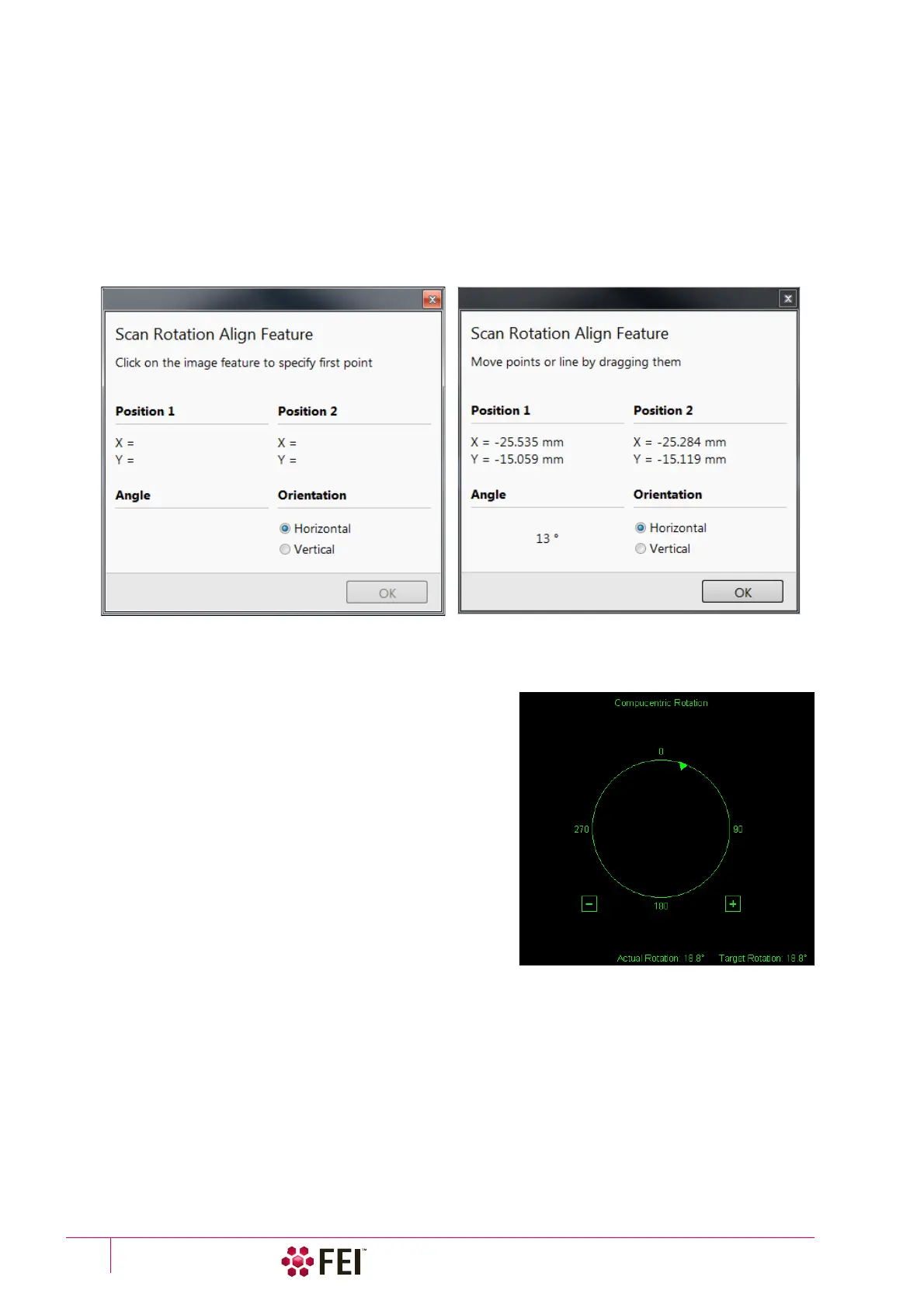
Scan Rotation Align Feature
This procedure helps to navigate along a feature that is rotated disadvantageously. Unlike the Align Feature the
rotation is performed by scan coils instead of the stage.
1. Select a long feature of interest on the sample.
2. Click on the Stage menu / Scan Rotation Align Feature.
3. Choose Orientation either Horizontal or Vertical, which relates to the desired final orientation of the feature.
4. Click on the first point along the feature, the Position 1 coordinates update.
5. Moving the mouse updates Position 2 coordinates continuously, by clicking anywhere along the feature they are
stored. The Angle shows value which is used to correct alignment of the feature along the horizontal / vertical
axe. Right-clicking on the imaging area (anywhere) deletes points, enabling to define them again.
6. Drag any point to change its position, if needed. Click on the OK button to finish the setting.
Compucentric Rotation (F12)
Clicking on the Stage menu / Compucentric Rotation places a
green circle in the image window. The green triangle on its
perimeter denotes, by its position, the sample rotation relative to
its original position when mounted on the stage. Initially, this is in
the 12 o’clock position.
The readouts shown at the image window bottom provide
information about the Actual Rotation (original position) and the
Target Rotation (the selected position).
Click on & drag it around the circle to choose a new sample
rotation. Releasing the mouse updates the stage position to bring
the original field of view (rotated to the Target Rotation position)
onscreen. With a sample at the eucentric position this can be
performed at any sample point irrespective of the mechanical
stage center.
Clicking on the written angles around the circle perimeter (0° /
90° / 180° / 270°) or the perimeter anywhere drives the stage to
that rotation position and the green triangle updates onscreen.
Clicking on the framed + / – sign increases / decreases the rotation angle by an incremental value.



 To Next Page