Operating Procedures: Stage Control
C O N F I D E N T I A L – FEI Limited Rights Data 5-39
User Units
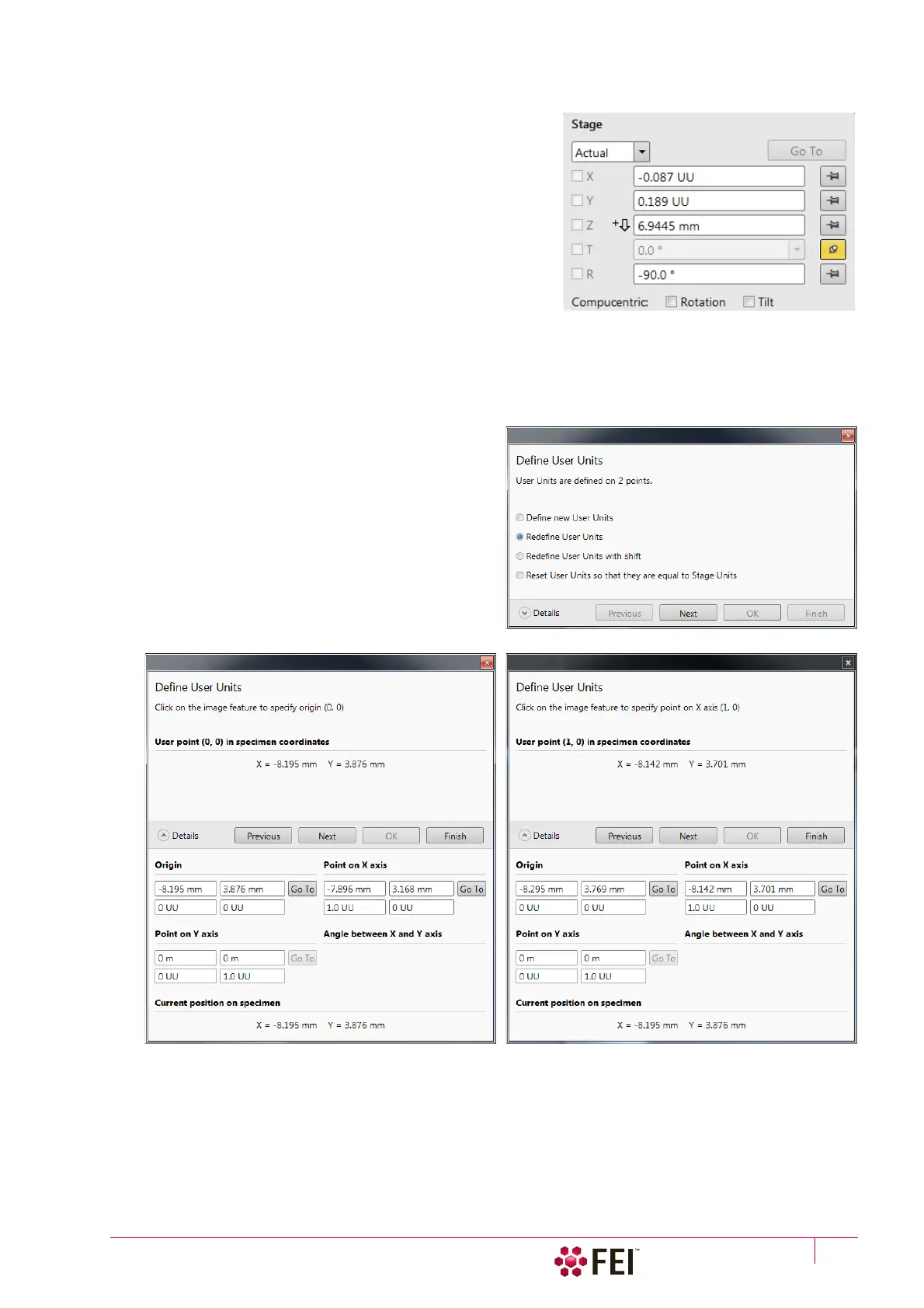
Clicking on the Stage menu / User Units item (a tick mark appears
next to it) activates user defined units as the basis of the stage
coordination system. The UU appears in the Stage module next to
the X and Y values and the stage coordinate system activates the
last defined user units.
Define User Units Procedure
This procedure assigns user-defined points to stage points. The
stage coordination system can be anchored to either 1, 2 or 3
points, depending on the sample management or application. For
example, if you choose a (0,0) position, you can drive the stage
relative to that origin using user defined units (0,1 / 1,0 points),
which may equal to some repeated sample structures etc.
It is possible to end the procedure by clicking the Finish button when point(s) (0,0) / (1,0) / (0,1) are defined, an
overview of the point(s) just defined is shown. The Details button shows actual coordinates with the possibility to
browse them (Go to button) and to edit values.
1. Select a sample surface feature and view it at an appropriate magnification to check its relation to other
structures.
2.
Click on the
Stage
menu /
Define User Units
item. The
dialog appears to choose the desired operation:
• Define new User Units – defining of new User Units
• Redefine User Units – changing or updating User Units
• Redefine User Units with shift – as above with the use
of the Beam Shift
• Reset User Units so that they are equal to the Stage Units
3. Click on the sample user point (0,0), its coordinates
appear in the Details module. Proceed by clicking the
Next button.
4. Repeat step 3 for the sample user point (1,0) and
(0,1) if needed.



 To Next Page