Software Control: Microscope Control Software
C O N F I D E N T I A L – FEI Limited Rights Data3-34
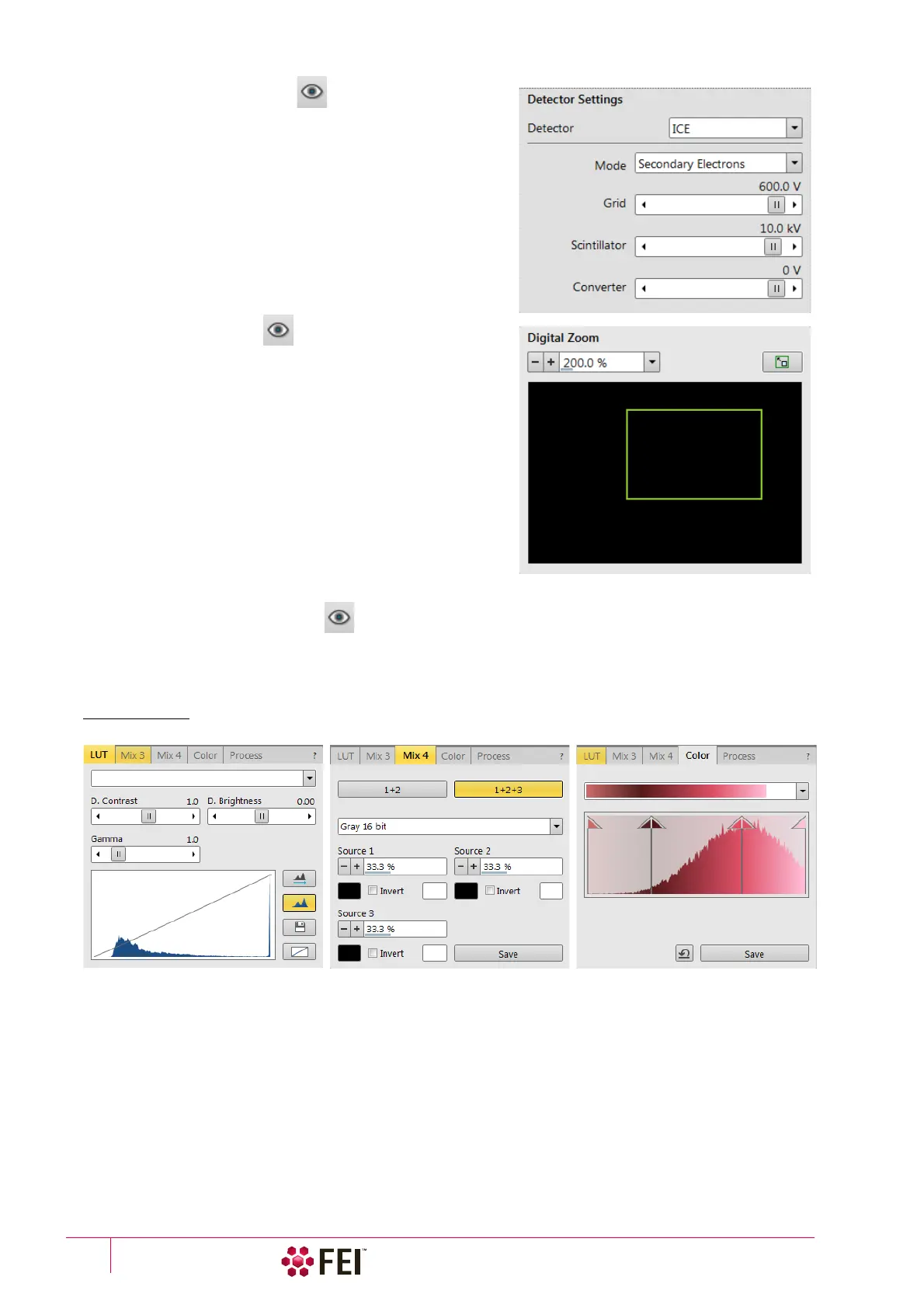
12. Detector Settings Module
enables to choose the selected imaging detector and adjust its
parameters.
The Detector list box contains list of detectors actually available
for the selected display (the same as enabled items in the
Detectors menu). The detector actually used in the selected
display is always shown.
The rest of the module dynamically changes according to the
selected detector and its parameters, which may change from
display to display.
13. Digital Zoom Module
The procedure takes place in the computer memory only and
helps to navigate across the enlarged view. Click on the + / -
button to enlarge / reduce the view in a selected display or select
a zoom factor from the drop-down list. Click on the Undo button
at the top right side of the module (visible only when applicable)
to switch between a digital magnification last used and a normal
view.
Click on & drag the green bordered area inside the Digital Zoom
image or move it by Ctrl + keyboard arrows to change an
observed area in the selected display. Change the observed area
by dragging the green borders. Press the Ctrl + + / - keyboard
button to enlarge / reduce imaging in the selected display. When
the digital zoom is applied, the magnifying glass icon appears in
the appropriate display.
14. Enhanced Image tab Modules
consists of tabbed sections offering various digital image enhancements, (in contrary to the Detector module /
Contrast and Brightness functionality). These enhancements are applied only to the active display independently of
any other. In case a user changes the default settings of LUT / Color / Process tab, its background changes to
orange. The digital processing can be applied to any live, paused or loaded image, including an optical one.
FIGURE 3-16 Enhanced Image Module



 To Next Page