Software Control: Microscope Control Software
C O N F I D E N T I A L – FEI Limited Rights Data 3-37
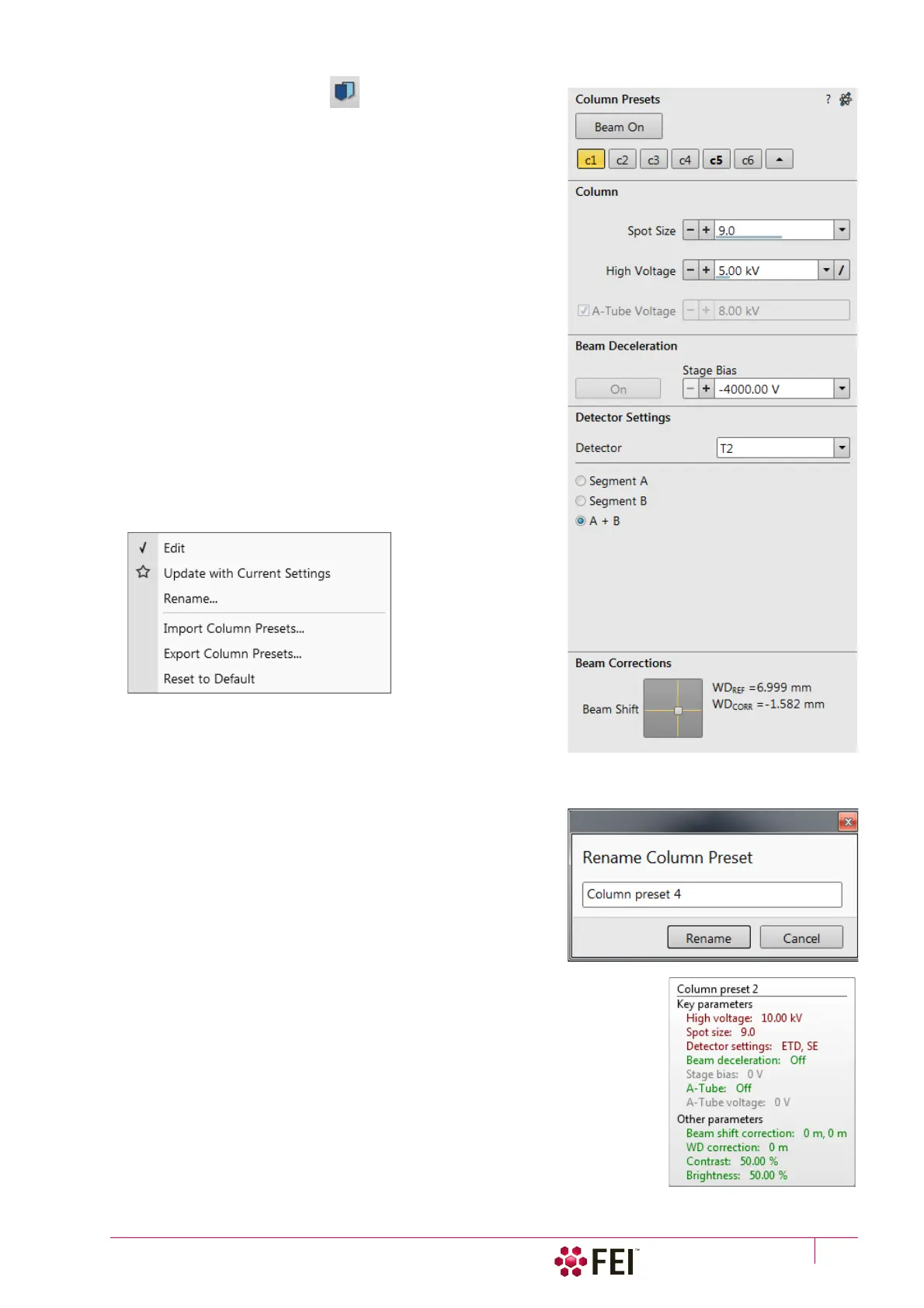
22. Column Presets Module
Column presets, in combination with Use cases (see above),
simplifies microscope operation to users. Microscope software
comes with pre-defined sets of various column parameters for the
actual beam and Use case represented by the Column Presets
buttons labelled c#. A user can change these settings to easily
choose the operating conditions according to his needs.
The column preset is applied with a click, a progress dialog is
shown. The button becomes highlighted (orange background)
when all actual microscope settings match the preset parameters.
The bold labeled button indicates the last applied column preset.
Note the behavior that is not obvious:
• Beam is not switched on automatically when a column preset is
applied.
• It can happen that a column preset cannot be completely
applied because it is not possible to set some parameter
(particular detector not available, stage bias value out of the
range). In such a case an application status error message is
shown.
• Tooltip dialog / Detector settings line contains information in
format <detector>, <detector mode>. Particular settings of a
detector custom mode is not supported in column presets
• Mix detector cannot be used for a column preset.
Right-clicking on any preset button calls up the context menu:
• Clicking on the Edit item opens selected preset button
properties for editing with sections Column / Beam Deceleration
/ Detector Settings / Beam Corrections. It is also possible to use
the down / up arrow next to the preset buttons with the same
effect.
• Clicking on the Update with Current Settings item updates selected preset button with actual settings.
• Clicking on the Rename item enables to rename the selected
preset button.
• It is possible to Import / Export Column Presets from / to a file
(.clp).
• Reset to Default button – restores the default settings for all
column presets (for both beams and all use cases).
A tooltip is shown when leaving mouse cursor over any preset
button giving parameters overview divided into 3 areas (Preset
name / Key parameters / Other parameters). Parameters are colored, which
indicates:
• Green – actual microscope setting matches the column preset
• Brown – actual microscope setting differs from the column preset
• Grey – Value is not relevant when respective component is switched off



 To Next Page