Software Control: Preferences Dialog
C O N F I D E N T I A L – FEI Limited Rights Data 3-47
• Request confirmation when unpausing navigation view (Yes / No)
When releasing (unpausing) navigation imaging, confirmation could be switched on / off.
• Show status message pop-ups (Yes / No)
Switches the status messages pop-up on / off.
• Open Patterning page after pattern is drawn (Yes / No)
When a pattern shape was created with the use of a toolbar icon and Yes is set, the patterning page activates
automatically.
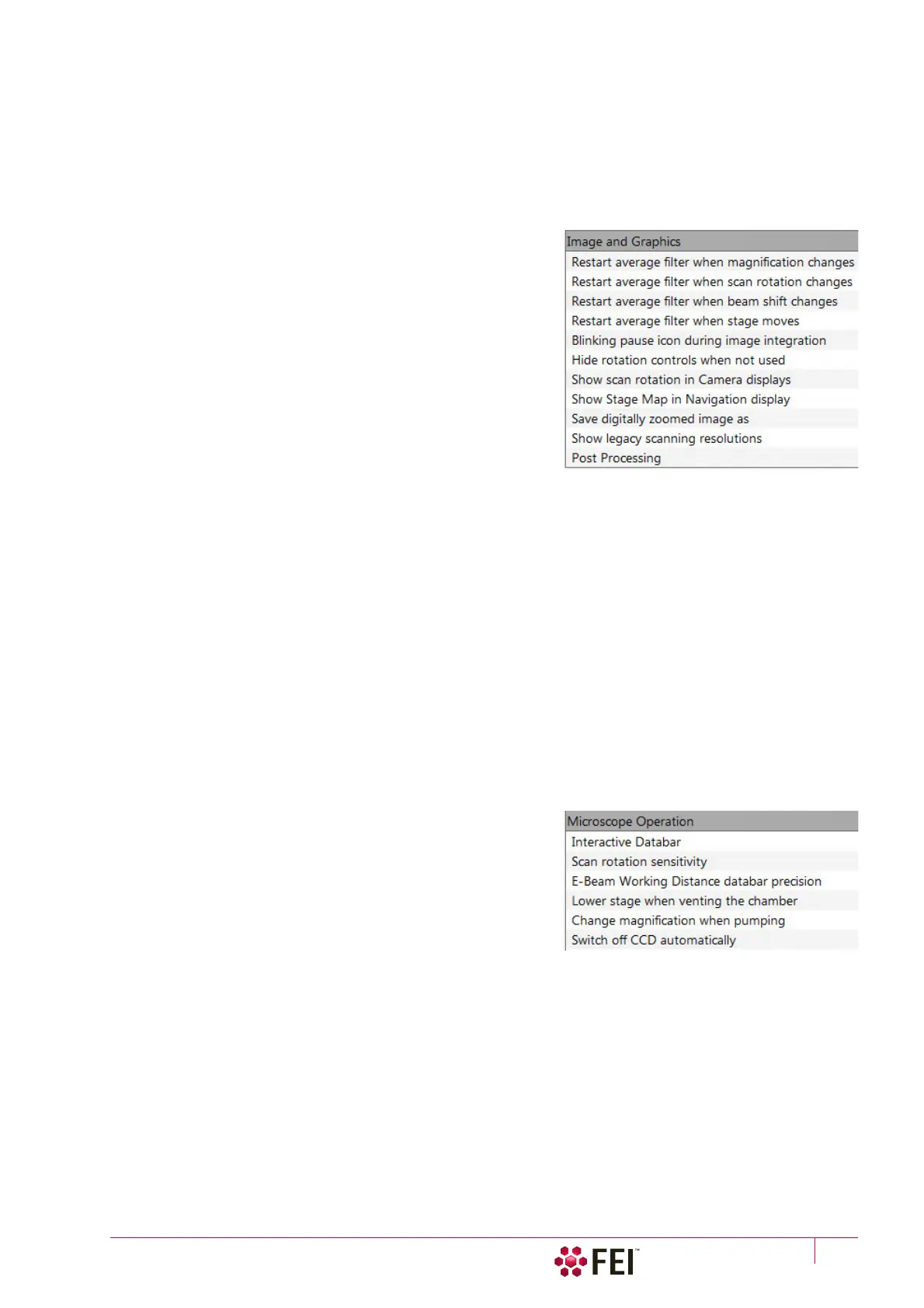
Image and Graphics
•
Restart average filter when magnification changes
(*)
• Restart average filter when scan rotation changes (*)
• Restart average filter when beam shift changes (*)
• Restart average filter when stage moves (*)
* – (No / Electron Beam / Ion Beam / Both Beams)
These items enable to choose whether the imaging averaging
should be restarted when the indicated parameter changes.
Restarting the average filter causes the imaging to blink and
get noisier; on the other hand, the averaging slows down the
imaging response to the changed parameter.
• Blinking pause icon during image integration (Yes / No)
If Yes is selected, the blinking Pause symbol is shown in
displays which are being stopped. Otherwise, the Pause
symbol appears only after the image acquisition has actually stopped.
• Hide rotation controls when not used (No / 10 seconds / 30 seconds / 60 seconds)
Specifies if and when the onscreen Scan / Compucentric Rotation control should be automatically switched off.
• Show scan rotation in Camera displays (Yes / No)
This item specifies if the Scan rotation indicator and value should be permanently shown in the optical
display(s); only non-zero values are shown.
• Show Stage Map in Navigation display (Yes / No)
shows saved positions in any navigation image, which is available (Nav-Cam, Navigation Montage, Navigation
Alignment).
• Save digitally zoomed image as (Entire image / Zoomed area)
When saving an image, this option enables to save only the zoomed area or the entire scanned area.
• Show legacy scanning resolution (Yes / No)
enables to show old format screen resolutions in the toolbar drop-down list, scanning presets and Photo /
Snapshot presets.
• Post Processing (None / Standard / Custom #)
Select an image post processing preset to be applied.
Microscope Operation
• Interactive Databar (On / Off)
Turns image databar fields to be active (directly editable when
possible) / inactive.
• Scan Rotation Sensitivity (0.1 /0.01)
Choose the Scan Rotation setting sensitivity.
• E-Beam Working Distance databar precision
(0.1 millimeters / 0.1 micrometers)
It is possible to set the precision of the WD setting.
• Lower stage when venting the chamber (No / By 10 mm / Full down)
Specifies if the stage should automatically lower when venting the chamber. This is recommended, because it
greatly diminishes the chance of hitting the final lens when closing the chamber doors after mounting a higher
specimen.
• Change magnification when pumping (No / Set to 100× / Set to 200×)
Specifies whether the magnification for electron and ion imaging should be automatically set to a low value
when the chamber is being pumped (presumably after replacing the specimen).
• Switch off CCD automatically (No / 1 minute / 10 minutes / 30 minutes / 1 hour / 2 hours / 6 hours)
Specifies if and when the CCD camera and infrared LED’s should be automatically switched off. The countdown
starts when resuming the optical imaging and continues regardless of the operator activity.



 To Next Page