IP8820/IP8830/IP8840
Installer Guide
97
5. IP8830 and IP8840 WIFI Support
The IP8830 and IP8840 can be equipped with a WiFi Module that supports a wireless network
in place of a wired Ethernet network. This section describes how to configure the Network
configuration parameters for a WiFi Module. The WiFi menu is only available when a WIFI
module is installed in the IP phone and the Network Type is set to Wireless. Prior to using a
wireless connection with IP8830 or IP8840, it must be linked with WiFi Access Point (AP).
When the WIFI module is installed, the RSSI icon,
, is displayed in upper part of
the IP8830 or IP8840 LCD.
Only one network connection can be supported at a time, either wired or wireless.
Changing the Network Type requires an immediate reboot of the IP Phone to activate
the appropriate Network Configuration menu. After the reboot, the IP Phone will apply
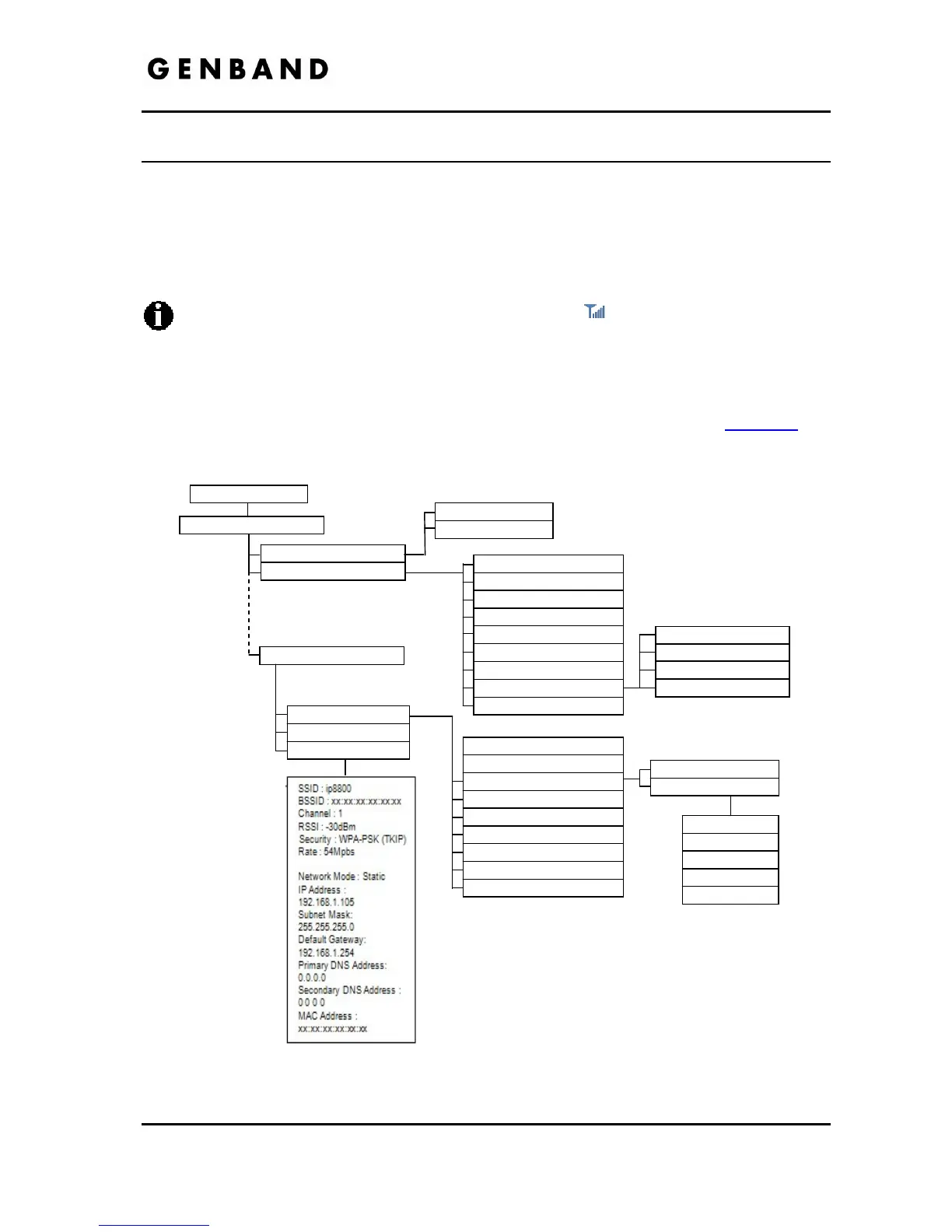
the appropriate wired or wireless Network Configuration menu. Refer to Figure 5-1
for
the Network Configuration menu when the WiFi module is installed.
Figure 5-1 Network Configuration Tree with WiFi Module
1.Network Configuration
1.Network Type
1. Network Mode
1. VLAN Priority (LAN)
2. IP Address
3. Subnet Mask
4. Default Gateway
5. Primary DNS Address
6. Secondary DNS Address
7. MAC Address
8. VLAN Settings
9. CDP
1. SSID
2. Security Mode
3. Security Key Setting
4. Network Mode
5. IP Address
6. Subnet Mask
7. Default Gateway
8. Primary DNS Address
9. Secondary DNS Address
2. VLAN ID (LAN)
3. VLAN Priority (PC)
4. VLAN ID (PC)
Configuration Menu
Wired Network
Wireless Network
1. Profile
1. KEY 1
2. KEY 2
3. KEY 3
2.Network Configuration
2.WIFI Configuration
OR
2. Searching for APs
3. Current Connection
WPA Key Setting
WEP Key Setting
4. KEY 4
5. KEY Index


 To Next Page