IP8820/IP8830/IP8840
Installer Guide
4
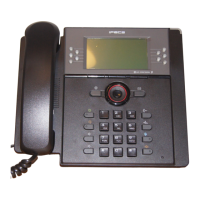
Number Function
Down button- When the phone is in the idle state, accesses the phonebook.
2 OK button- Select a current item or save a value in the settings menu.
3
Softkeys (3)- Softkeys are interactive, changing function based on the IP Phone
status.
4
Flexible buttons with Red/Green LEDs- Assign as Line or feature in Phone
configuration. Default assignments for buttons 1 and 2 are primary and secondary
Line appearance for the extension. IP8820 has 12-flexible buttons. IP8830 has 24-
flexible buttons. IP8840 has 10-flexible buttons.
5
Settings button- ‘Settings’ accesses and exits the menu for display and changes
to the IP Phone configuration.
6 DND (Do-Not-Disturb) button- Use to activate DND so that extension will not ring.
7
Headset button- When using a headset, this button toggles the headset state.
When the headset is active, the button LED illuminates red.
8
Volume control button- Use to adjust Ring, Headset, Handset, and Speaker
volume.
9
Message button- When the Message LED indicates you have a message use to
access Voice Mail server.
10 Transfer button- Use to transfer the current active call.
11 Hold button- Use to place a call on Hold. Also, use to access a held call.
12
Mute button- Toggles audio from the microphone to the connected party On and
Off.
13 Speakerphone button- Toggle the IP phone speakerphone On and Off.
14 Dial pad buttons- Use to dial a number, select a menu item, or input a value.
1.2 Flexible Buttons
The flexible buttons access lines and features based on the IP Phone configuration. Flexible
buttons assigned for line access, which are called line buttons, represent a telephone line or a
SIP user. A line may be private; calls to a private line signal at all appearances of the line but
an active or held call is only visible and accessible by the original end-point.
A shared line, also known as a MADN (Multiple Appearance Directory Number) line, may
appear at multiple phones and all calls are visible and accessible by all end-points with the line.
A DSS/BLF (Direct Station Selection/Busy Lamp Field) line provides enhanced operation
incorporating two functions associated with the needs of an answering position:
o DSS – calls the associated extension.
o BLF (Presence) – the button LEDs or LCD for the line displays the line status (idle,
busy).
When Presence is enabled, DSS Lines subscribed as a Presence group line. In this case, the
DSS/BLF button indicates busy (LED On) and idle (LED Off) for the line, as well as calling to the
associated extension.


 To Next Page