Enter new password
Change OK
Prior to saving an entry, you may discard changes by pressing the left navigation button, , to
move to the previous menu, or press the Settings (
)
button to exit the Settings menu.
3.3 Lock/Unlock Configuration
The LCD Configuration Menu can be protected for security using a four to eight digit password.
With a password assigned, exiting the LCD Menu automatically locks the menu. Configuration
data displays while the menu is locked however, the menu must be unlocked using the
password in order to change advanced parameters. Parameters under the ‘Phone Settings’
item listed below are not subject to the lock feature, allowing the user access without the need
to enter a password.
- LCD Contrast
- Ring Type
- Ringer Off
- Headset Auto Mode
- Flexible Button settings
- Time Configuration
- Outgoing Call Lock
- Speed Number Dialing
- Key Tone
- Bluetooth
- Language
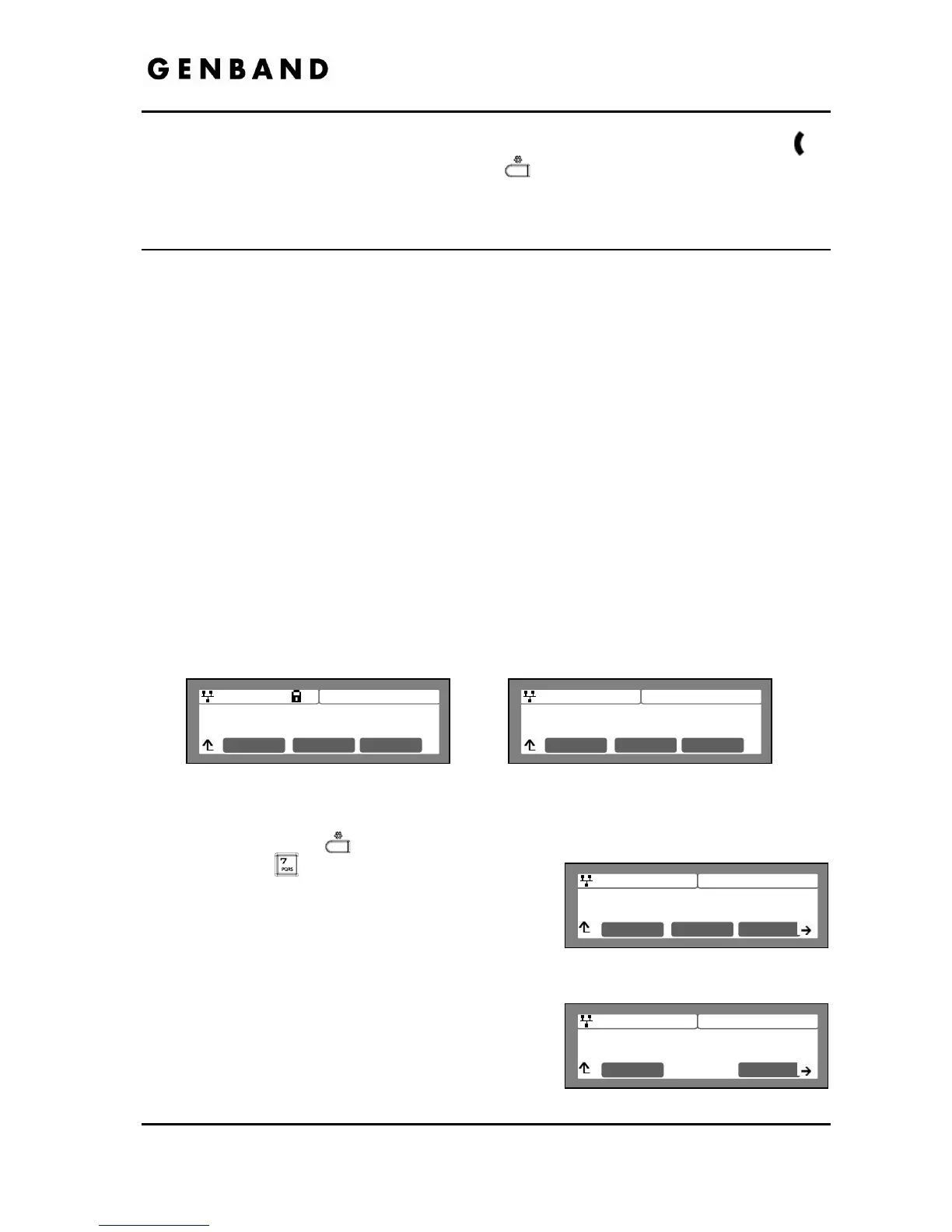
With the menu locked, the padlock icon appears in the upper line of the LCD as shown below.
Locked Display Unlocked Display
To assign a password:
Press the Settings (
) button.
Press the
digit, or move the cursor to
7.Lock/Unlock Config using the [Next]-
[Previous] softkeys and press the [OK] softkey. If
a password has been previously established, the
previous password must be entered, then press the
[Change] softkey.
Enter your new password using the dial pad and
press the [OK] softkey. A password is composed of
four (4) to eight (8) digits.
Jan 17 4:32
IP Address
192.168.0.2
Clear OK
Jan 17 4:32
IP Address
192.168.0.2
Clear OK


 To Next Page