es
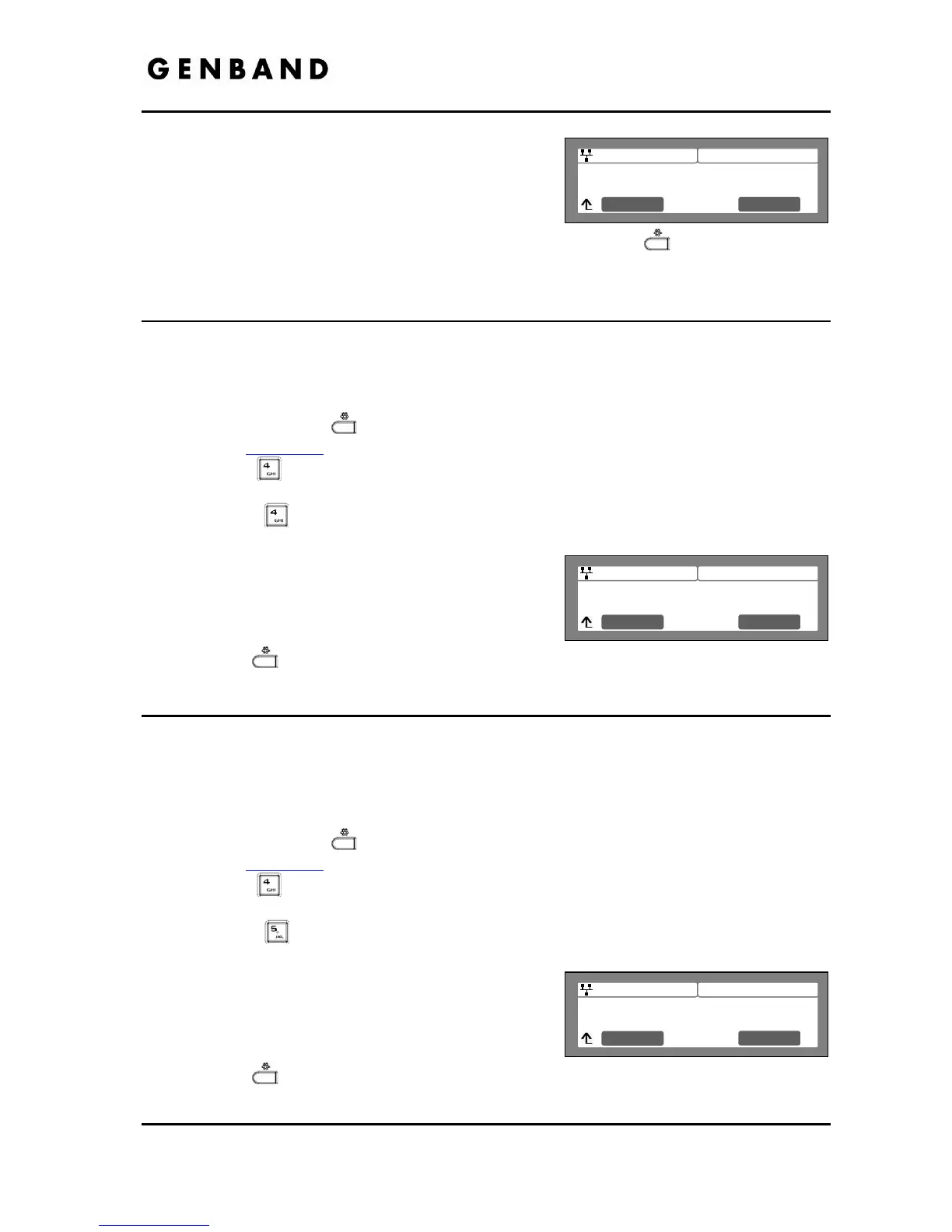
Press the [Yes] softkey to enable Call Waiting
Tone, or press the [No] softkey to disable Call
Waiting Tone.
Move to another parameter with the navigation
buttons and continue the session or press the Settings (
) button to exit the
configuration session.
3.7.4 Call Hold Ringback
With Call Hold Ringback enabled, the IP Phone rings as a reminder of calls on hold when the
user returns the IP Phone to idle.
To enable/disable Call Hold Ringback:
Press the Settings (
) button. If the LCD Menu is locked, use the unlock procedure.
Refer to section 3.3
.
Press the
digit, or move the cursor to 4.Call Preferences using the [Next]-[Previous]
softkeys and press the [OK] softkey.
Press the
digit, or move the cursor to 4.Call Hold Ringback using the Next]-
[Previous] softkeys and press the [OK] softkey.
Press the [Yes] softkey to enable hold ringback, or
press the [No] softkey to disable hold ringback.
Move to another parameter with the navigation
buttons and continue the session or press the
Settings (
) button to exit the configuration session.
3.7.5 Message Waiting Tone
When notification of a new message is received, the Message LED flashes. As an option, a
‘stutter’ dial tone provides an audible indication for a message waiting. When the user goes off-
hook to place a call, the user receives stutter dial tone.
To enable/disable stutter dial tone for a message wait indication:
Press the Settings (
) button. If the LCD Menu is locked, use the unlock procedure.
Refer to section 3.3
.
Press the
digit, or move the cursor to 4.Call Preferences using the [Next]-[Previous]
softkeys and press the [OK] softkey.
Press the
digit, or move the cursor to 5.Msg Waiting Tone using the [Next]-
[Previous] softkeys and press the [OK] softkey.
Press the [Yes] softkey to enable stutter dial tone,
or press the [No] softkey to disable stutter dial tone.
Move to another parameter with the navigation
buttons and continue the session or press the
Settings (
) button to exit the configuration session.


 To Next Page